
How to Transform a Body Shape in Photoshop Fat to Skinny
- April 4, 2025
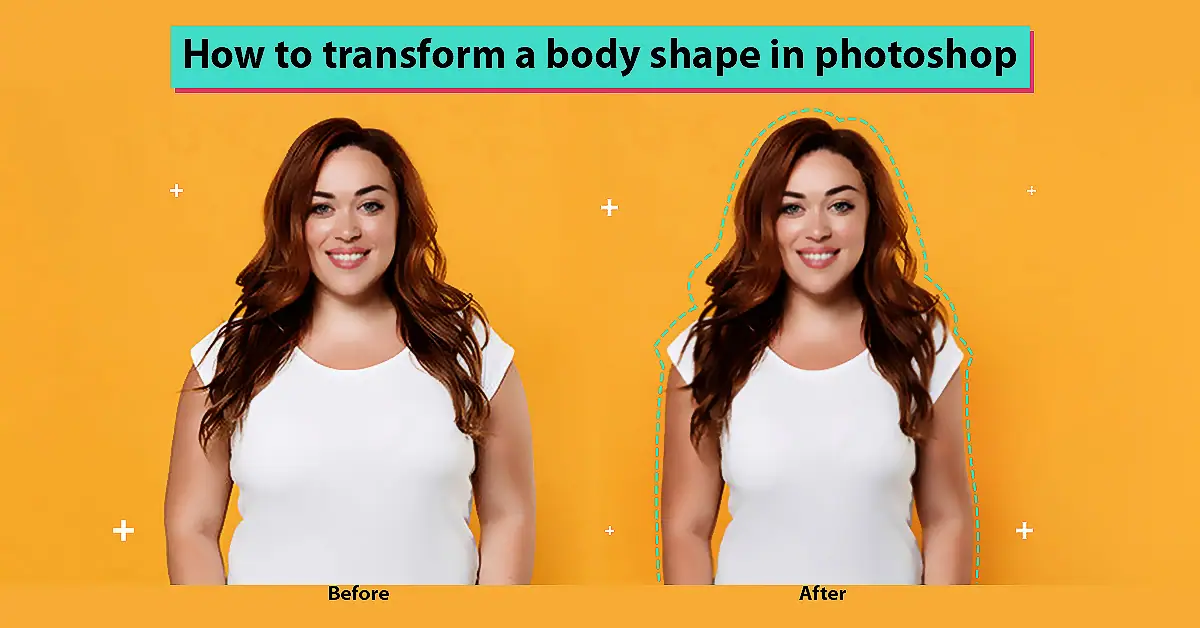
Photoshop comes with wonderful features that make it one of the most demanding tools in the market for photo editing. Transforming body shape from fat to skinny is now easy with Photoshop. You can do it in a few easy steps—quickly and perfectly.
- First, open the image in Photoshop and use the Quick Selection tool to select the area you want to edit.
- Then the top layer converts the layer to a smart object.
- Use liquify tools to edit the different parts of your photo.
- Once done, create a duplicate layer and use the clone stamp tool to cover the original photo.
- Once done, check the before-and-after images to see the results.
However, for better understanding, I will share step-by-step details to make it easier for you to use Photoshop to convert fat features to skinny ones. Let’s get started.
Ways To Transform a Body Shape, From Fat to Fit Using Photoshop (Liquify)
Before going through the process, let’s know the possible tools that you must have to achieve a successful result.
Photoshop Tools You Will Use:
- warp tool
- stamp tool
- pucker tool
- brush
- liquify filter
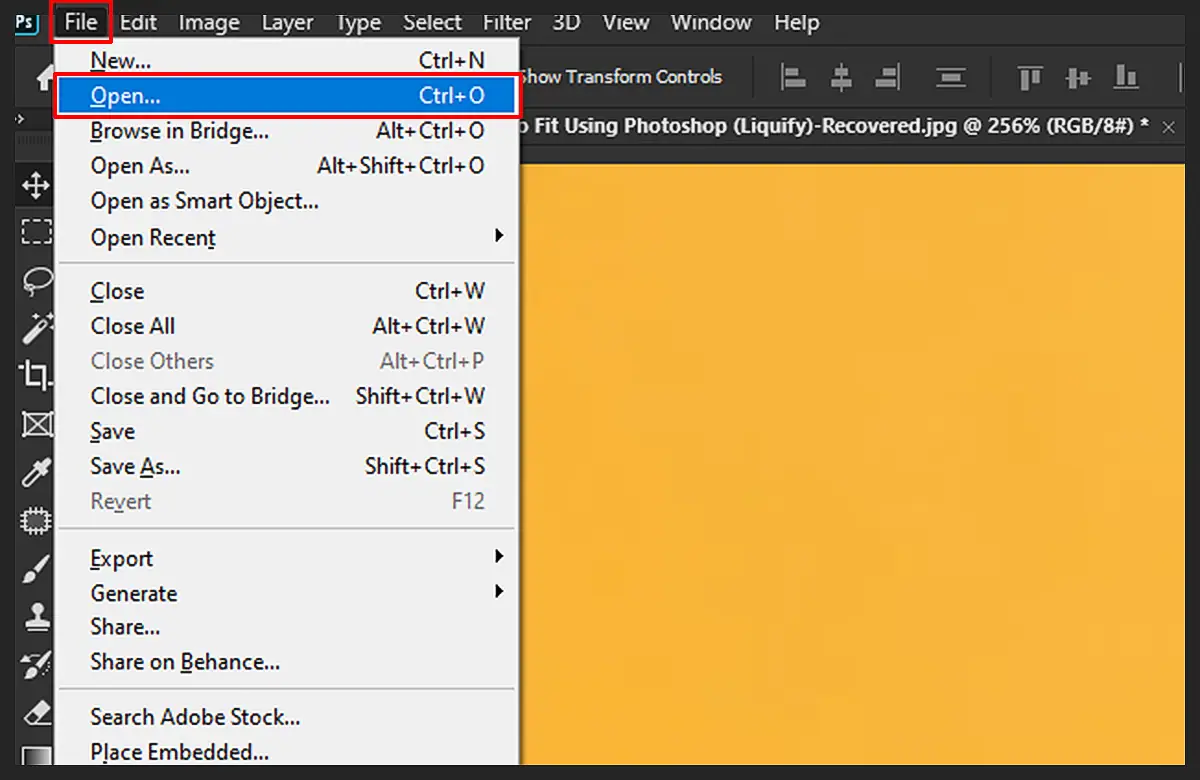
Step 1: Open the Image in Photoshop
Open the image that you want to transform in Photoshop. Go to “File” and click on “Open” to select the image.
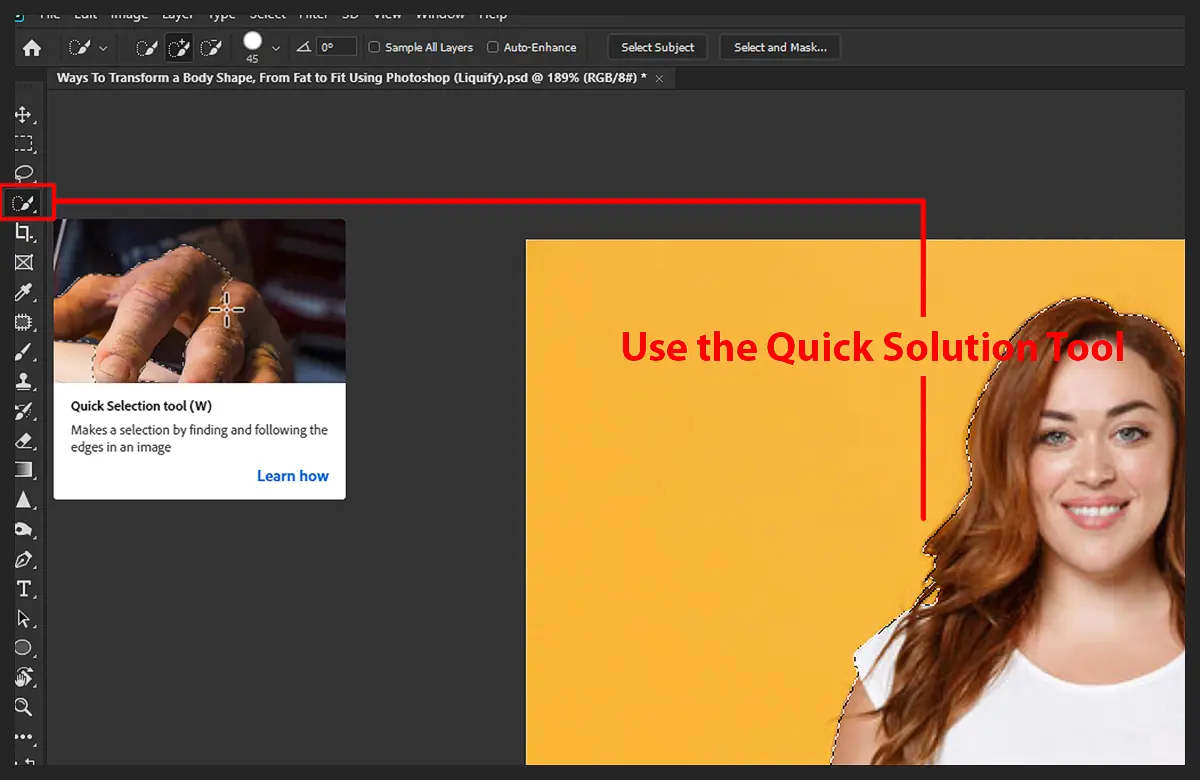
Step 2: Use the Quick Solution Tool
Use the quick selection tool to select the area of the image you want to modify. Once selected, use the keyboard shortcut “Ctrl+X” to cut the selection from the original image. Then use the keyboard shortcut “Ctrl+V” to paste the selection onto a new layer.
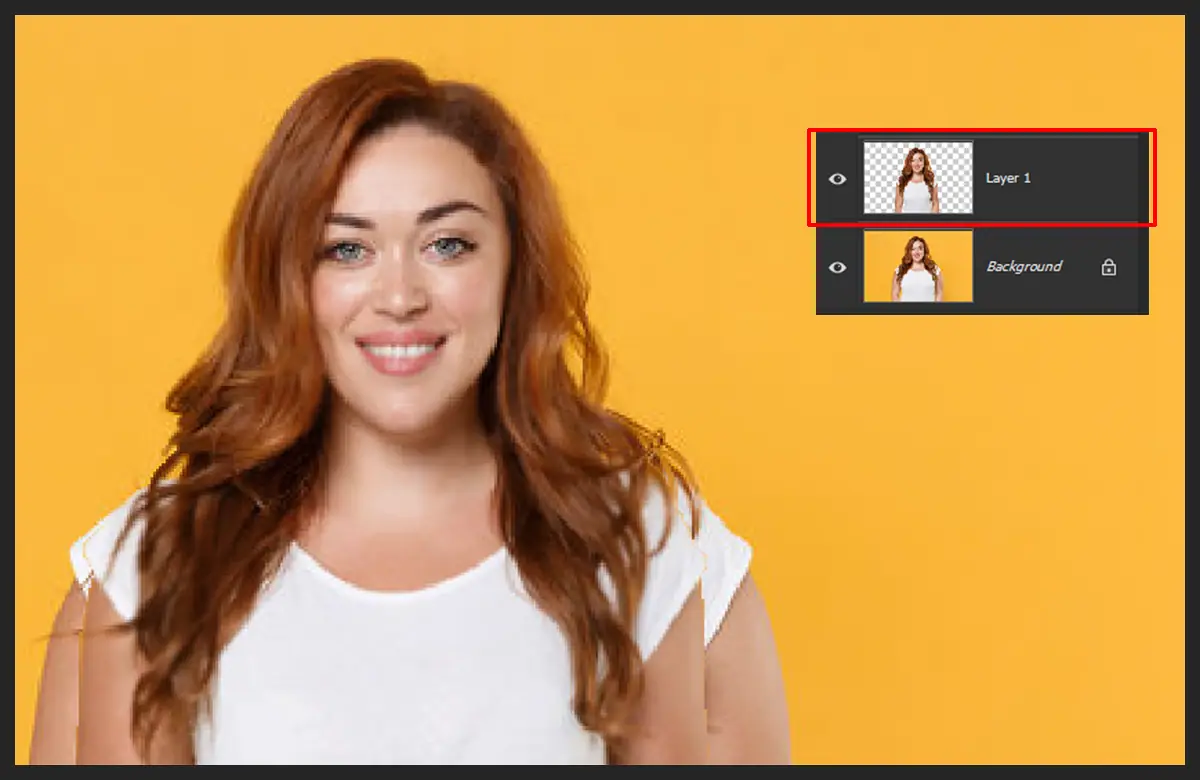
Step 3: Select the Top Layer
Select the top layer in the Layers panel. Then use the keyboard shortcut “Ctrl+Shift+X” to convert the layer to a smart object.
Step 4: Use the Liquify Tool
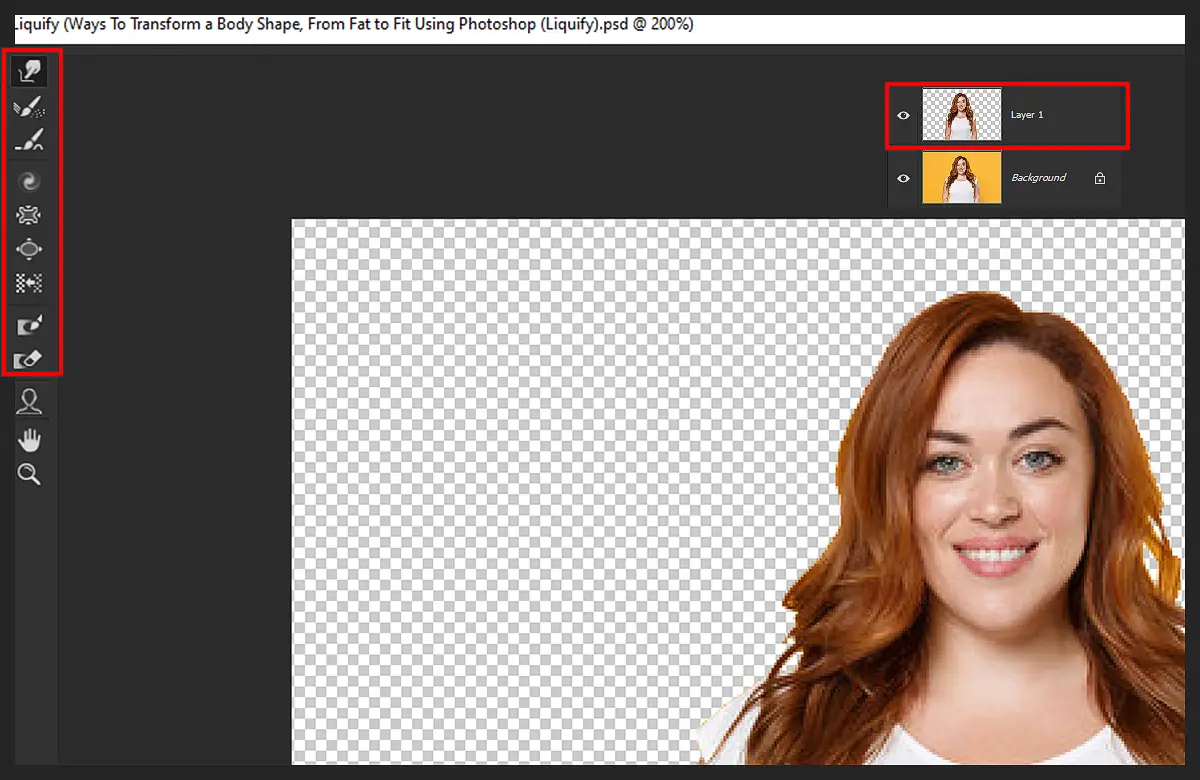
Go to “Filter” and click “Liquify” to open the dialogue box. Use the different Liquify tools, such as the Forward Warp Tool, the Pucker Tool, the Bloat Tool, and the Twirl Tool, to adjust the thick parts of the body, like the belly, chest, and thighs, to make them look thinner.
Step 5: Duplicate the original Photo
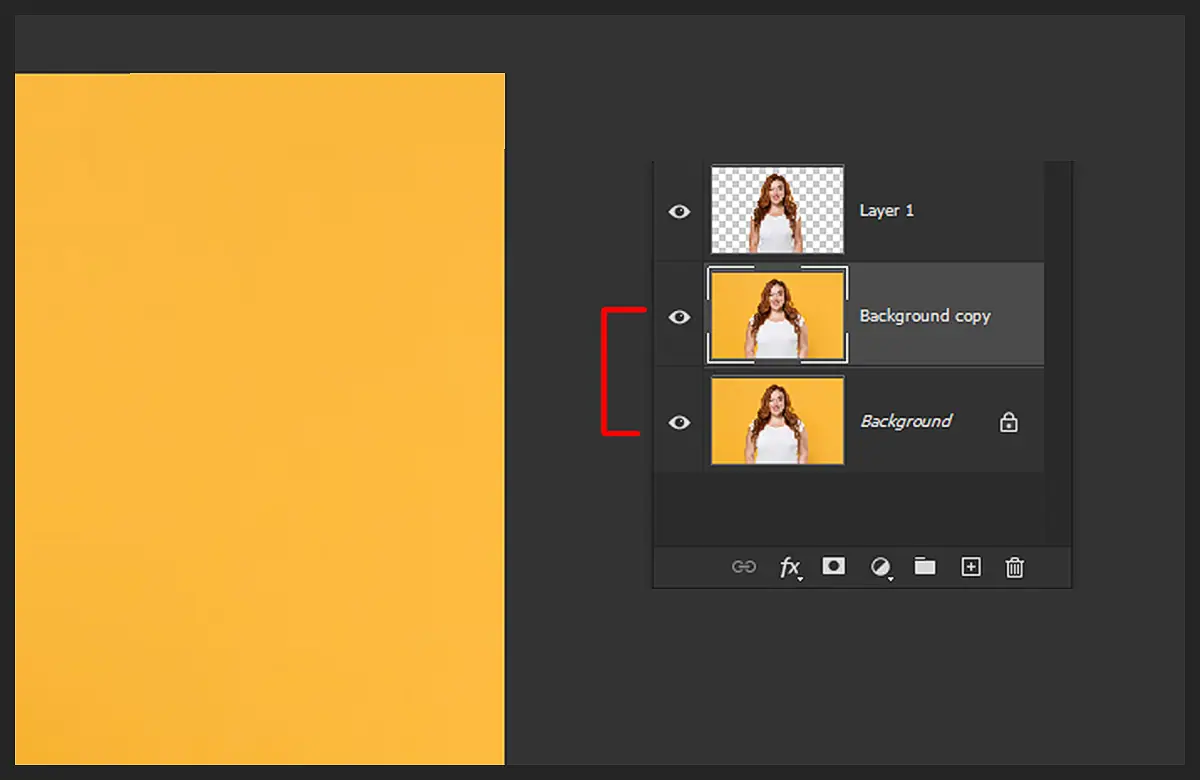
Duplicate the original image layer by selecting it and using the keyboard shortcut “Ctrl+J”. You will get a duplicate of the original layer.
Step 6- Use the Clone Stamp Tool
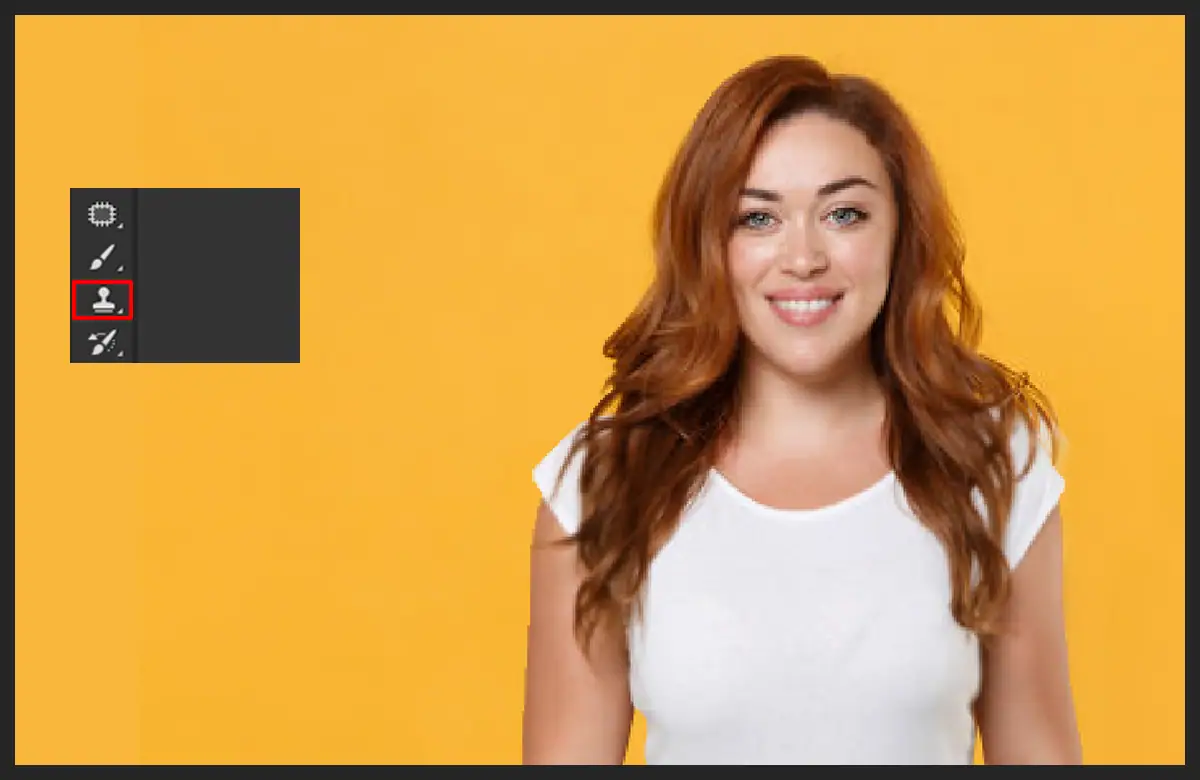
Then use the Clone Stamp tool to cover the original image under the edited image. This will ensure that the edited image appears as the final result while the original image remains untouched.
Step 7- Finish
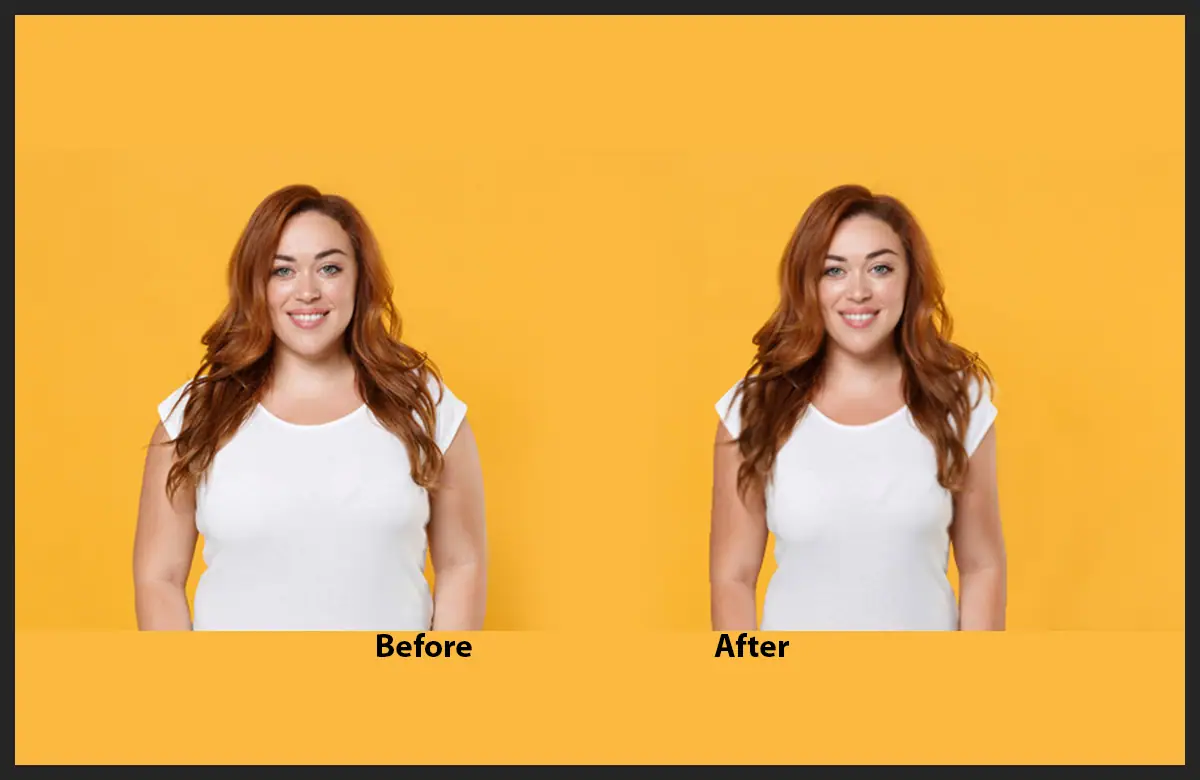
Once you have done, press “ok” to finalise the image. Check the before-and-after photos to compare the results and perfection. Read more: Guide to Using Blood Brushes for Photoshop: Everything You Need to Know.
Conclusion
Photoshop is a powerful tool that enables users to edit and transform images, including reshaping body shapes from fat to skinny. Using the Liquify tool and Clone Stamp tool, users can make subtle adjustments to different body parts, resulting in a natural-looking image. However, it is important to use these tools carefully and avoid going overboard to maintain a realistic appearance.