cci logo

Clipping Creations India

  • Home
  • Services
    • Background Remove
    • Clipping Path Service
    • Multi-Clipping Path
    • Ghost Mannequin Services
    • Car Photo Editing
    • Image Masking Service
    • Product Photo Editing
    • Image Masking
    • Drop Shadow
    • Color Changes
    • Photo Retouching
    • Vector services
    • Color Change Service
    • Photo Editing Service
  • About Us
  • Blog
  • Pricing
  • Contact Us
  • Free Trial
Home  »  Tutorial   »   Clipping Path Limit Reached For TIFF Preview – Why Does It Occur And How To Fix It

Clipping Path Limit Reached For TIFF Preview – Why Does It Occur And How To Fix It

  • Paul Jones
  • February 2, 2025
  •  
    • Tutorial
  • Tags: Adobe Illustrator save error TIFF, clipping path limit TIFF preview, Illustrator clipping path troubleshooting, Illustrator TIFF preview error fix

Clipping Path Limit Reached For TIFF Preview

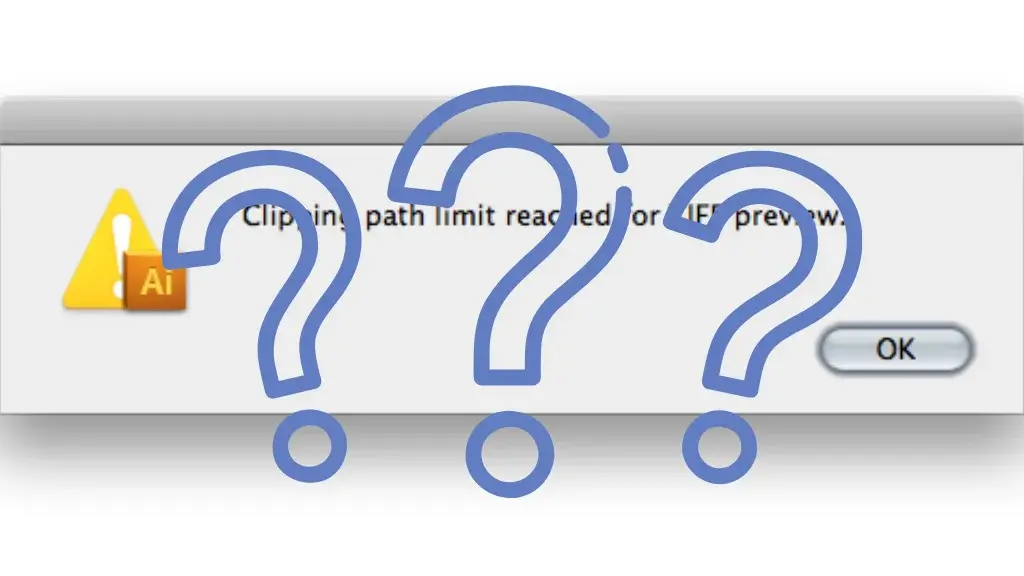
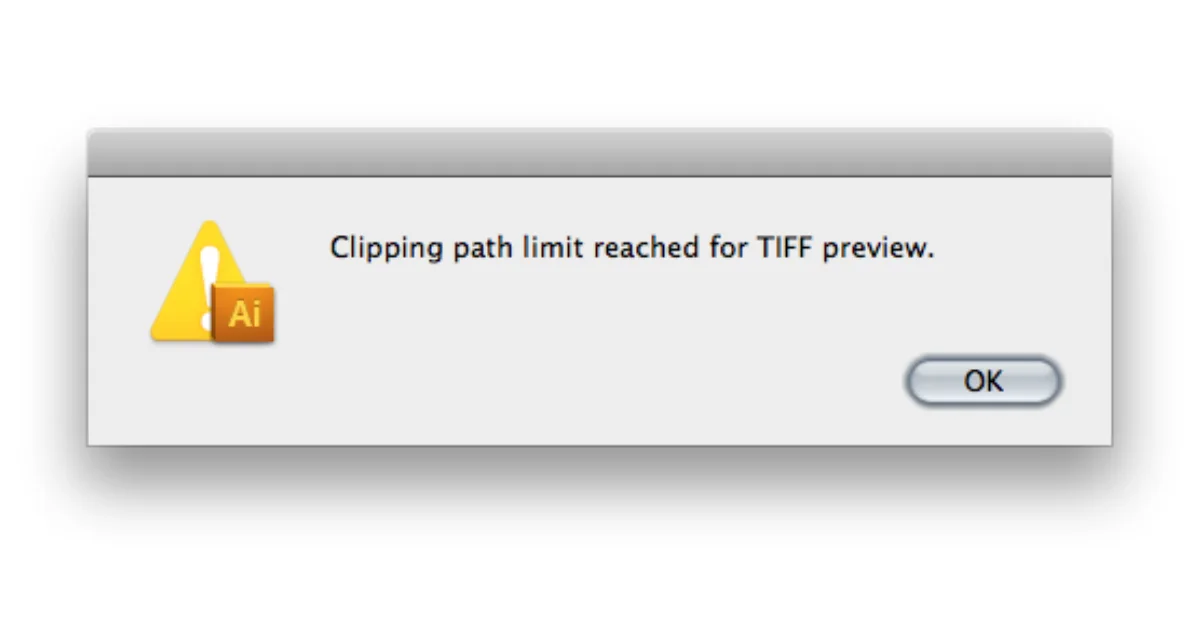
Adobe Illustrator is filled with tools to create the best possible illustrations, but with the feasibility and options, there can be errors that are frustrating to deal with. One error occurs when saving a file in vector format: ‘Clipping path limit reached for TIFF preview.’ It appears when you are saving a file and selecting ‘Preview format’ as a TIFF preview. This error mainly affects people who need to preview their files online, preventing them from doing so. In this blog, I will discuss several scenarios in which this error may occur and what you can do to resolve it.

Several Cases Where You Might Find This Error

Scenario 1:

You are trying to save a vector file with embedded images and effects, such as drop shadow, and then you save it for a TIFF file; a pop-up appears telling you, ‘Clipping path limit reached for TIFF preview.’
Clipping path limit reached

This occurs mainly because the embedded images and effects are not compound paths, which might happen when using the clipping path tool, preventing you from entering the selected image into the clipped path and letting you focus on the image. The error will pop up when you try to save the image as a TIFF file. This error might not affect you if you are just saving the file with no intent to preview it online; if you intend to preview it, you might have to convert the clipped paths to a compound path, clip the entire image using the selected path, and then try saving.

Otherwise, you can just save the image by changing the ‘preview format’ to none, and it’ll be completely fine. Another solution you could try is to scale your artwork down by 50% and try saving.

Scenario 2:

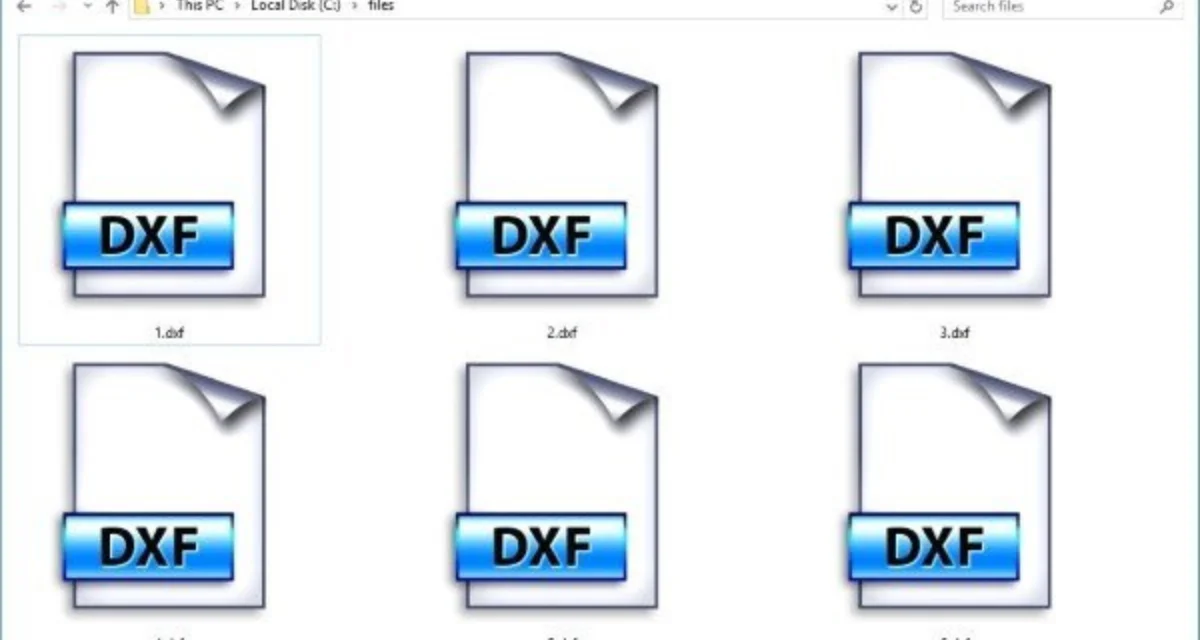
Using a DXF File with Complicated Anchor Points
Using a DXF File

If you are working with a file imported from the DXF format with multiple anchor points, which can make it complicated, you might encounter this error when saving it as a TIFF preview file.

Again, it should only affect the TIFF preview of the vector EPS file. You could try simplifying the paths from the DXF file, as it might have reached the clipping path limit, which could eliminate the problem and let you save without the error popping up. Otherwise, saving it as a PDF would not cause the error to pop up.

Scenario 3:

Your image background is transparent, and when you try to save it as a TIFF preview vector file, you get an error.
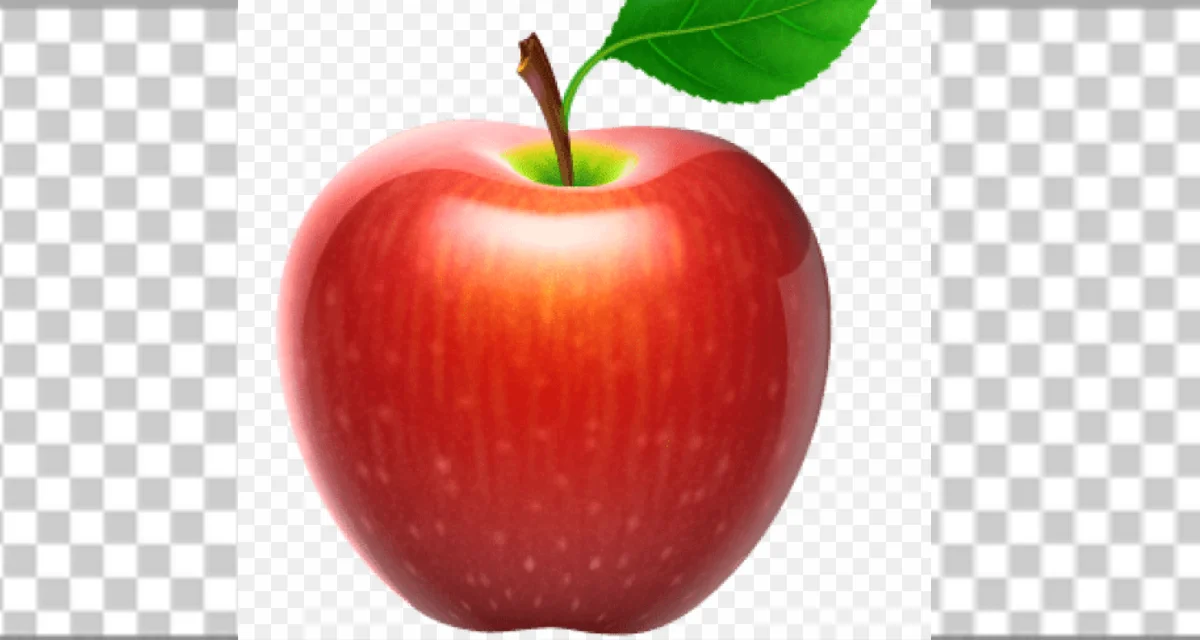
image background is transparent

If your background is transparent and you encounter this error, the best way to fix it is to change the background to opaque or another colour, then try saving it again; this should resolve the issue.

Does This Error Damage the File in Any Way?
What is a dxf Format files

The answer is NO; it does not affect the file or damage it. This error means that you can save the file, but when previewing online, you will not be able to. So, if you do not require any previewing, you can ignore the error and save it, or change the ‘preview format’ to none and save it with no error. However, a potential problem you might face is that some applications rely on the low-res PIFF preview for on-screen representation. A placeholder box will represent the Vector EPS file with no preview in such cases.

Conclusion

The clipping path limit for TIFF previews in Illustrator can occur for many reasons, but it should not hamper your artwork in any way and will not modify or damage your work; it simply prevents you from previewing the TIFF file online. You could try solving the error by going through the solutions here; otherwise, changing the preview format to none should fix it in all cases.

FAQ's

Frequently Asked Questions

What does “clipping path limit reached for TIFF preview” mean in Illustrator?

This error occurs when Adobe Illustrator cannot generate a TIFF preview due to overly complex clipping paths, excessive anchor points, or unsupported effects. It mainly affects preview visibility, not the actual file content.

How can I fix the clipping path limit reached error in Illustrator?

You can fix this issue by simplifying paths, converting clipping paths into compound paths, reducing anchor points, removing heavy effects, or saving the file without a TIFF preview (set preview format to “None”)

Does the TIFF preview error affect the quality of my EPS or vector file?

No, the error does not damage or reduce the quality of your vector or EPS file. It only prevents the preview thumbnail from displaying in certain applications.

Why does Illustrator show clipping path errors when exporting DXF or complex files?

DXF and other imported files often contain too many anchor points and complex paths, which can exceed Illustrator’s TIFF preview limits. Simplifying the artwork or saving in alternative formats like PDF can help avoid this issue.

  • Facebook
  • Share on X
  • LinkedIn
  • WhatsApp
  • Email
  • Copy Link
(Visited 237 times, 1 visits today)

Post navigation

< Previous
Next >

Leave a Reply Cancel reply

You must be logged in to post a comment.

Top Services:

  • Clipping Path Service
  • Car Image Editing Service
  • Ghost Mannequin Service
  • Product Photo Editing Service
  • Multiple Clipping Path Service
  • Ghost Mannequin Service
  • Color Change Service
  • Drop Shadow Service
  • Color Change Service
  • Photo Editing Service
  • Image Masking Service

Popular posts:

  • How to Move Eyes in Photoshop and Online ToolsMove Eyes in Photoshop
  • See Through Cloth In Photoshop − Best PracticeSee Through Cloth in Photoshop − Best Practice
  • How to Clip in GIMP: Step-by-Step Guide to Clipping…Step-by-Step Guide to Clipping Mask & Image Editing
  • How to Reverse Video in Photoshop: Photoshop GuideHow to Reverse Video in Photoshop
  • How to Export Photoshop Actions in 2025How to export Photoshop actions
  • How to Create an Alpha Channel in Photoshop?clipping path service Feature
  • How To Fix A Lazy Eye In Photoshop 2025Lazy Eye Problem Here’s What to Do,
  • How to Fix a Dark Polaroid Picture? Easy Solution to…How to Fix a Dark Polaroid Picture?
  • 10 Professional Photo Manipulation Artists You Must FollowPhoto-Manipulation-Artists
  • How to Swap Eyes in Photoshop? All-Inclusive Guide How to Swap Eyes in Photoshop

Recent Post

  • Mastering Flat Lay Clothing Photography: A Step-by-Step Guide
  • How to Use Clipping Path After Effects in 5 Easy Steps
  • Merge Photos with Graphics
  • 5 Must-Have Effective Photo Editing Tools
  • What is the Importance of Clipping Path?

Categories

  • Photo Editing
  • Tutorial

About CCI

Here, every pixel tells a story. We offer our unparalleled service and invest our most talented minds at your solution whether you are a photographer or an agency.
We are the gateway to exceptional photo editing services!

Get Your Quote

Quick Menu

  • About Us
  • Services
  • Blog
  • Terms and Conditions
  • Privacy & Policy

Payment Method

  • PayPal
  • Stripe
  • Western Union
  • Skrill
  • Payoneer
  • Wise

Get In Touch

+8801715-491890

hello@clippingcreationsindia.com

Canada Office: 1401-2900 Carling Ave. Ottawa, ON, K2B 7J6

India Office: C-20, Lajpat Nagar 3, New Delhi, Delhi 110024, India

Bangladesh Office: 15 Bijoy Nagar, Abdur Rouf Tower (6th Floor), Dhaka – 1000, Bangladesh

Copyright © 2012 - 2026 Clipping Creations India | All rights reserved.

  • facebook
  • twitter
  • instagram
  • pinterest
  • linkedin

Live Chat