
Photoshop Hair Retouch Tool : Get Over Frizzy Hair
- February 2, 2025
Whether you have natural curls or straight hair that’s been blown out, dealing with frizz is always a pain. It can be so frustrating when a few rogue frizzies ruin your style. However, the Photoshop hair retouch tool handles it just fine. You can retouch hairstyles with the clever effect we are about to discuss. Photoshop has made sure our photos look more beautiful and spot-free than ever. The hair retouch tool is one of the many intelligent moves they had up their sleeves. This post will show you how to edit frizzy hair in Photoshop for a sleek finish. With just a few steps, you can tame unruly strands. Your hair will look like you just left the salon.
Let’s get started!
Hair Retouch Tool: What Is Hair Retouching?
Do you have a commercial shoot tomorrow, and your hair isn’t cooperating? It’s frizzy, dry, and unmanageable. What do you do? You retouch it, of course!
But how far do we know about it, yes? Hair retouching is editing your hair in Photoshop to give it a sleek and polished finish. You can do this trick with photos of real people or with stock images of models.
It’s a simple process, but it takes some time and patience. In today’s guide, you’ll learn how to get great results quickly. Are you ready? Let’s get started!
Common Techniques of Hair Retouch Tool
There are a few standard hair retouching techniques that you can use to get a sleek finish.
First, select the Clone Stamp tool in Photoshop. This tool copies a part of an image and lets you paste it over another area. If you have flyaways or curly hair, use it to copy a neighboring strand and paste it over the curly hair.
The second technique of using the hair retouch tool is to use the liquified Filter. This Filter allows you to distort an image’s shape, helping smooth out any flyaways or kinks in the hair.
Lastly, use the blur tool to soften harsh hair lines or edges. This helps make the hair appear sleeker and more polished.
How to Retouch Hair in Photoshop
So, you’ve got a picture of someone with curly hair and want to give them a sleek, finished look. Follow these smart tips for retouching hair in Photoshop:
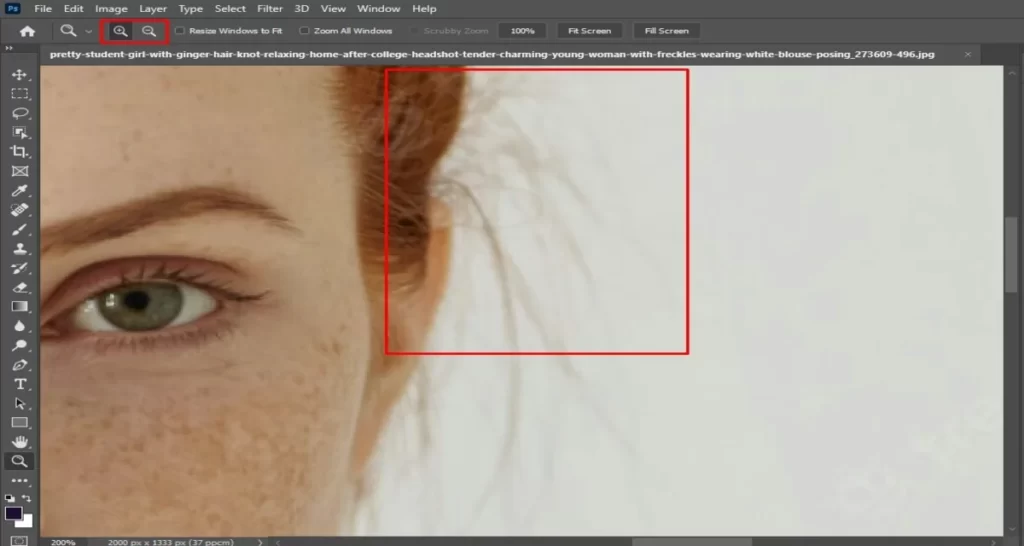
- Open your photo in Photoshop and zoom in on the section of hair that you want to apply this effect to.
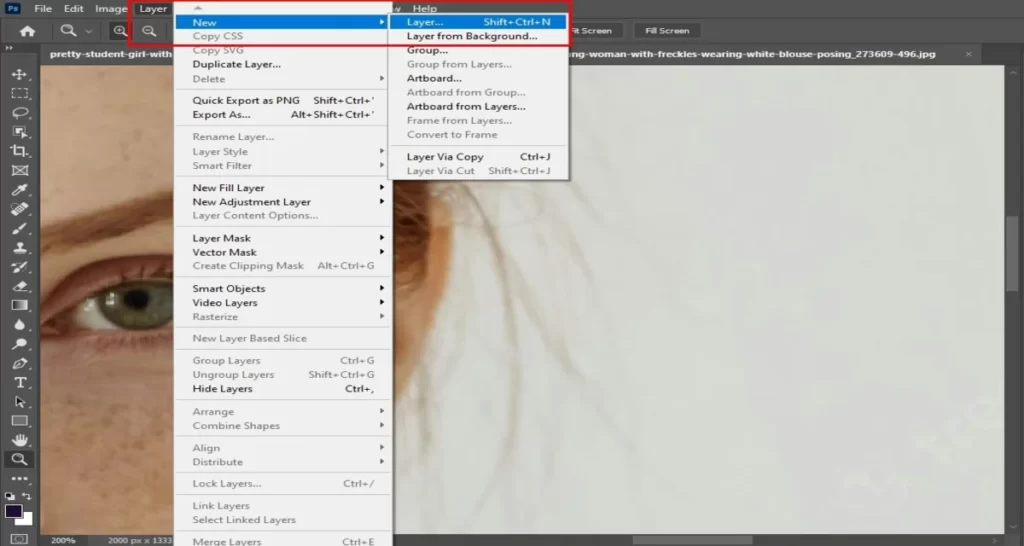
- You have to make a new layer and select the Photoshop brush tool to paint over the frizzy areas.
- Choose a brush with a soft edge and set the opacity to around 30-40%.
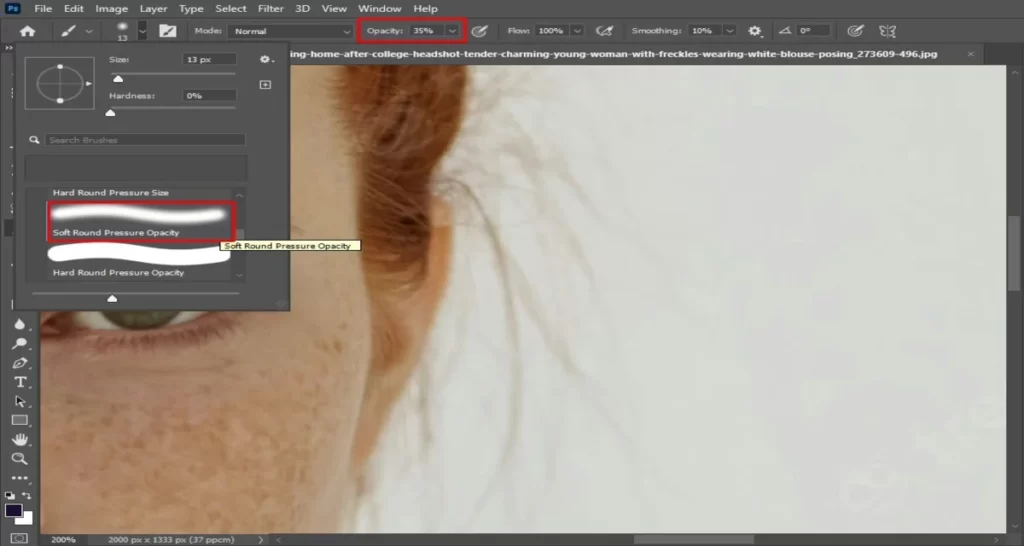
- Keep brushing until the frizzy areas are covered up.
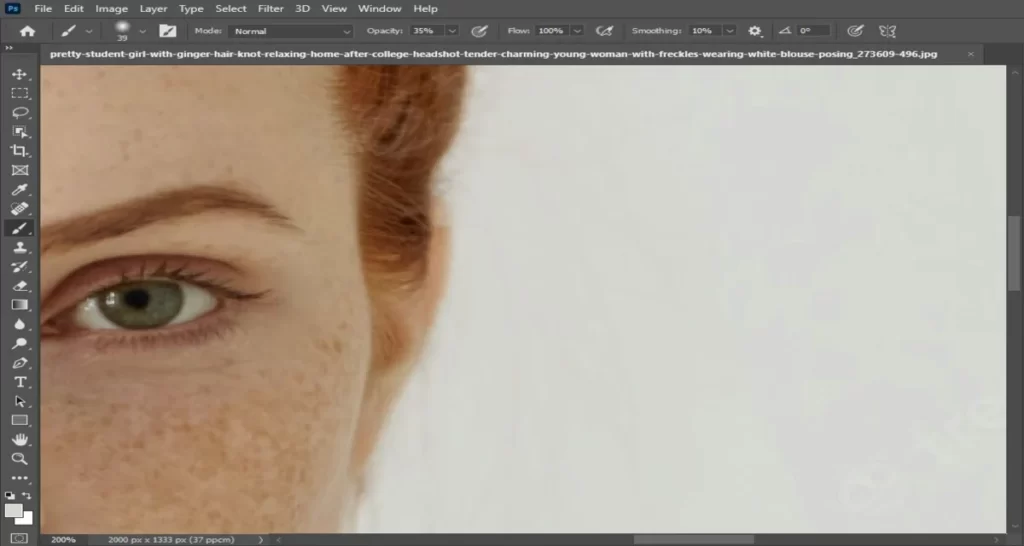
- If you need to, add a layer mask to hide any parts of the hair that you don’t want to retouch.
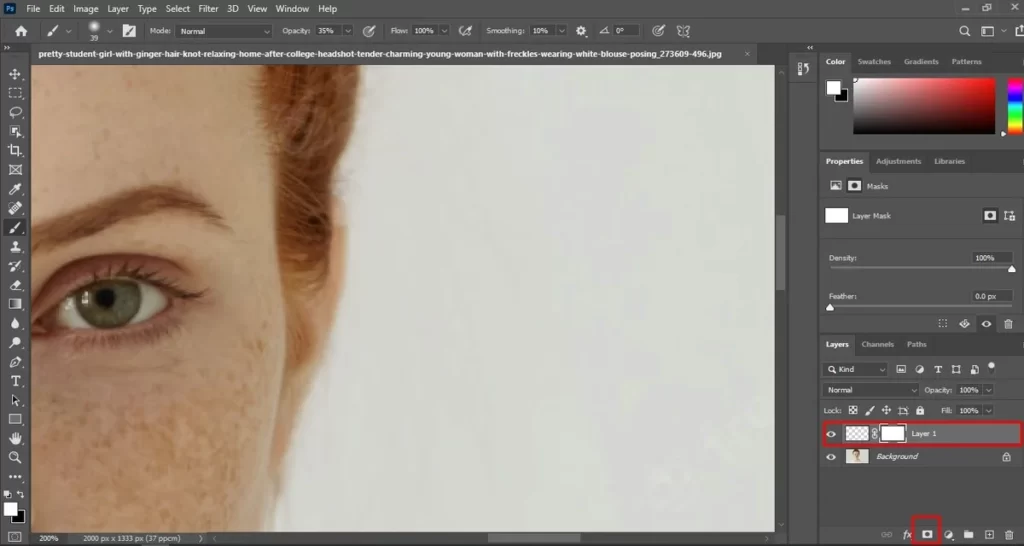
- When clear, save your photo and admire your handiwork!
How to Edit Frizzy Hair in Photoshop
So, your hair is curly, and you want to sleek it out for your next photo shoot. Luckily, we can do that in the Photoshop hair retouch tool. Here are the steps:
- Select the photo and open it in Photoshop, and select the hair layer.
- Go to Image > Adjustments > Desaturate. This removes all color from the hair and makes it smoother for treatment.
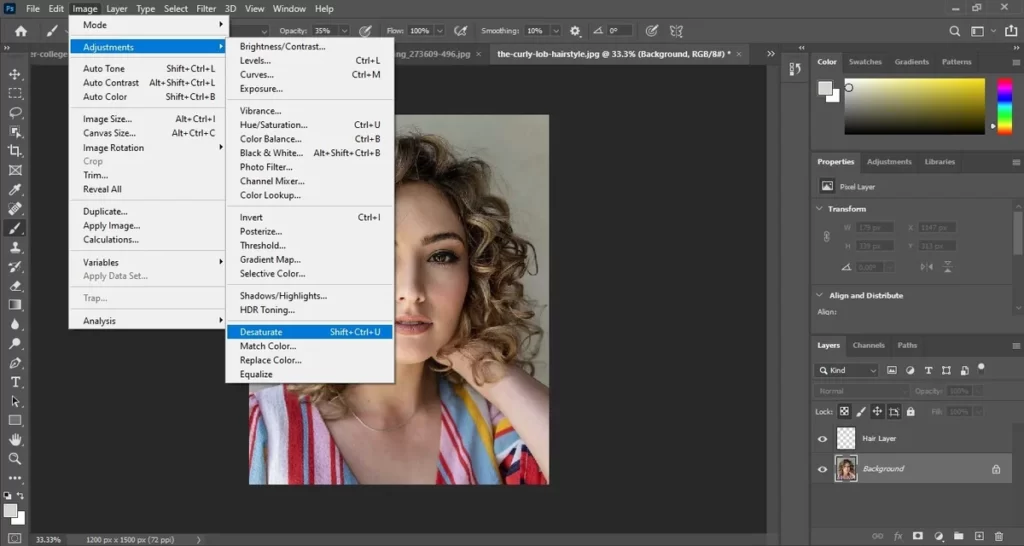
- Now, go to Filter > Blur > Gaussian Blur and set a radius of about 2 pixels. This step helps smooth the hair.
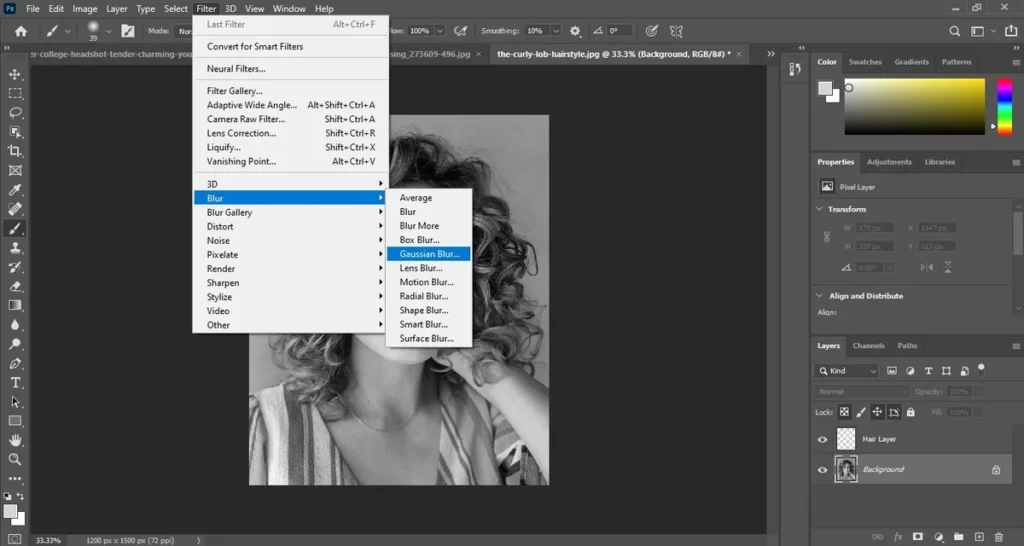
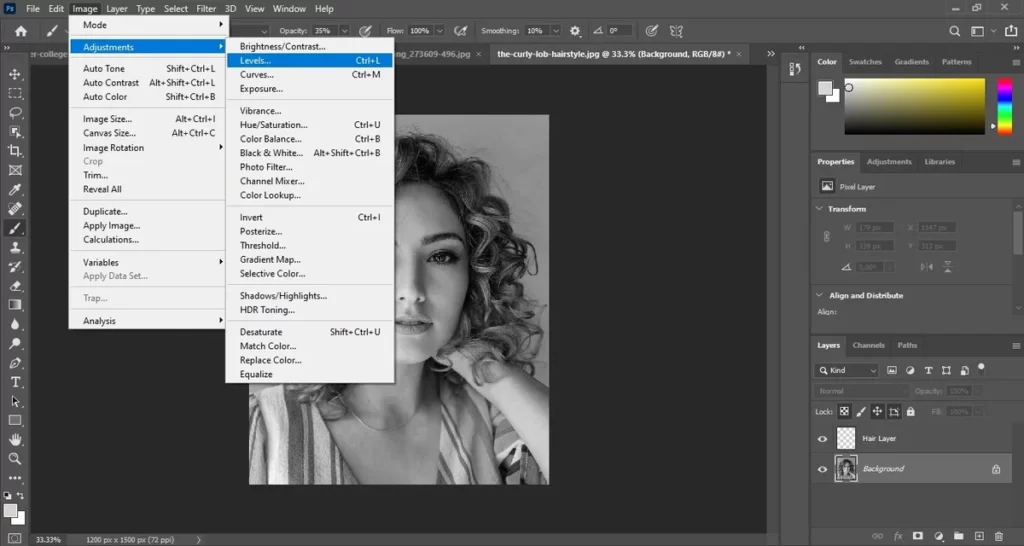
- Now, we’ll add some definitions to the hair. Go to Image> Adjustments > Levels.
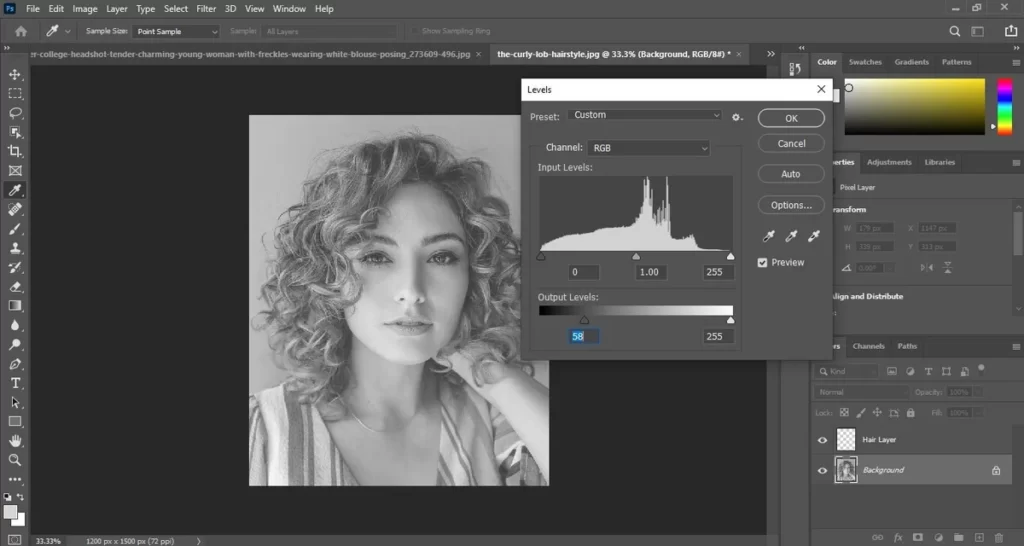
Now you have to increase the contrast level by shifting the black slider to the right.
- Finally, go to Image> Adjustments > Hue/Saturation
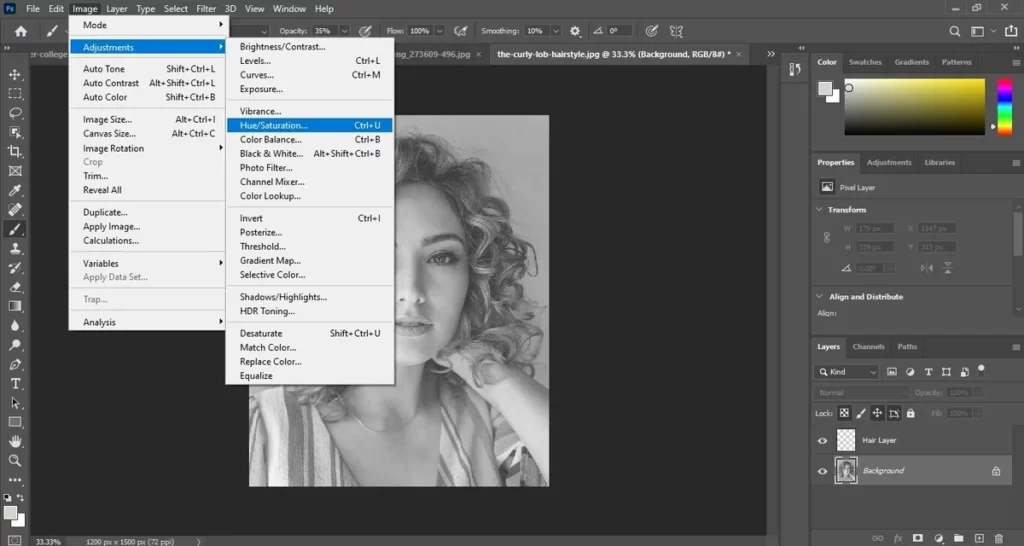
and decrease the saturation by moving the slider to the left. Reducing it will help eliminate any unexpected dots in the hair.
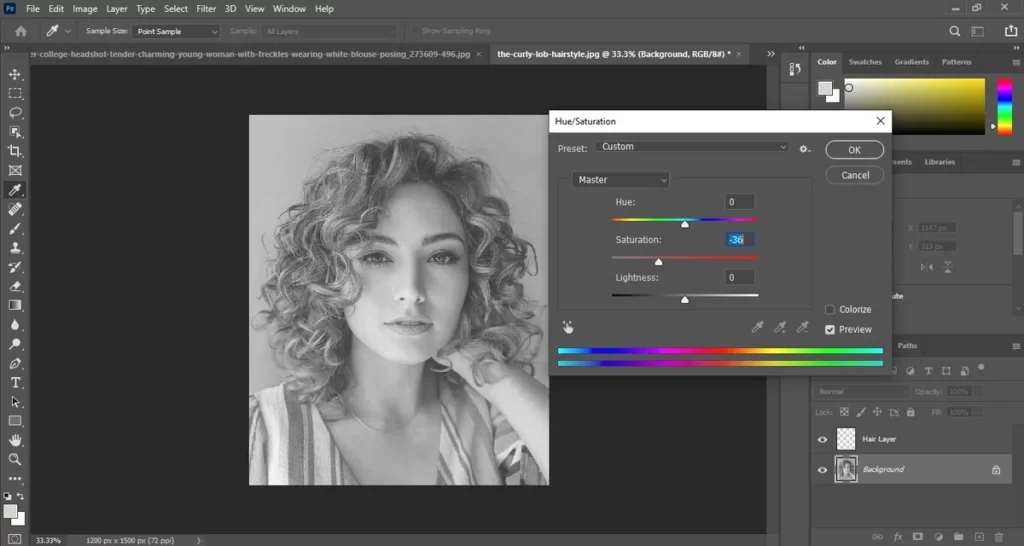
And that’s it! You’ve now edited your curly hair into a sleek masterpiece.
Read more: Photoshop Spot Healing Brush Tool .
How to Retouch Hair Color in Photoshop
Now that we’ve covered how to get rid of frizzy hair, let’s talk about changing your hair color in Photoshop. The process is pretty simple:
- Select the photo and open it in Photoshop. You want to retouch it in Photoshop.
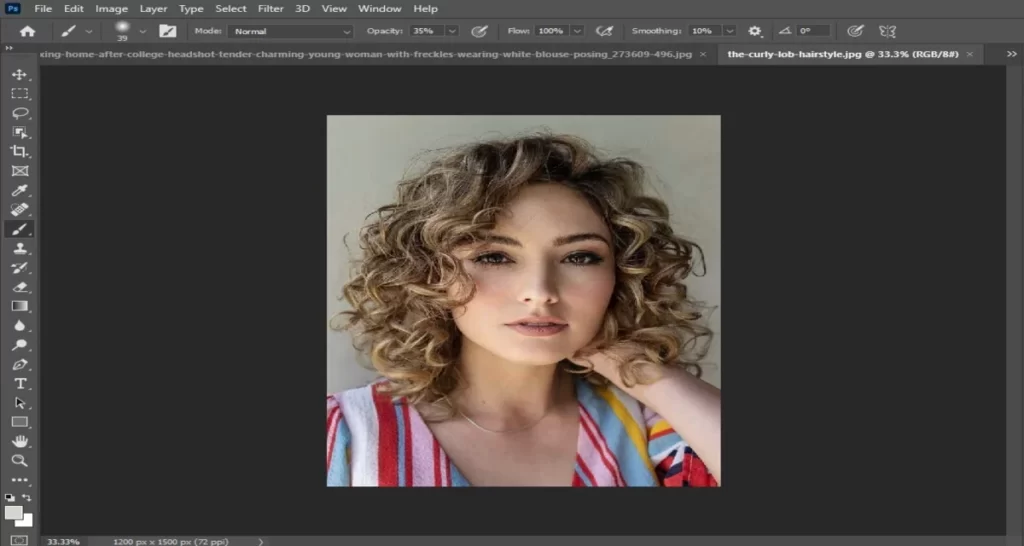
- Select the Toolbar at the top of the screen, and then select the “Hue/Saturation” button.
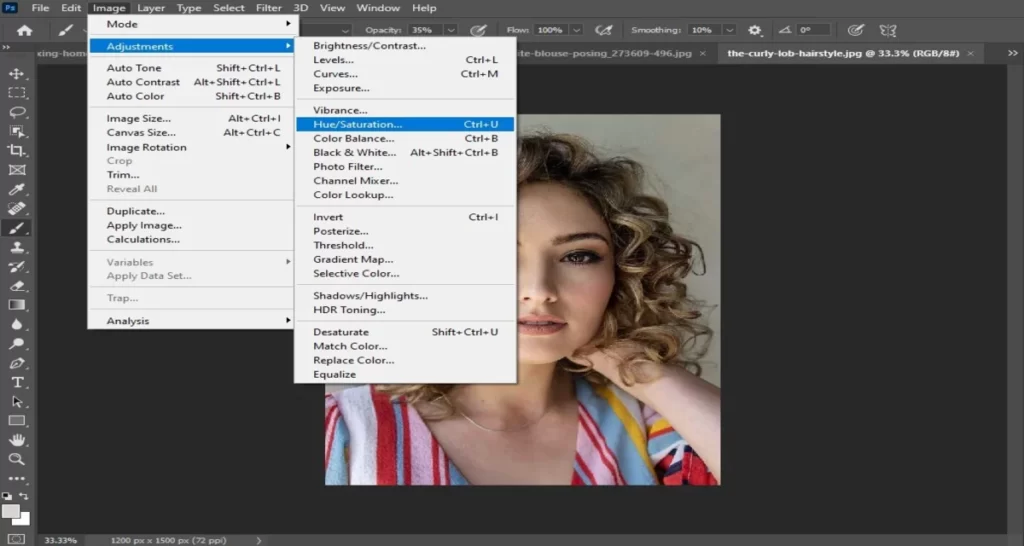
- An empty window will show up with three color sliders. Slide the RGB (red-green-blue) sliders to the far right to remove all color from your Image.
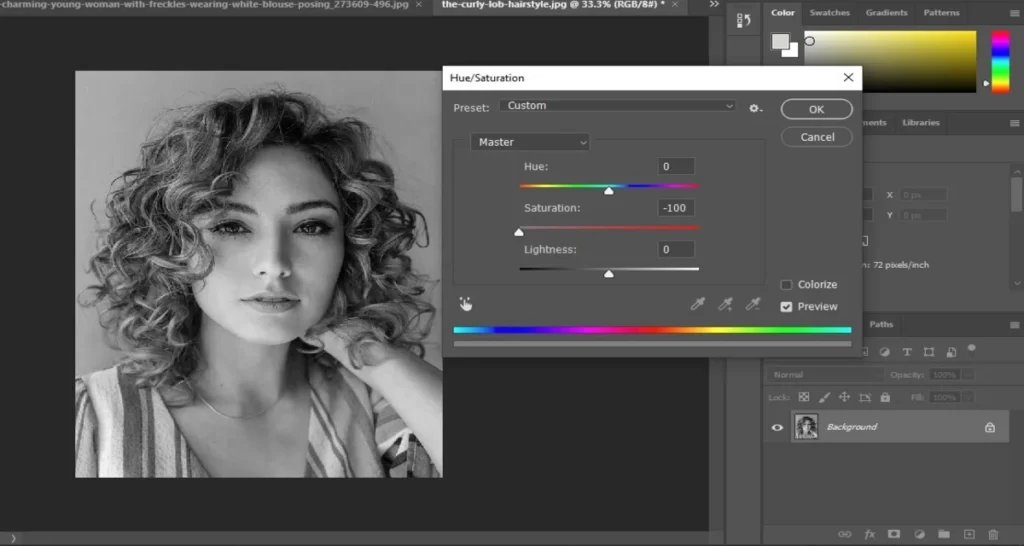
- Next, use the “Select” tool to select all the hair in your photo.
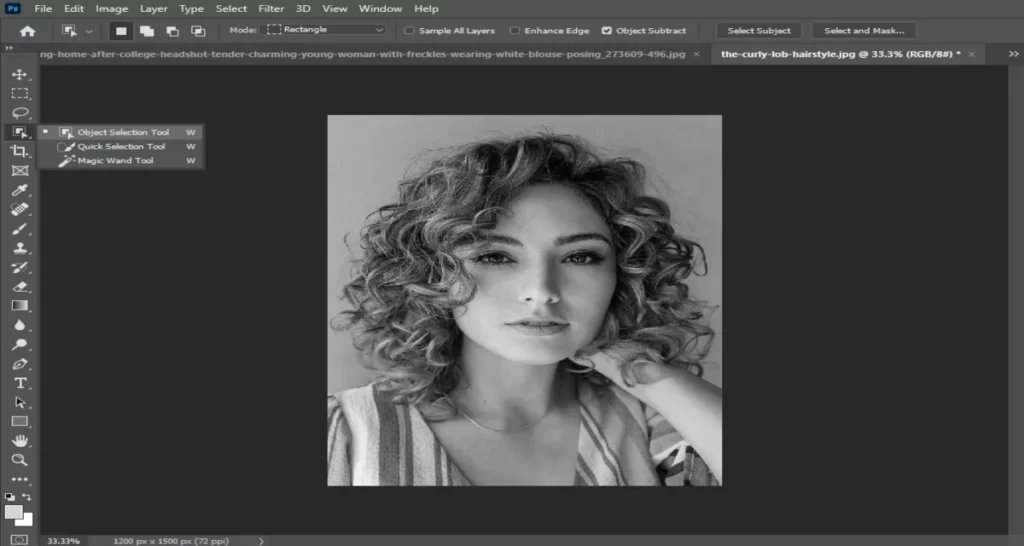
- Go back to the “Hue/Saturation” window, and move the red, green, and blue sliders until you’ve reached your desired hair color (you can also use the eye dropper tool to select a specific color).
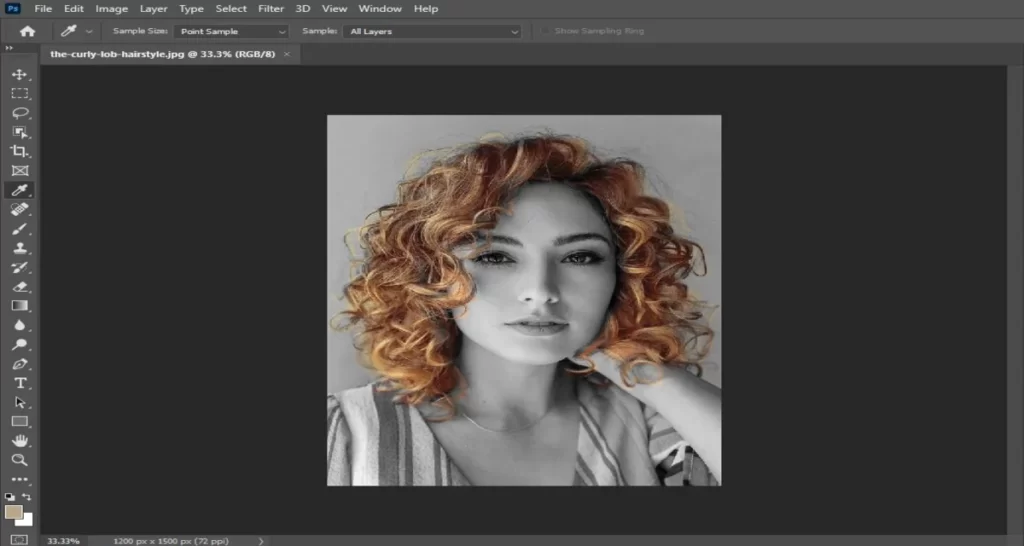
- Click “OK” and save your photo!
Tips for Retouching Hair in Photoshop
When editing frizzy hair in Photoshop, the key is to eliminate frizz while preserving the hair’s natural movement and texture. Follow these few tips for achieving a sleek and polished finish:
- Always set your photo in RGB mode before you get into retouching.
- Use the Forward Warp tool to push the hair strands in the right direction.
- Be careful not to over-edit your photos. Small steps go a long way.
- If you need to, add a layer mask to hide certain areas of your retouching work.
- Save your work as a .psd file so you can get back anytime and tweak it if needed.
- Use the Healing Brush to eliminate frizz and smooth the hair’s texture.
- Select the Dodge and Burn tools. Adjust highlights and shadows in the hair to add depth and dimension.
- Use a layer mask to adjust the color and brightness of different hair parts selectively.
Conclusion
Photoshop hair retouching is a strong way to turn messy, hard-to-control hair into something smooth and neat. You can do this with just a few tools and small changes. Using tools like the Clone Stamp, Blur, and Hue/Saturation helps you improve both the feel and color of the hair. Learning these techniques helps you get a realistic look while keeping the hair’s details and movement. With some practice and careful editing, anyone can create high-quality hair retouching in Photoshop.
