
How to Use Clipping Path After Effects in 5 Easy Steps
- February 17, 2026

The clipping path has its own significance and benefits in image editing. But, to get the best of it, you must go for the Clipping Path After Effects method. Using the clipping path in After Effects will allow you to edit whatever you entail, for example, images, videos, audio, etc., and offer a great visual effects composition. After Effects is the most powerful tool for mastering your image or video quality. However, it’s not that simple to use the clipping path in After Effects accurately unless you follow perfect guidelines, and this is where we are going to help. We’ll guide you through some beneficial techniques to help you turn any amateur image editing into a professional one.
What Is Clipping Path?
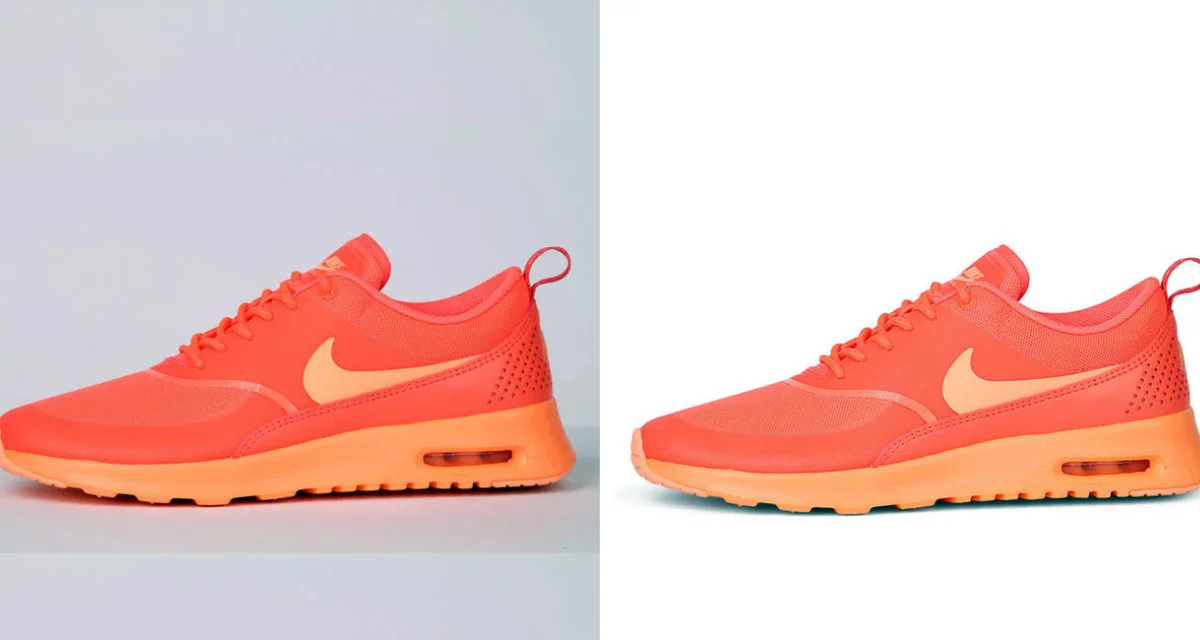
To get high-end image background editing, no other tool comes even close to the clipping path pen tool. It’s a background-removal technique and is usually used in Adobe Photoshop’s pen tool. You’ll find it hassle-free and faster to remove, cut out, replace, and change any background as per your requirements.
Needless to say, it’s widely recognized among professionals. And they use it to promote their brands or businesses through social media campaigns, advertising, product showcases, and more. Here are those who go for the clipping path for their daily image quality improvement –
- Garment Industry
- Jewelry Industry
- Photography
- E-Commerce
- Modeling Agency, etc.
Uses of Clipping Path
The clipping path supports several usage modes, depending on image quality and requirements. Most of the time, it works based on the complexity and smoothness of images. If the image is smooth and sharp, the clipping path will work fine in it. Here are some significant uses of this amazing tool:

Background Removal
The clipping path is popular for editing an image using the background removal feature. If you want your customers not to be disappointed and bounce because of the image quality, remove the unpleasant background before they ask questions. This is one of the primary reasons why people use clipping paths in the first place.
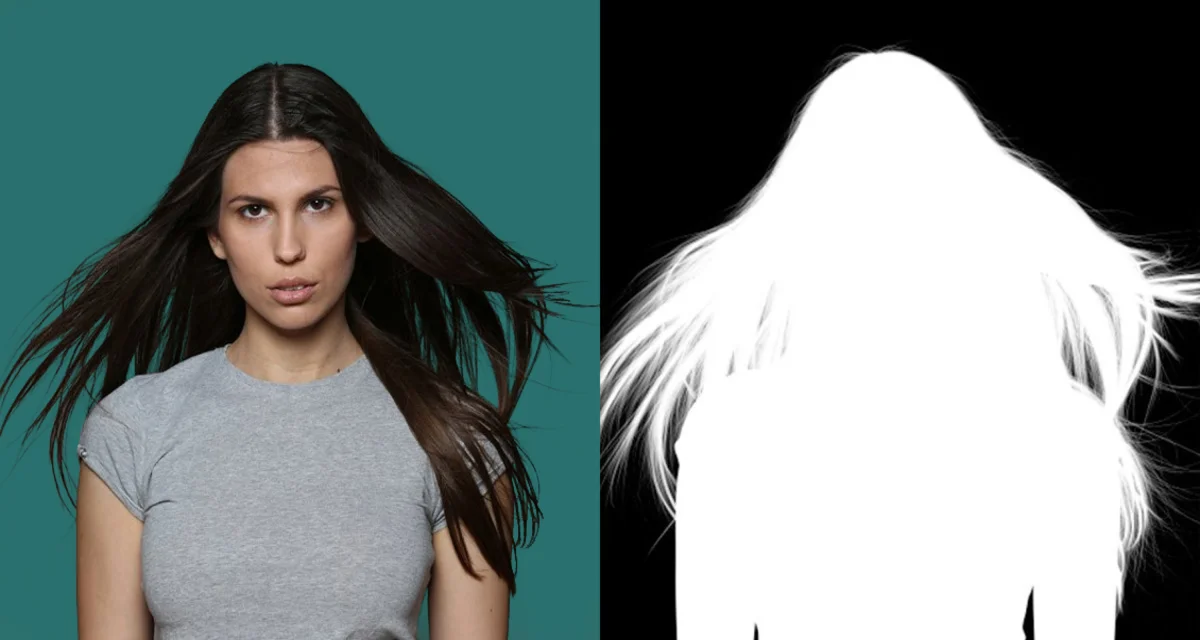
Image Masking
You must include some lucrative images to increase your brand value. But it’s often hard to get your images the way you want due to the countless lines, curves, and edge issues.
Considering all these, editing your images will be trouble-free with image masking and clipping paths. It will allow you to create masks on images using feathers, hair, cloth, smoke, flame, and more.
Color Correction
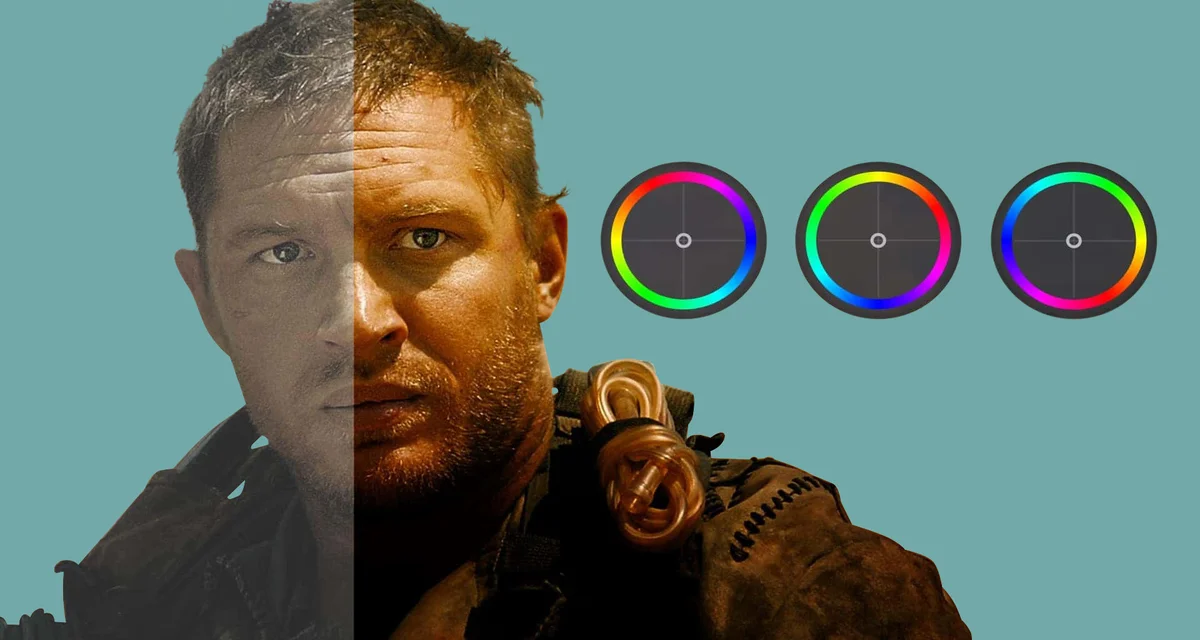
The brightness, saturation, tone, and color of the image can be affected by lighting, the camera, or even unpleasant weather. And a poorly colored image never attracts customers’ attention. However, achieving optimal image brightness with precise color correction is pretty straightforward in the clipping path.
Ghost Mannequin
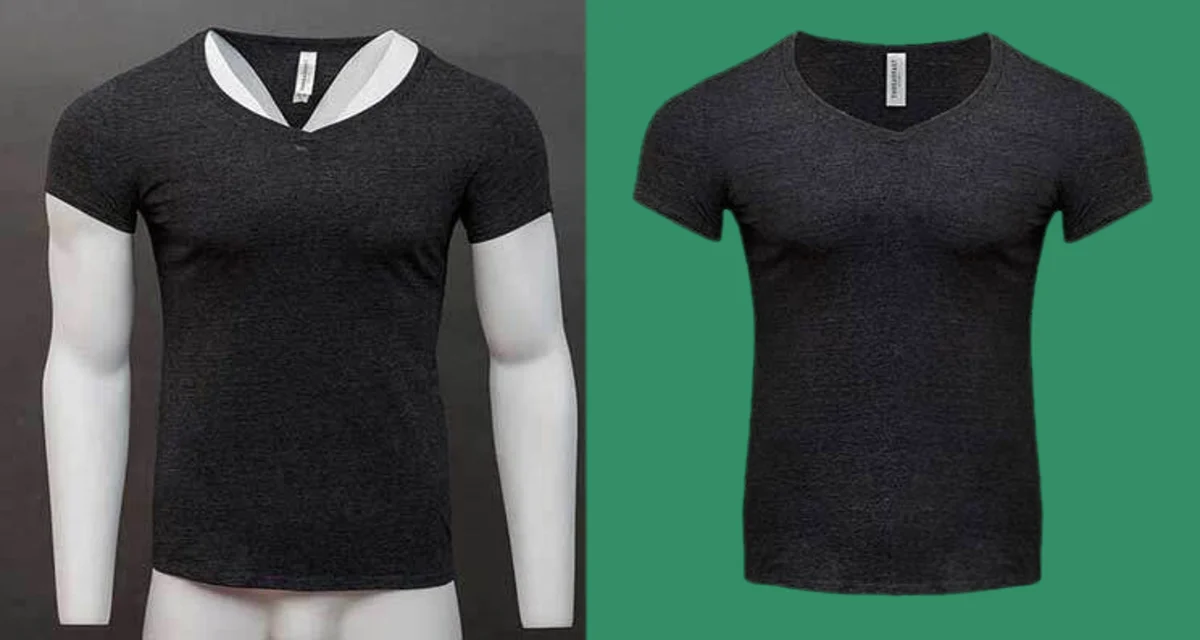
What if you want to remove the model from your clothing image? Well, the clipping paths offer another popular feature called ghost Mannequins. This ghost mannequin produces 3D effects around clothing images and removes models, mannequins, hangers, and other elements from the image. It gives your customers a polished look that fascinates them.
Clipping Path After Effects
Undoubtedly, After Effects is the most powerful video editing tool you can use to wield your creativity. It’s a 2.5D animation software that offers a powerful suite for visual effects, animation, and motion pictures.
After Effects is designed with a number of effects to replicate the image quality. You can use this tool for web video, film, TV, and other visual creations. Additionally, you can watch your entire project on a timeline and include or exclude elements until you meet your requirements.
Steps to Use Clipping Path in After Effects
Although After Effects offers all the leading features, it didn’t come with the functionality to clip an object’s layers in the alpha channel, did it? However, Track Matte can be an ideal solution for this issue. You’ll get the same effect in After Effects if you go through the Track Matte. If it’s your first time using the clipping path in After Effects, it will seem a bit tough to continue, as After Effects doesn’t come with any traditional cut tool. Also, Track Matte is a bit different from the clipping path. As a result, splitting layers can be difficult. But, if you follow the steps given below, you can do it easily and can animate your objects in the exact shapes you want:
Step 1: Position the Layer
In the first phase of using the clipping path in After Effects, you have to accurately position the layer you want to clip.
Ensure you clip it below the layer that you want to clip in the timeline. Once you set up the composition and a layer in the timeline, it will be easier to go to the next steps.
Step 2: Position the Timeline Indicator
To properly highlight the timeline layer, position the timeline indicator next to it. Now, click the edit button, then search for its Split Layer.
Step 3: Transfer the Control Pane
Once you finish positioning the layer, transfer the control pane and ensure it’s perfect.
Step 4: Click on Track Matte
Now, click on the Track Matte dropdown column and choose your desired layer.
Step 5: Select Alpha Matte
To name the layer, select the Alpha matte layer, and everything will be in the right place.
This is how you use the clipping path in After Effects.
Conclusion
It’s common for photographers to change or remove the image background to give the image a high-end look. And they need different tools to process this background-changing job. But, to stay a step ahead of others, you can go for the clipping path in After Effects. Clipping path is a must for professional background removal and stuff. But, if you want to maintain quality, using a clipping path in After Effects is beyond question. It will also save you from investing extensive time, since clipping paths is time-consuming.
