
- November 26, 2025
Let’s Talk about the Importance of Clipping Path in Graphic Design
The Importance of Clipping Path in Graphic Design Graphic design is a powerful tool. It allows us to communicate visually in a world increasingly dominated by

- November 23, 2025
10 Exceptional Photo Retouching Tips To 100% Satisfy Your Customers
Photo retouching is a powerful tool that enhances and polishes your images, giving them a professional, polished look. Whether you’re a photography
- November 21, 2025
How Change The Background For A Photo: Basic Guide
We know that capturing the perfect photo is an art. However, sometimes the background might not be as appealing as the main subject. Or, you simply need to

- November 20, 2025
Photography Philosophy: Art & Technology in Creative Vision, Observation & Mastery
Photography Philosophy= Art + Technology Photography is an amalgamation of art and technology, a fusion of digital artistry and technical skill that manifests

- November 19, 2025
Clipping Path for Social Media: How to Make Your Posts Stand Out
You already know social media is a colorful playground where only visuals rule! But wait, there’s a secret weapon that not many know about: the clipping

- November 15, 2025
The Top 5 Clipping Path Tools for Professional Image Editing
Fixing up pictures is super important these days. Whether you’re a pro at taking photos or just someone who loves sharing on social media, having
- November 13, 2025
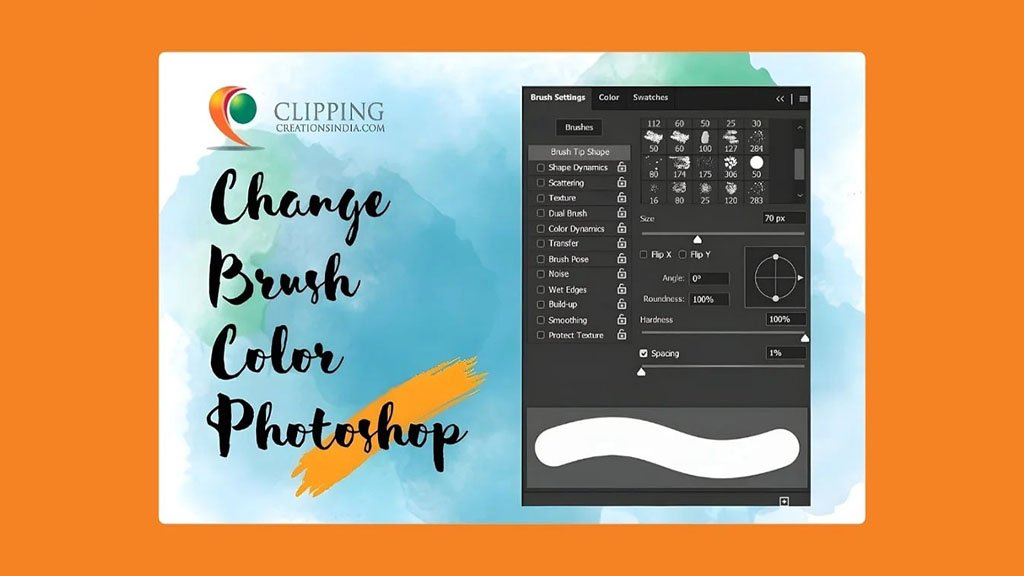
How to Change Brush Color in Photoshop
Mastering the Brush Tool is essential for anyone aspiring to become a phenomenal graphic designer or photo editor. And changing the brush color in Photoshop is
- November 12, 2025
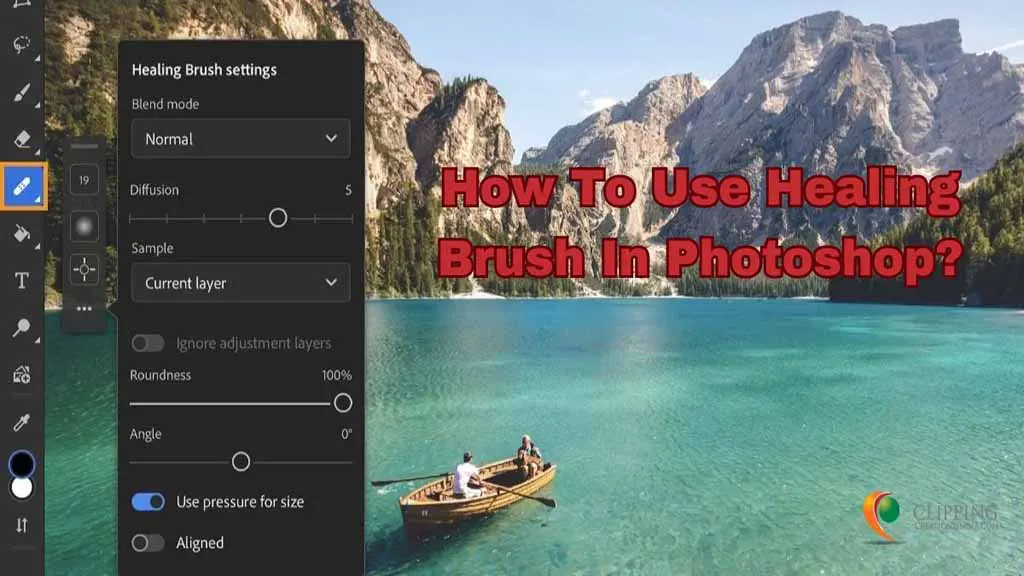
How To Use Healing Brush In Photoshop?
Step right into the wonderland of Photoshop, where your pictures get a makeover with the magical touch of the Healing Brush. Imagine your photos as a magical

- November 5, 2025
Why Photo Editing Service Are Important for E-Commerce?
Ever thought about why photo editing services are important for e-Commerce? Who doesn’t shop online these days? With globalization and the availability of