
cci logo

Clipping Creations India

  • Home
  • Services
    • Background Remove
    • Clipping Path Service
    • Multi-Clipping Path
    • Ghost Mannequin Services
    • Car Photo Editing
    • Image Masking Service
    • Product Photo Editing
    • Image Masking
    • Drop Shadow
    • Color Changes
    • Photo Retouching
    • Vector services
    • Color Change Service
    • Photo Editing Service
  • About Us
  • Blog
  • Pricing
  • Contact Us
  • Free Trial
Home  »  Photo Editing   »   How to Add Fog to A Photo in Photoshop : Simple Explained

How to Add Fog to A Photo in Photoshop : Simple Explained

  • Paul Jones
  • April 11, 2025
  •  
    • Photo Editing
  • Tags: add fog in Photoshop, create fog in photos, fog photo editing tutorial, Photoshop fog effect, realistic fog overlay Photoshop

How to Add Fog to A Photo in Photoshop : Simple Explained

Are you figuring out how to incorporate some drama into your photos? A straightforward way to accomplish this is to add fog to a photo. Fog can add a mysterious atmosphere to your pictures, making them look more like works of art. Adding fog to a photo is easy to do in Photoshop. This tutorial will show you how to add fog to a photo in Photoshop. We would also demonstrate how to make a realistic-looking fog effect.We show you how to add fog to a photo in Photoshop. This is a relatively simple process. And you can do it quickly. We will use the ‘Fog’ brush from the ‘Brushes’ palette. This brush is part of the ‘Clouds’ set.

How Adding Fog Enhances Your Photos: 

Adding fog to your photos can enhance the mood and create an ethereal feel. Fog can also add depth and dimension to your photos. However, too much fog can make your photos look hazy and unclear.

When adding fog to your photos, use a small amount. Of course, you can always add more fog if needed, but it’s challenging to remove fog once it’s been added. If you need help determining how much fog to add, start with a small amount and then increase the amount until you’re happy with the results.

add fog to a photo

If you don’t have any fog machines, you can create your fog using a spray bottle filled with water and a small amount of glycerin. Just be sure to use a small amount of glycerin, as too much can make your photos look greasy.

Adding fog to your photos can enhance the mood and create a more mysterious or ethereal scene. Fog is formed when water vapour condenses into tiny droplets, and you can capture these droplets in your photos if you know how to do it.
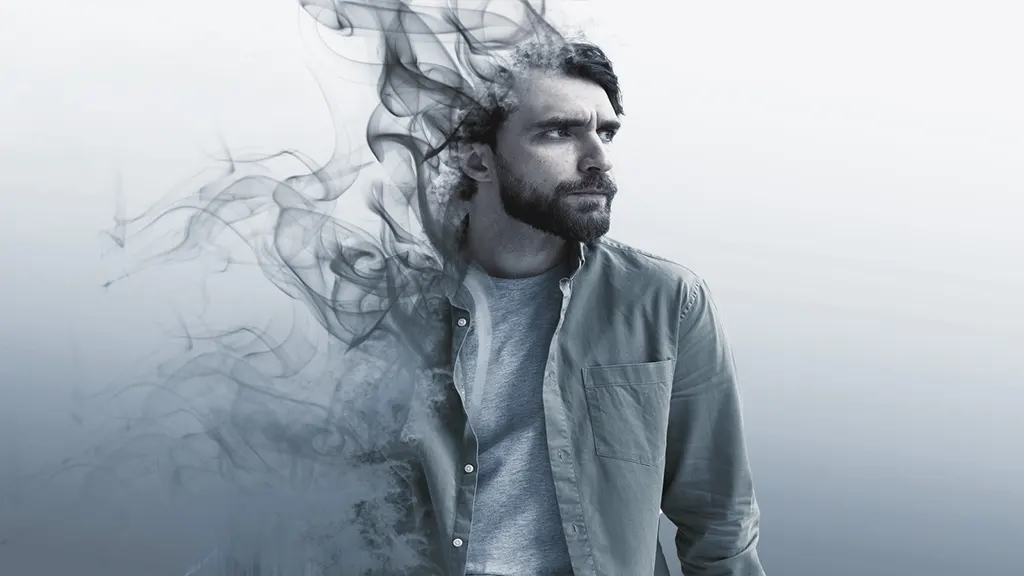
Fog

Here are a few tips on how to add fog to your photos:

  • Use a long exposure: This will allow the fog to appear in your photo as a soft, diffused haze.
  • Use low-hanging fog: It’s easier to capture and creates a more dreamlike effect in your photo.
  • Use a backlight: Backlighting the fog will make it appear to glow. This is an excellent method for developing a magical effect in your photo.
  • Use a colour filter: Adding a colour.

How to Add Fog to A Photo in Photoshop?

Fog can add an ethereal quality to photos and evoke a range of moods. This tutorial will show you how to add fog to a photo in Photoshop.

Adding fog to a photo can give it a dramatic and otherworldly look. And while you can always go out and shoot pictures in foggy conditions, sometimes it’s just not possible. Luckily, you can easily add fog to a photo using Photoshop.

So if you’re ready to add some fog to your photos, grab your copy of Photoshop and let’s get started!

To begin, open your photo in Photoshop. Then, add a new layer and call it “Fog.” Next, use the brush tool to apply fog to the areas you want affected. Again, make sure to use a light touch, so you don’t overdo it.

Once satisfied with the amount of fog in your photo, go to the layers panel and set the layer mode to “Screen.” This will make the fog appear more realistic. And at last, save your work, and you’re finished!

You can follow this procedure as well:

First, open the photo you want to add fog to in Photoshop. Then, if the picture is in RGB colour mode, convert it to CMYK. This is accomplished by selecting ‘Image’> ‘Mode’> ‘CMYK Colour’.

Next, make a new layer. You can accomplish this by heading to layer> ‘New’> ‘Layer’. Ensure that the new layer is placed above the old one – the background layer.

Select the ‘Fog’ brush from the ‘Brushes’ palette. You can adjust the brush settings to control the amount of fog.

To add fog to the photo, simply click and slide the brush over to your preferred area.

Conclusion

In this article, we have reviewed two different ways to add fog to a photo. You can either work with your camera lens before taking the image or apply post-processing edits in Photoshop. One way or another, you have to be extra careful with the procedure so that your photo doesn’t look artificial and maintains a natural-looking fog effect throughout. But, of course, you can always follow our regular blog updates here for more valuable tips.

FAQ's

Frequently Asked Questions

Faqs
How do you add a realistic fog effect in Photoshop?

To add a realistic fog effect in Adobe Photoshop, create a new layer, use a soft fog or cloud brush, and set the blending mode to “Screen” or “Soft Light.” Adjust opacity and blur for a natural look.

What is the best method to create fog in photo editing?

The best method to create fog in photo editing is by using brushes, gradients, or overlays in Adobe Photoshop. Combining layer masks and opacity adjustments helps achieve a more natural fog effect.

Can beginners easily add fog to photos in Photoshop?

Yes, beginners can easily add fog in Adobe Photoshop by using pre-installed fog or cloud brushes, adjusting layer modes, and applying simple blending techniques.

How do you enhance photos using fog effects in Photoshop?

Fog effects in Adobe Photoshop enhance photos by adding depth, atmosphere, and a cinematic mood. Use light brush strokes, layer blending, and color adjustments to improve visual impact.

  • Facebook
  • Share on X
  • LinkedIn
  • WhatsApp
  • Email
  • Copy Link
(Visited 298 times, 1 visits today)

Post navigation

< Previous
Next >

Leave a Reply Cancel reply

Your email address will not be published. Required fields are marked *

Top Services:

  • Clipping Path Service
  • Car Image Editing Service
  • Ghost Mannequin Service
  • Product Photo Editing Service
  • Multiple Clipping Path Service
  • Ghost Mannequin Service
  • Color Change Service
  • Drop Shadow Service
  • Color Change Service
  • Photo Editing Service
  • Image Masking Service

Popular posts:

  • How to Move Eyes in Photoshop and Online ToolsHow to Move Eyes in Photoshop and Online Tools
  • See Through Cloth In Photoshop − Best PracticeSee Through Cloth in Photoshop − Best Practice
  • How to Clip in GIMP: Step-by-Step Guide to Clipping…Step-by-Step Guide to Clipping Mask & Image Editing
  • How to Reverse Video in Photoshop: Photoshop GuideHow to Reverse Video in Photoshop Photoshop Guide
  • How to Export Photoshop Actions in 2025How to export Photoshop actions
  • How to Create an Alpha Channel in Photoshop?How to Create an Alpha Channel
  • How To Fix A Lazy Eye In Photoshop 2025Lazy Eye Problem Here’s What to Do,
  • How to Fix a Dark Polaroid Picture? Easy Solution to…How to Fix a Dark Polaroid Picture
  • 10 Professional Photo Manipulation Artists You Must Follow10 Professional Photo Manipulation Artists You Must Follow
  • How to Swap Eyes in Photoshop? All-Inclusive Guide How to Swap Eyes in Photoshop

Recent Post

  • Mastering Flat Lay Clothing Photography: A Step-by-Step Guide
  • How to Use Clipping Path After Effects in 5 Easy Steps
  • Merge Photos with Graphics
  • 5 Must-Have Effective Photo Editing Tools
  • What is the Importance of Clipping Path?

Categories

  • Photo Editing
  • Tutorial

About CCI

Here, every pixel tells a story. We offer our unparalleled service and invest our most talented minds at your solution whether you are a photographer or an agency.
We are the gateway to exceptional photo editing services!

Get Your Quote

Quick Menu

  • About Us
  • Services
  • Blog
  • Terms and Conditions
  • Privacy & Policy

Payment Method

  • PayPal
  • Stripe
  • Western Union
  • Skrill
  • Payoneer
  • Wise

Get In Touch

+8801715-491890

hello@clippingcreationsindia.com

Canada Office: 1401-2900 Carling Ave. Ottawa, ON, K2B 7J6

India Office: C-20, Lajpat Nagar 3, New Delhi, Delhi 110024, India

Bangladesh Office: 15 Bijoy Nagar, Abdur Rouf Tower (6th Floor), Dhaka – 1000, Bangladesh

Copyright © 2012 - 2026 Clipping Creations India | All rights reserved.

  • facebook
  • twitter
  • instagram
  • pinterest
  • linkedin

Live Chat