
How To Use Clipping Path In Photoshop – The Ultimate Guide In 2025
- December 23, 2022
A clipping path is one of the most helpful tools in Adobe Photoshop that allows you to cut out an item/object from the background of an image. You can outsource a clipping path service to a graphic designer, but it may get expensive.
In this article, we’ll discuss how to use clipping path in Photoshop (as well as Photoshop CC) with a step-by-step guide so that you can get started with clipping paths immediately!
Generally, there are 2 ways of drawing clipping paths in Photoshop; you can create a clipping path with the magic wand tool or the pen tool.
With clipping paths, you can manipulate the background of an image to how you want it to be. Although the process is a bit complex, we’ve made this guide to be as beginner-friendly as possible.
That being said, let’s get started!
Why Adobe Photoshop Is the Best for Creating Clipping Path
The most popular photo editing software in the world, Adobe Photoshop, is known as the best among artists and graphic designers all around the world. And it is famous for all the good reasons!

Useful in a Lot of Creative Scenarios
Adobe Photoshop is used in a variety of cases, such as digital art, web designing, and of course, graphics designing. What makes it so good is the software’s unbeatable selection tools and its polished user interface.
Most Complete and Feature-packed Photo Editing Software in the Market
In comparison to other photo editing software, Adobe Photoshop supports the most advanced image formats, including RAW images, 16-bit images, CMYK color mode, etc.
Comes with Incredibly Handy Layers Panel
One of the best features of Photoshop is its layers panel, with which you can create/edit images in multiple layers. Moreover, you can use the layers/overlays as filters or masks to alter images in the layers beneath.
It also allows you to add components or work on an image/layer one at a time without altering the original image until you wish to.
How to Use Clipping Path in Photoshop – Step-by-step Guide
In Adobe’s image editing software suite, Photoshop is the most basic version, while Photoshop CC offers more advanced features (at an extra cost). For clipping paths, the results will be the same for either of the versions.

The guide is also suitable for older versions of Adobe Photoshop, including CS6 and CS5, as they have nearly the same user interface and tools.
That being said, here’s how to draw clipping paths on Photoshop and Photoshop CC –
Clipping Path in Photoshop
Once you’ve launched Adobe Photoshop on your computer, follow these steps –
-
Load the Image
Click on ‘File’ and then on ‘Open’ to select the image you will be editing.
-
Select the Pen Tool
On the toolbar to your left, locate the pen tool and click on it.
-
Start Drawing a Path
With the pen tool, create a path around the object/item you’ll remove from the image. Drawing the path will be a little tricky at first, but make sure to cut in the right shape around the object/item.
Here’s a tip – try drawing the path along the edge lines of the object/item.
-
Clip the Path
Once you’re done drawing a path around the object/item, clip the path by joining the starting point and the ending point.
-
Select the Path
Select the drawn path with the keyboard shortcut ‘Ctrl’ + ‘Enter.’
-
Smoothen the Edges (Optional)
In order to smoothen the edges, apply some ‘feather’ on the path. For this, press the keyboard shortcut ‘Shift + ‘F6’ to open the Feather Selection dialog box.
-
Create a Duplicate Background Layer
Make a duplicate layer for the background of the cut-out image and mask it.
Once you’re done with the above steps, you’ve successfully created a clipping path!
Clipping Path in Photoshop CC
After launching Adobe Photoshop CC on your computer, follow these steps –

-
Load the Image
Use the keyboard shortcut ‘Ctrl’ + ‘O’ and select the image you will edit.
-
Choose the Pen Tool
From the toolbar on your left, select the pen tool and click on the image being edited.
-
Select ‘Exclude Overlapping Shape’
After choosing the pen tool, locate the sub-menu ‘Path Operation.’ From the drop-down list, select ‘Exclude Overlapping Shape.’
-
Start Drawing a Path
Press the ‘Alt’ key and draw a path around the object/item you want to remove. For smooth paths, try drawing close to the edges of the object/item being removed.
-
Apply Clipping Path
Once you’re done drawing the path, close the paths by joining the start and end points. Next, select the ‘Save Path’ option.
-
Remove Background
From the submenu on top, select the ‘Mask’ option. Next, click on the ‘Add Layer Mask’ menu to remove the background.
After you’re done with it, you’ve successfully drawn a clipping path in Photoshop CC!
Why Is a Clipping Path Needed?
A clipping path is needed when unwanted elements have to be removed from an image, e.g., logos, backgrounds, text, etc. In e-commerce, clipping paths are commonly used for removing the background of an image to replace it with a new background.
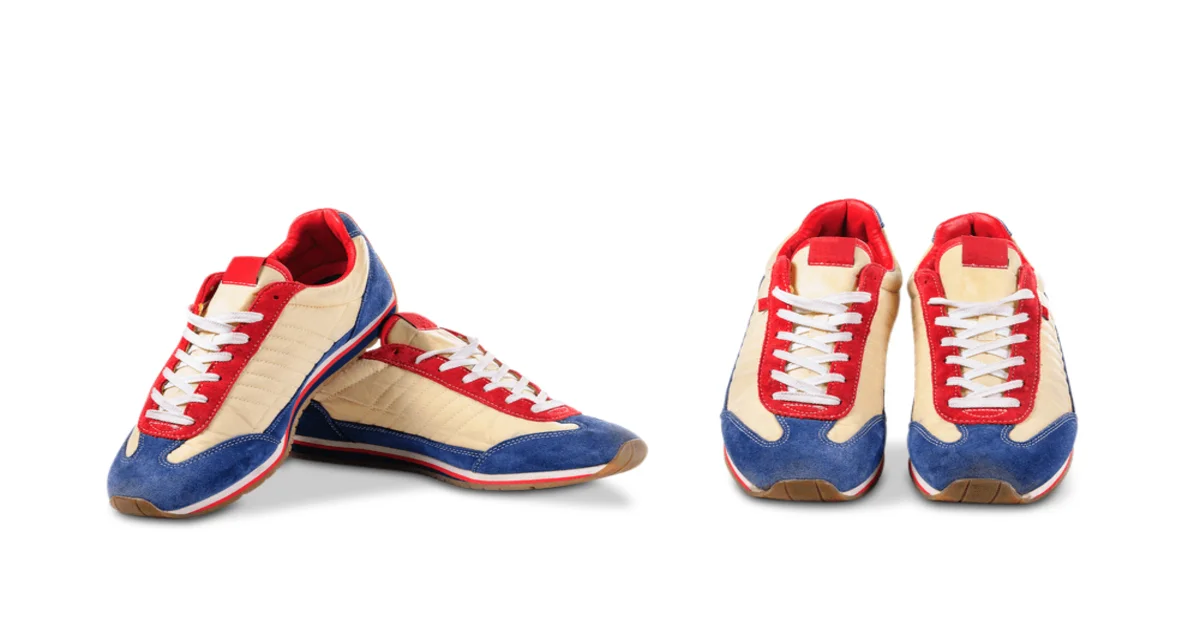
Clipping paths are especially useful in cases where the product image has a complex/multicolor background, and other methods aren’t effective in removing the background.
Here are some clipping path use cases –
- If an object has to be placed in a composite photo with other objects
- To change/alter the color of the entire object, or one portion of it
- For isolating an object from other parts of the image
- When an object/item has to be displayed with a white/plain/transparent background
Clipping Path vs. Image Masking
Often confused as the same techniques, clipping path and image masking are completely different tools that produce different outcomes. As mentioned earlier, for clipping paths, you’ll have to select the pen tool or the magic wand tool to draw a path around the object/item being cut out.

Image masking involves altering certain portions of an image to make it visibly appealing. With image masking, you can create a clipping mask, alpha mask, or add layer mask.
Here are the key differences between clipping path and image masking:
- Although clipping paths can give realistic finishing to an image, using image masking often produces higher quality results
- Clipping paths are suitable when working with multiple objects in an image. For working on single objects, image masking is preferred by professionals
- While both clipping path and image masking can be used to remove the background, image masking has softer edges which look visibly smoother
FAQ About How to Use Clipping Path in Photoshop
The clipping path is essential to remove any undesired objects, such as logos, backdrops, text, and other features, need to be eliminated from an image. Before you master the process in Photoshop, here is a list of frequently asked questions by the users.
What is the difference between a clipping path and a clipping mask?
Clipping paths are used to remove objects from an image by drawing shapes/vector paths around it. On the other hand, clipping masks are groups of layers on which a mask is applied.
What is a multiple-clipping path?
A multi-clipping path is an advanced and complex way of isolating several elements in an image. Once done, all the elements can be edited individually.
What is a clipping layer?
Layer clipping is the process of blending a layer onto an image so it applies only to the area directly below the layer.
How does a clipping mask work?
A clipping mask is a collection of layers on which a mask is applied. The base layer determines the boundaries for the entire group of layers.
What type of objects can be clipping paths?
Only vector objects can be used as clipping paths. If you attempt to create clipping masks from a raster image, the image’s rectangular boundary will be used for creating the clipping path.
Final Verdict
With all of that being said, you should now know how to use clipping path in Photoshop. As a general suggestion, the magic wand tool often produces unsatisfactory results, so using the pen tool for clipping paths is the most effective way to go.