
How to Create a Gold Texture in Photoshop?
- April 7, 2025
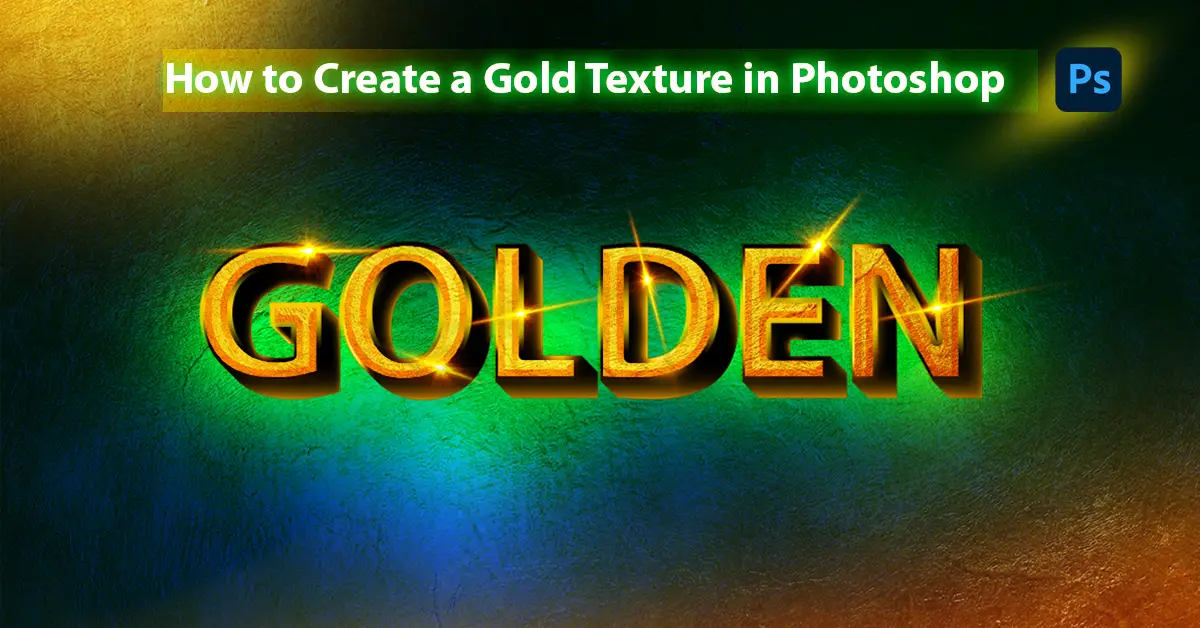
You can download free gold textures and use them in design for quick results. But creating your own gold texture in Photoshop is more exciting and cooler. You may think it’s complicated, but not. Now you must be asking, how do you create a gold texture in Photoshop? The whole process is pretty simple. Continue reading till the end as we explain each and every step in detail to create a golden texture effect in Photoshop.
How to Create a Gold Texture in Photoshop: Step-by-step
Before starting, you may want to know which Photoshop version you need to use for this tutorial. We are using Adobe Photoshop CC 2021 for this article. But a few earlier and the latest versions are more or less the same. Hence, you should not have any problem following the tutorial. The detailed step-by-step guide on how to create a gold texture effect in Photoshop:
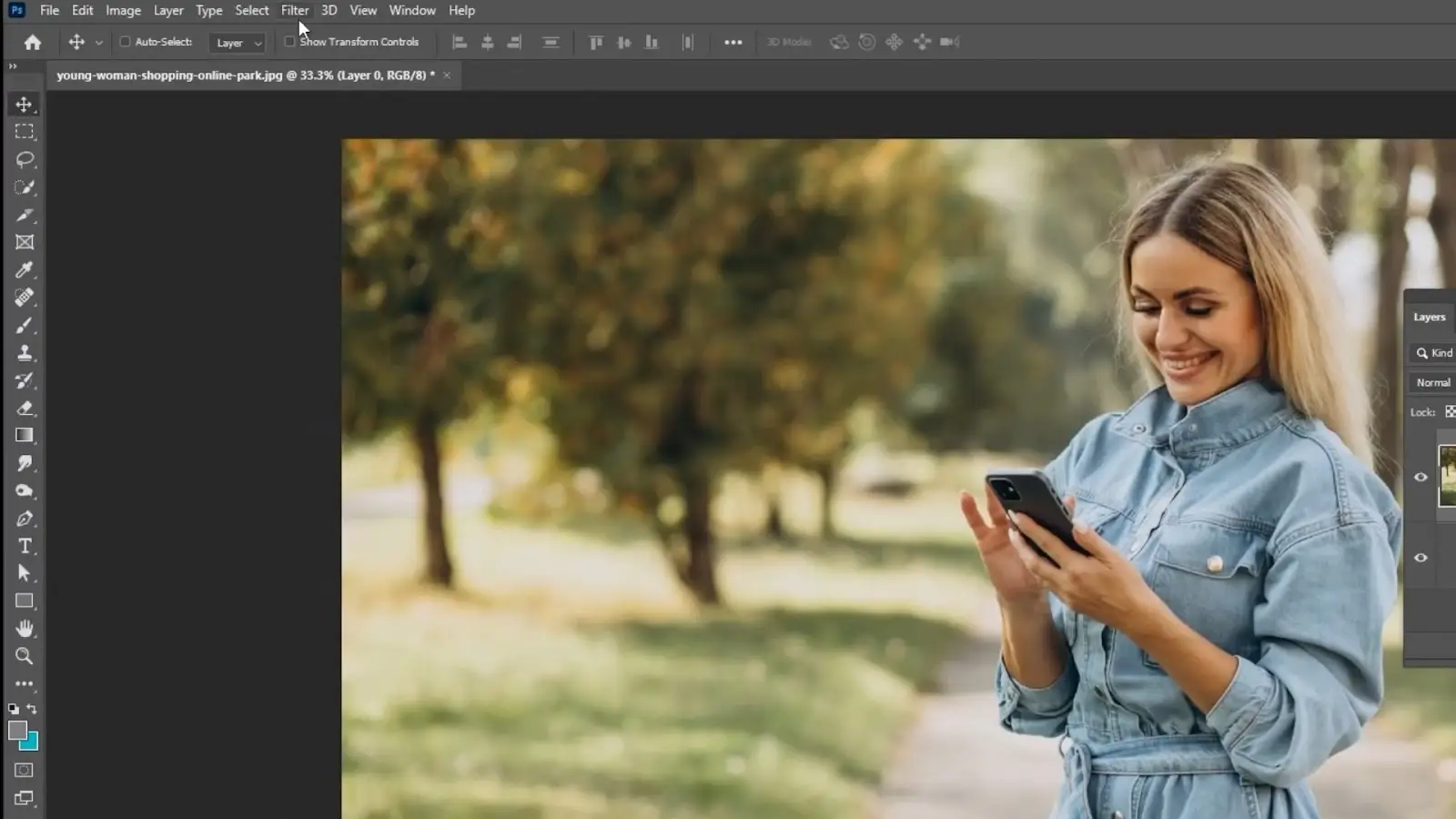
Step 1: Open a random photo
First, open any random photo in Photoshop. You do not need to pick any particular photo because we will distort the photo later. So, the real photo will be unrecognisable. However, try to use a high-resolution image to have a better visual.
Besides, create a solid colour for the background. Click on the circular icon on the lower side of the layer panel and select a solid colour. It will create an extra background layer.
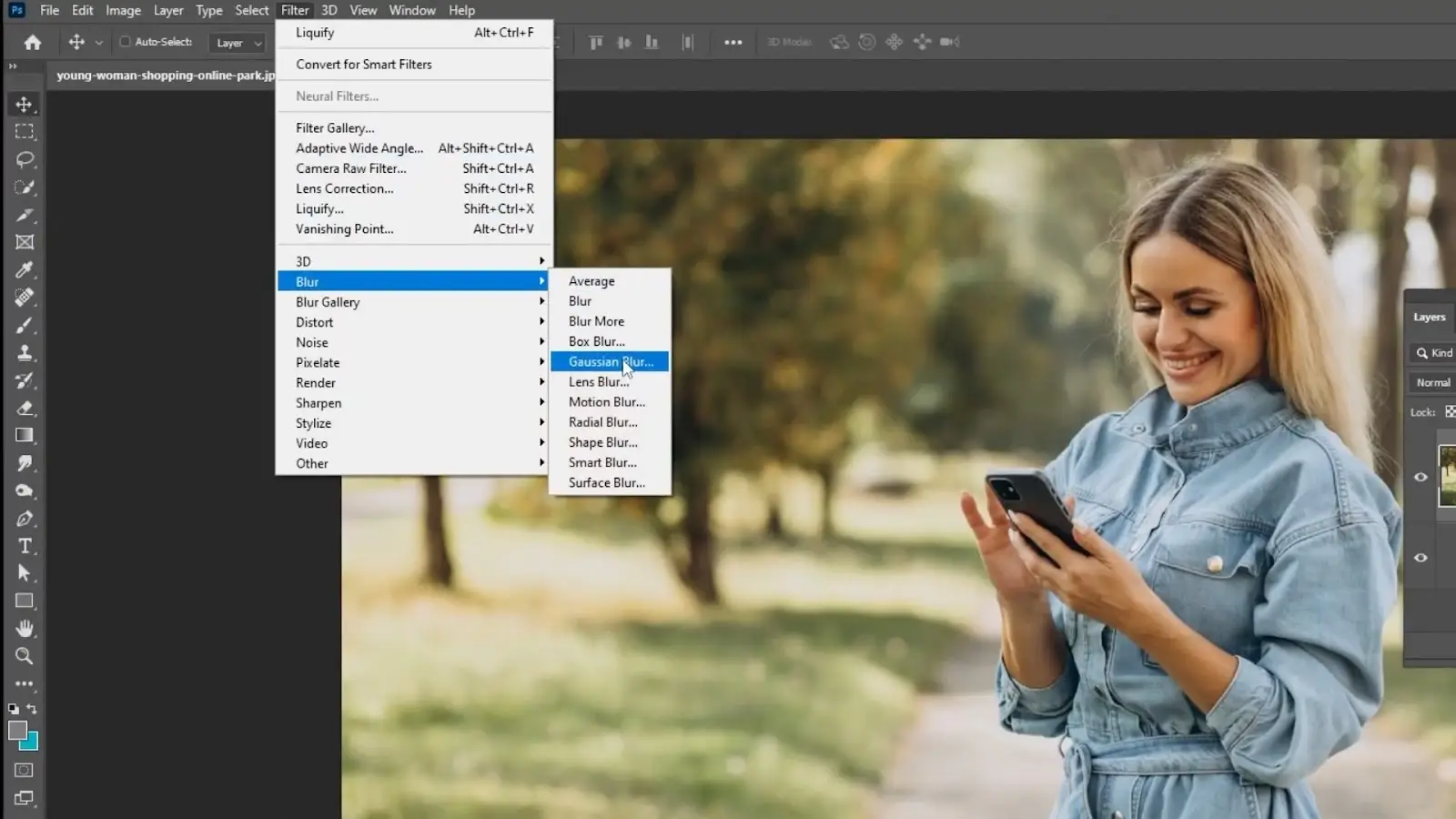
Step 2: Apply Gaussian Blur
Now, go to the filter, select blur, and apply a Gaussian blur. A tab will pop up. Set the radius to 30 pixels, then press OK. We did this to create the texture effect. Now, the main photo is almost unrecognizable.
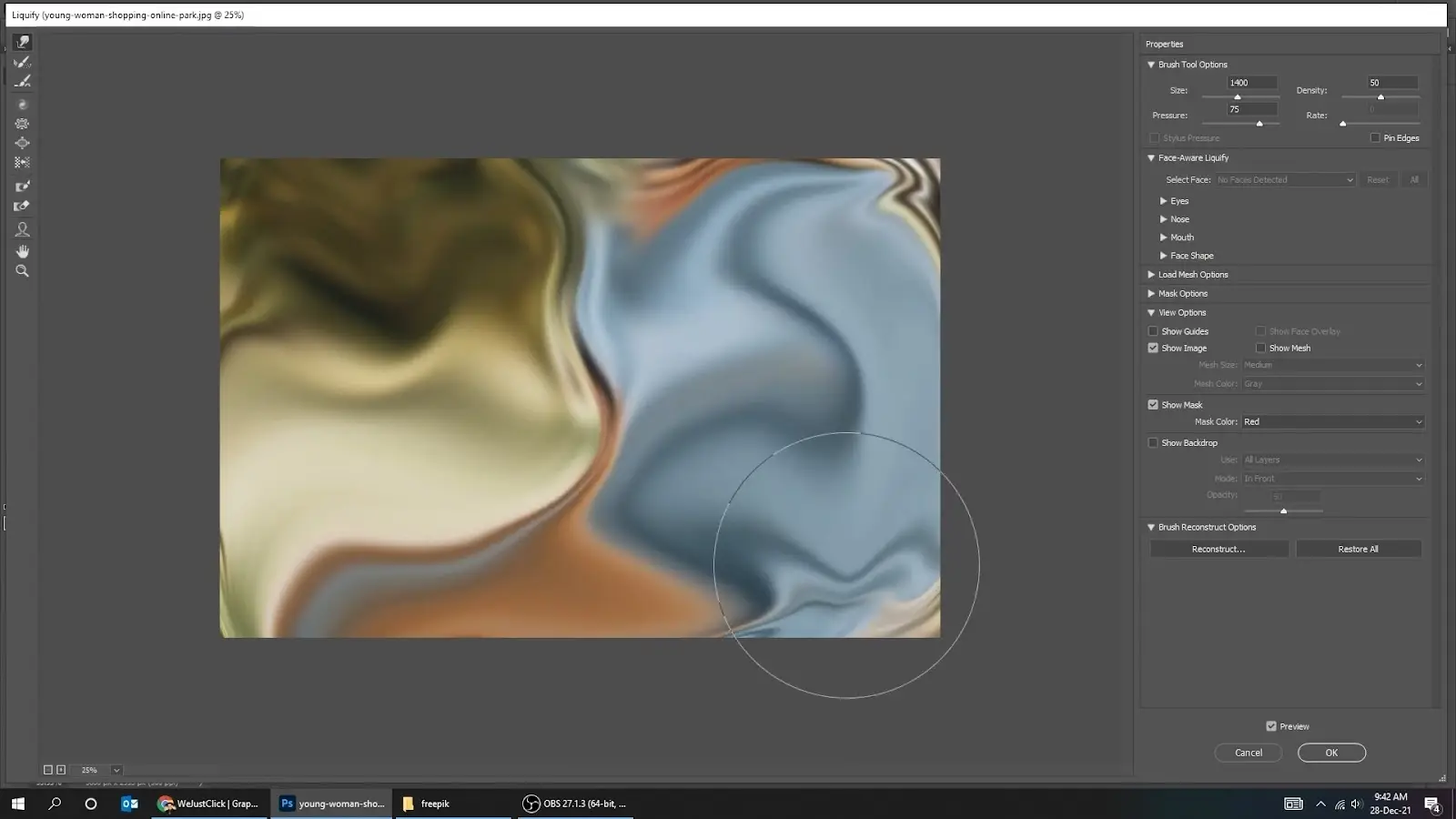
Step 3: Liquify
Again, go to the filter and select liquify. A circular brush will appear. Randomly spread by pressing and holding the left mouse key. It will distort the image, creating an abstract effect. As you can see, the appearance has changed significantly from the original. That is why you can start with any random photo.
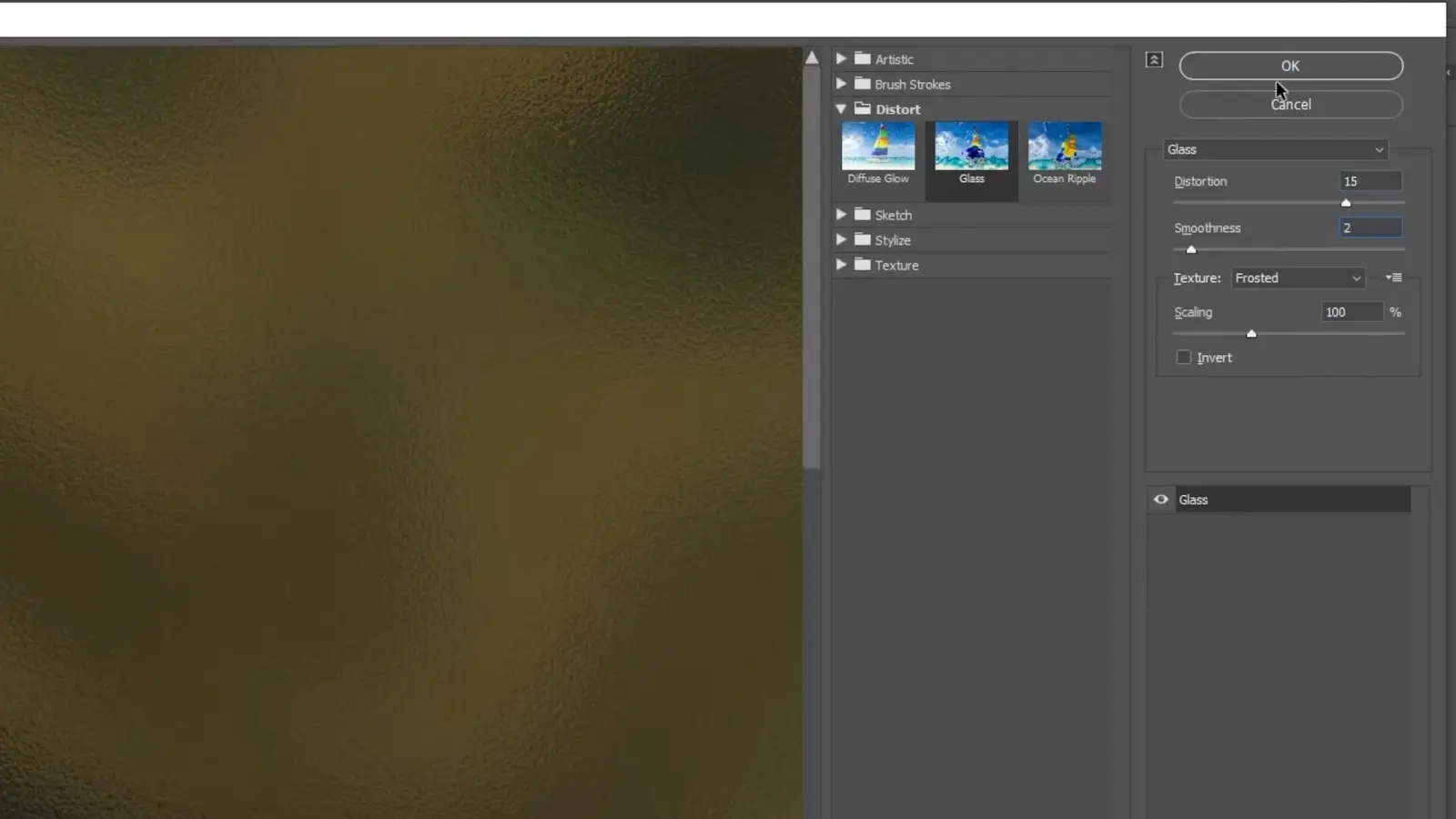
Step 4: Set Distortion
Although you have already liquefied the image, you can make it more attractive with the glass distortion effect. Go to the filter and select “filter gallery.” A new filter panel will open on the left side of the screen. Select ‘Distort’ and choose ‘Glass’ from the options. Then, on the leftmost panel, set the distortion to 15 and smoothness to 2. Now, the photo looks like foil paper. You can adjust the liquify and distortion to create more texture effects, such as the gold leaf, gold paper, or seamless gold.
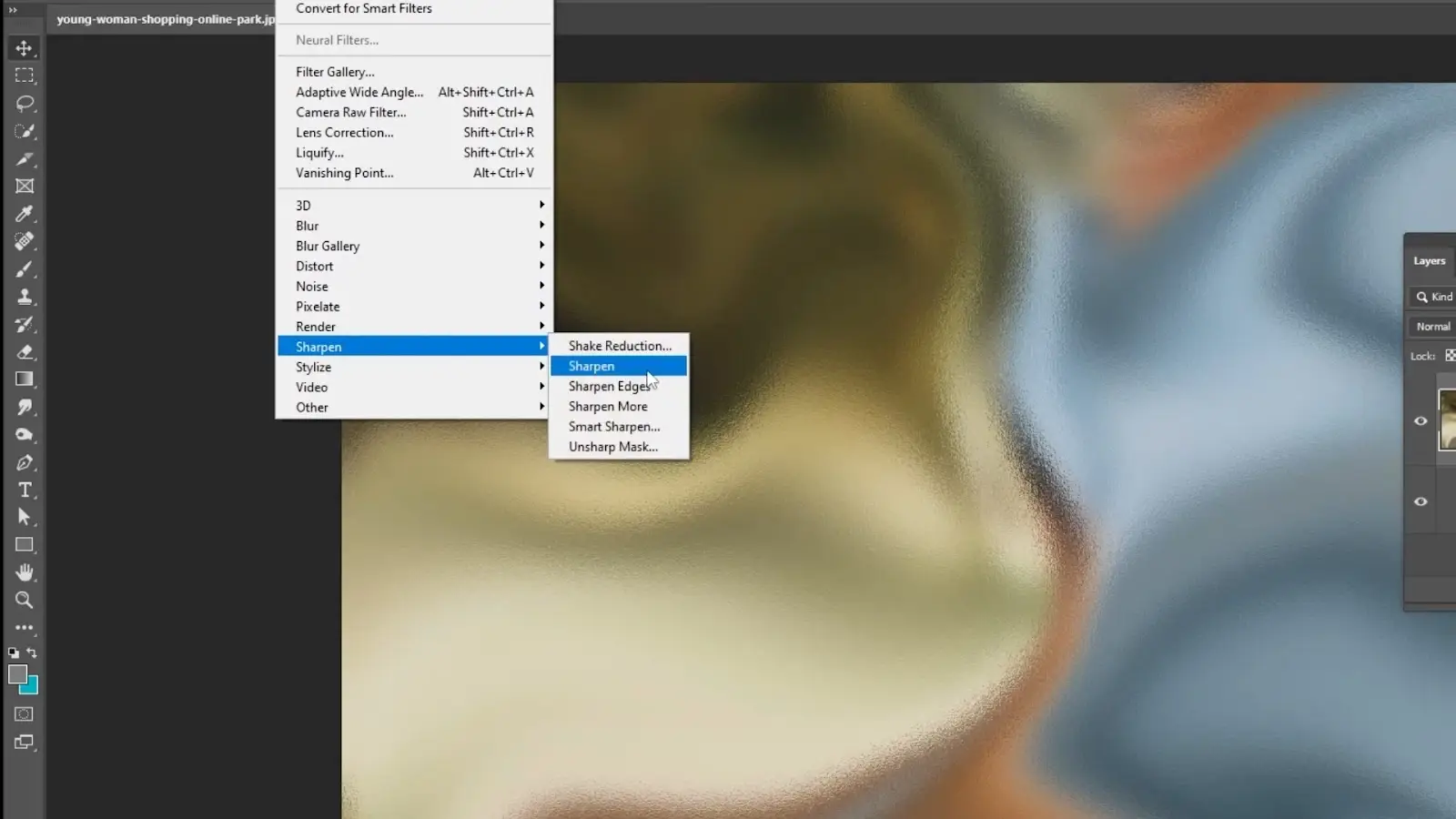
Step 5: Sharpen
However, you can use the sharpen tool if the photo looks dull or low quality. Go to filter, select sharpen, and again choose to sharpen to get a sharper and crisper look.
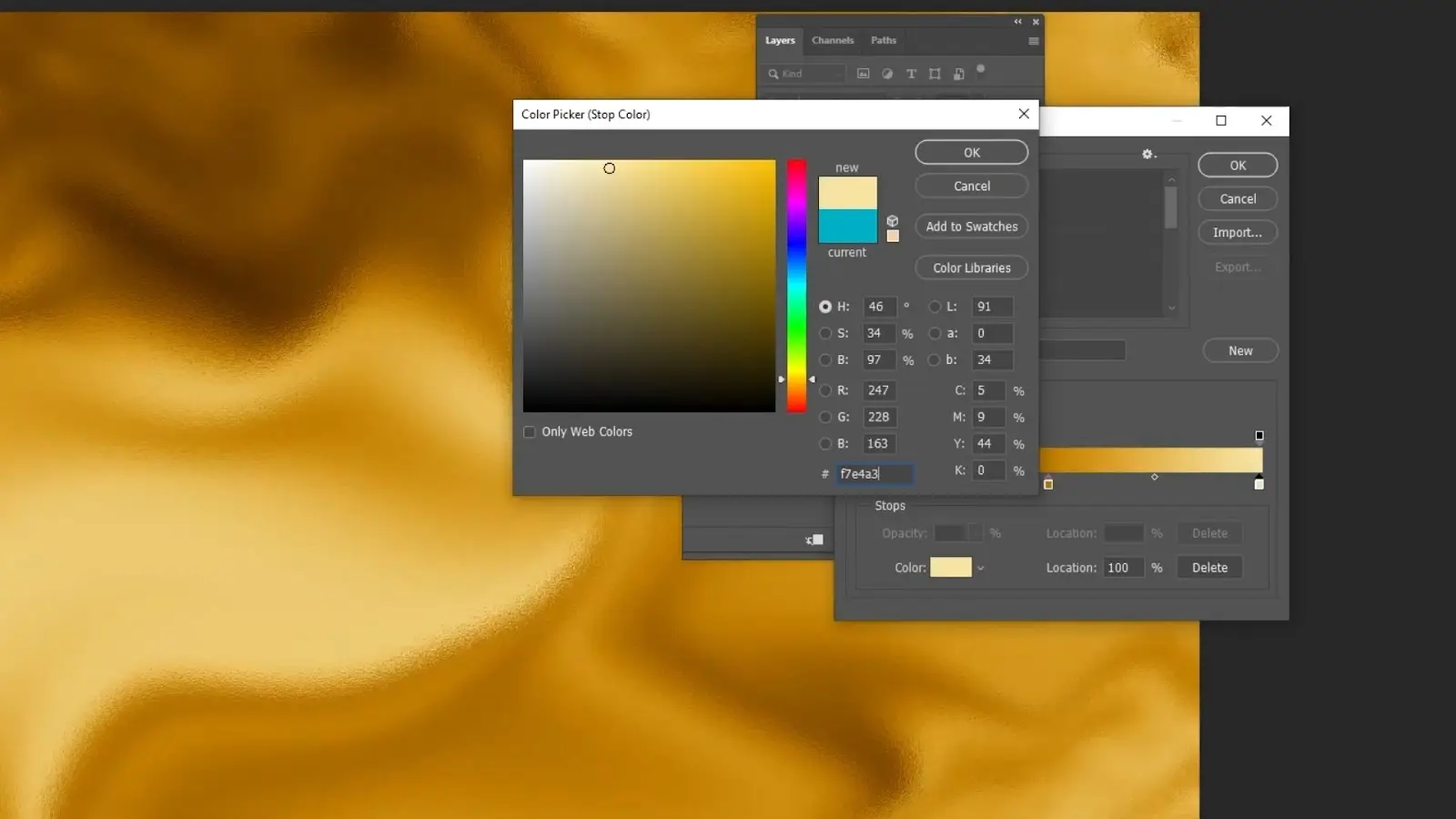
Step 6: Change Gradient Colours
Now comes the main part, where we will set the gold colour effect to create a gold texture. There is a circular icon below the layer panel. It is the adjustment layer. You can adjust the colour, pattern, and other visuals of the layer.
Go to the adjustment layer and select Gradient Map. Click on the colours, and a gradient editor window will pop up. Here you will get options to change the gradient colours.
Click on the different points of the gradient and change them to gold. Select different colours for the different points, but ensure they are close to gold.
For our photo here, we have selected the following colours:
Point 1: #2D1203
Point 2: #C07E00
Point 3: #F7E4A3
You may have noticed that we have selected a dark colour in the first point. That is because we wanted to go from dark to light golden. However, you can slide the arrow on the colour to change its position or colour as per your requirements.
For our photos, we have tried to create a gold-foil texture. If you want to create a different colour, such as rose gold, then you can use the following colour codes:
Point 1: #B86B77
Point 2: #EABFB9
Point 3: #FFE8E5
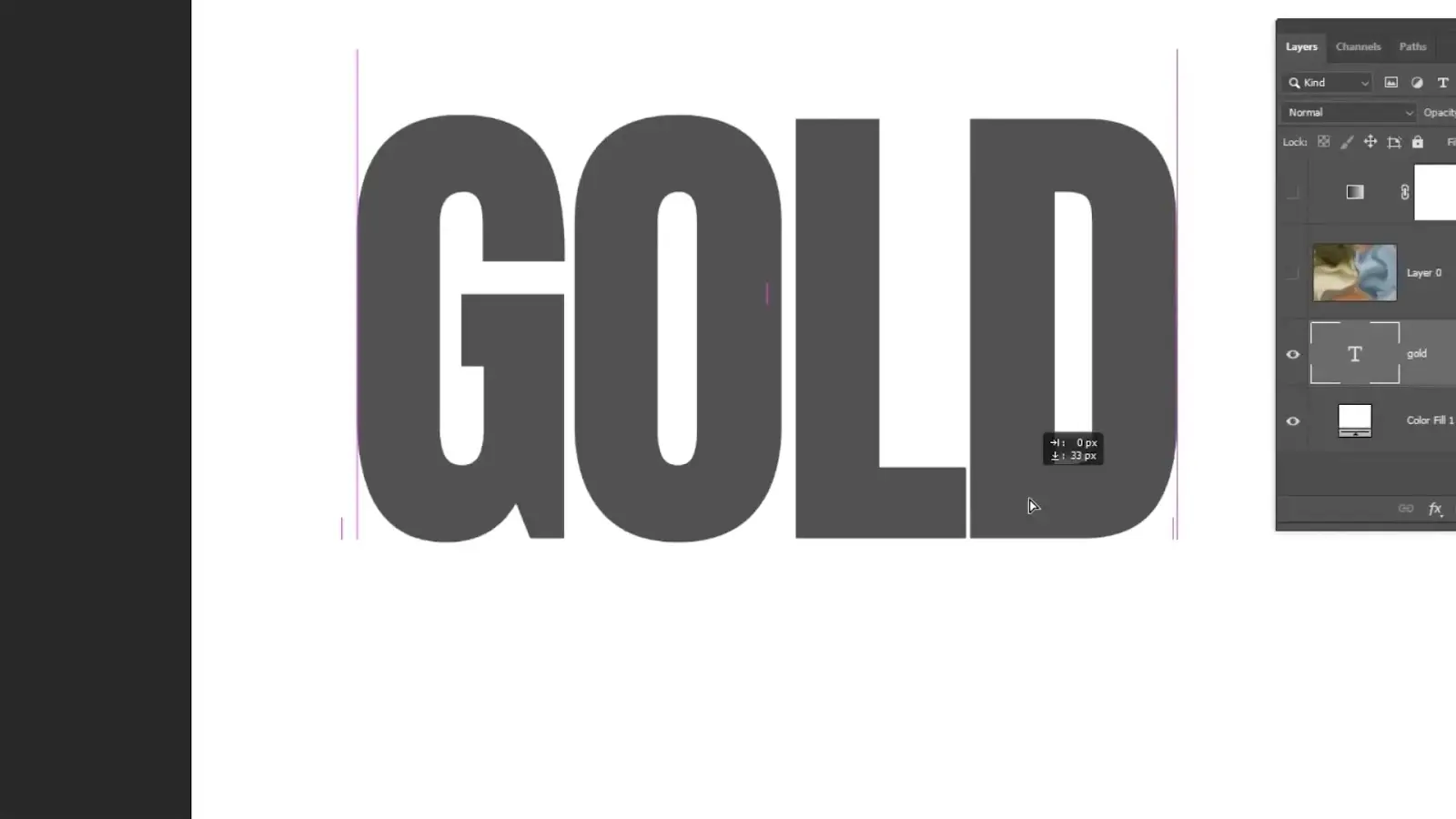
Step 7: Add Text
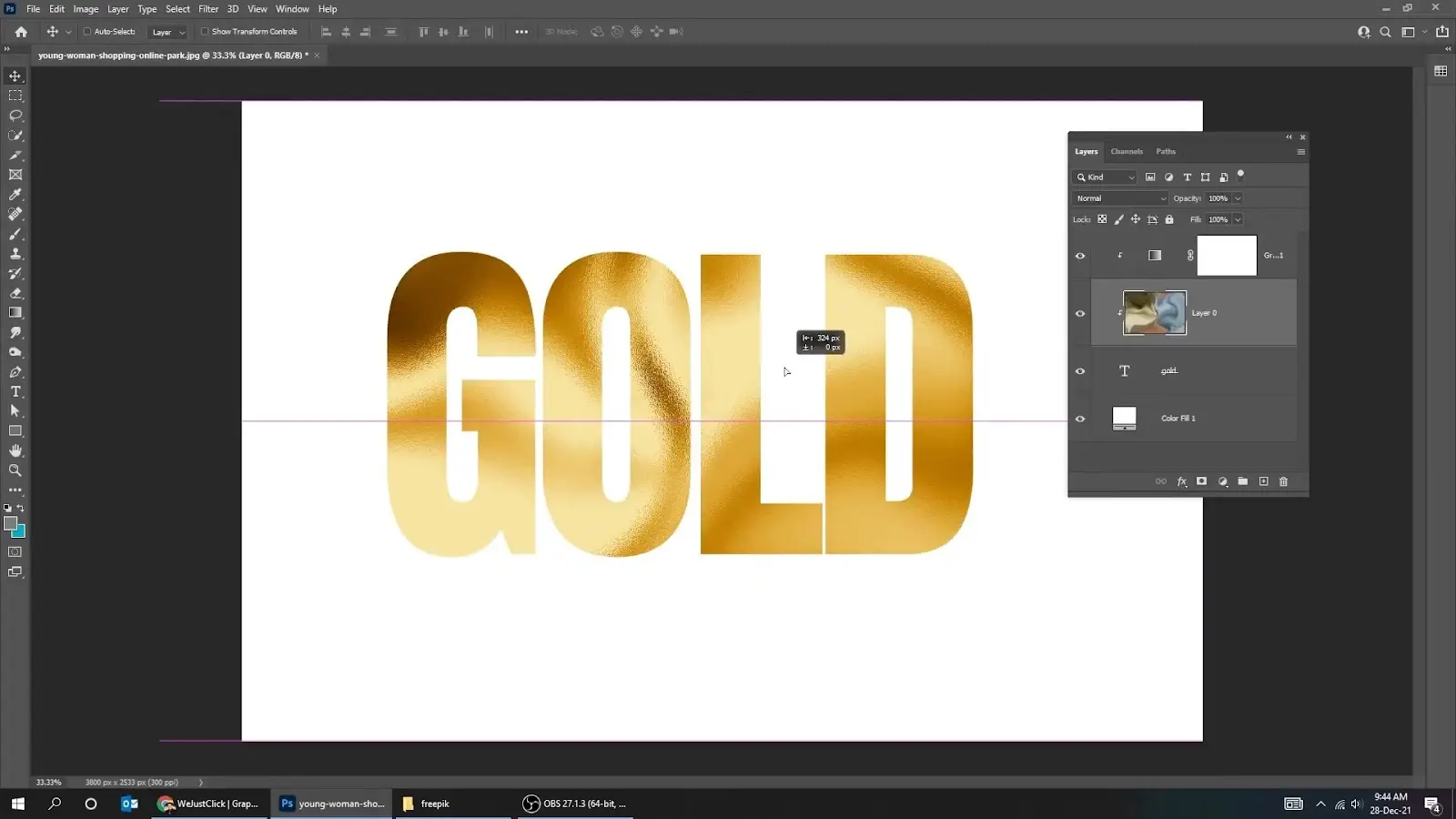
Now, click the eye icon next to the layer option to hide all layers. Then use the text tool from the left panel to write the text on which you want the gold effect. Here, we have written ‘GOLD.’
Step 8: Create Clipping Mask
Next, turn on the other layers. Then press & hold the shift button and select the picture and the colour gradient layer. Press the right mouse button and select the ‘Create Clipping Mask’ option.
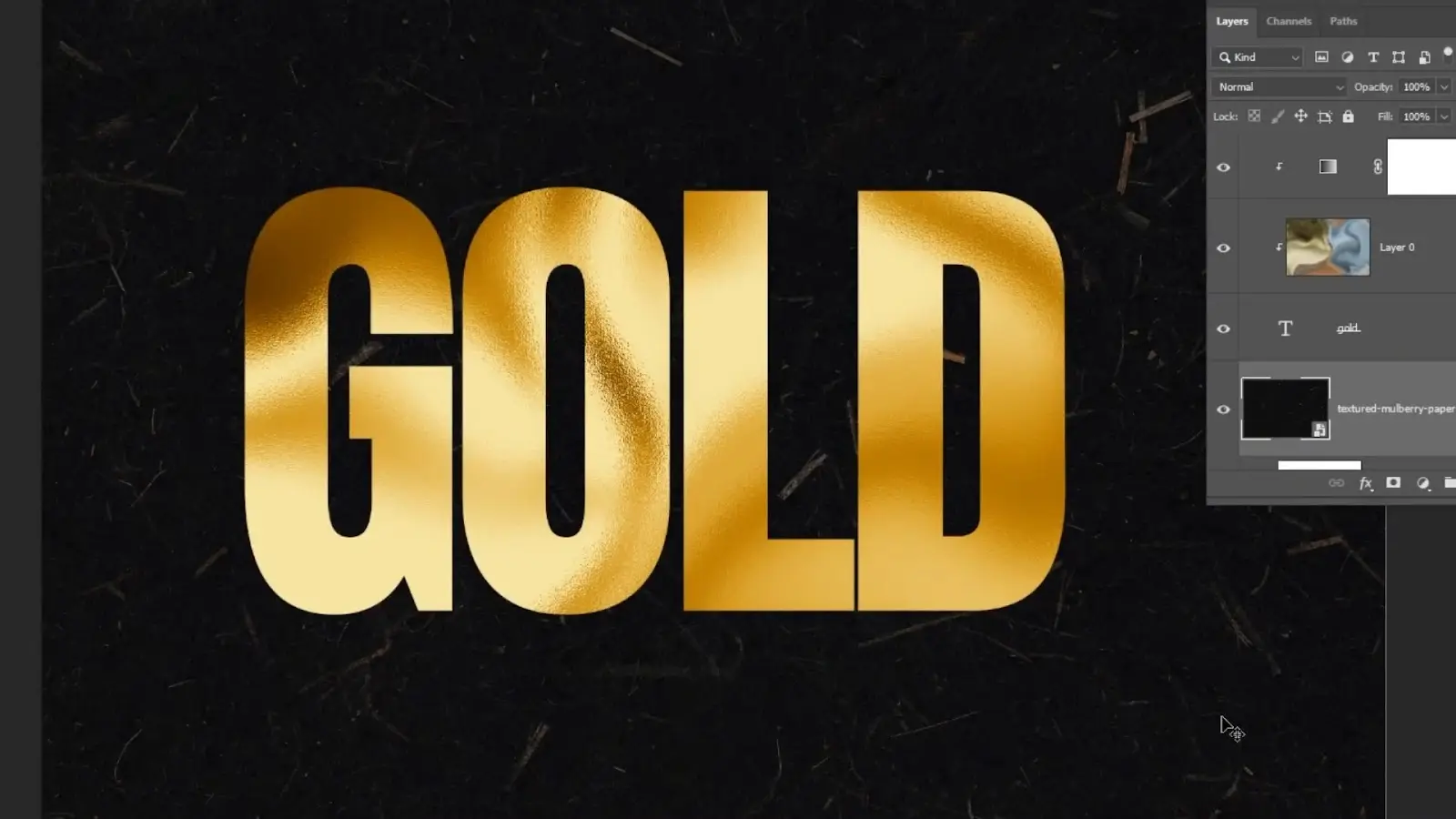
Now, you can see the Gold Texture effect on your written text. The text is on a white background that we had created earlier. If you want a transparent background, then you can delete this layer.
Step 9: Add Finishing Touch
Though the main work is done, you can add a few finishing touches to make it even better. For instance, you can adjust the position of the texture effect by sliding it while holding the left mouse button. We are done creating eye-catching gold texture effects in Photoshop. Now, you can save the photo.
How long does it take to create a gold texture in Photoshop?
It depends on your expertise with photo editing in Photoshop. However, creating a gold texture in Photoshop should take around 10 to 15 minutes on average.
But if you become a pro, you can do it in only a few minutes. Besides, once you have created one gold texture effect, you can manipulate it to create new photos within seconds. Select the text layer and change the text if you want the texture on new text. It will take you only a few seconds.
Conclusion
This was the full step-by-step tutorial on creating a gold texture in Photoshop. You can use the texture for website design, logo making, etc. However, you can follow this tutorial to make other colour textures as well. While choosing the colours in the gradient map in step 6, choose your desired colour, and you can have a different texture. We hope the article helped you to create your own golden texture.