cci logo

Clipping Creations India

  • Home
  • Image Editing Services
    • Background Remove
    • Clipping Path Service
    • Multiple Clipping Path
    • Ghost Mannequin Effect
    • Car Photo Editing
    • Product Photo Editing
    • Image Masking
    • Drop Shadow
    • Color Correction
    • Photo Retouching
    • Vector services
    • Photo Editing
  • Blog
  • Pricing
  • Our Portfolio
  • Free Trial
Home  »  Tutorial   »   How to Draw Hologram Effect in Photoshop – Quick Steps

How to Draw Hologram Effect in Photoshop – Quick Steps

  • Mark Mendoza
  • August 9, 2025
  •  
    • Tutorial

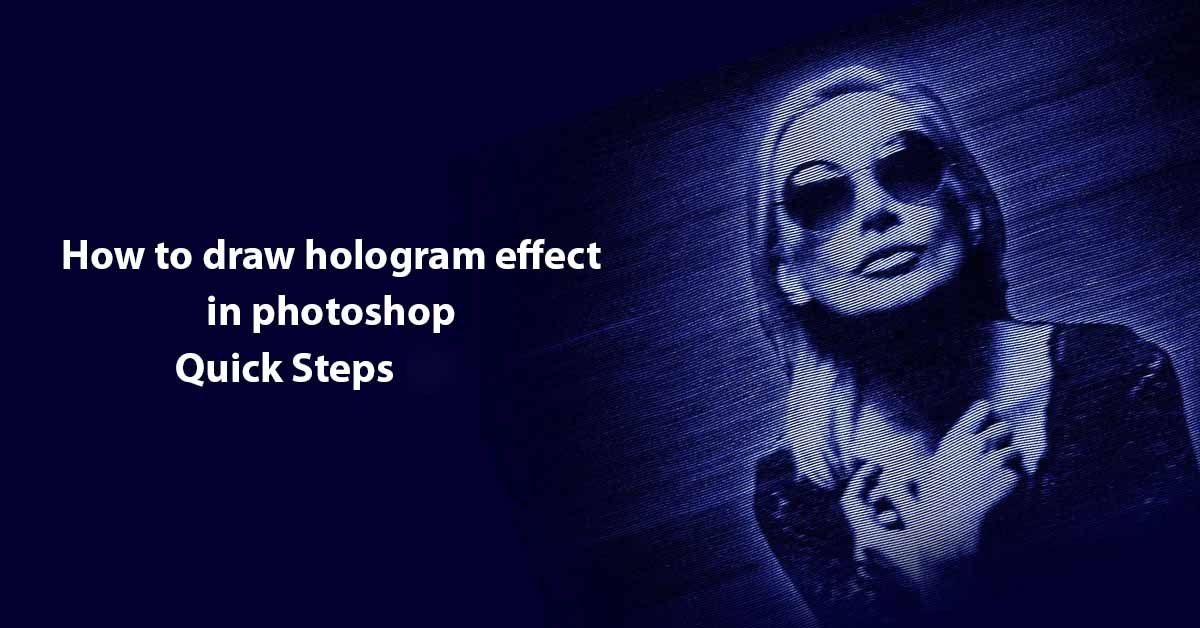
The hologram effect in Photoshop is a digital effect that creates a three-dimensional, futuristic appearance. Best for Images, Artwork, or Graphics Design, Hologram effects have recently been a trend in the market.

It can also be a great way to add a futuristic touch to your artwork or design projects. Plus, you can make your designs unique and catch viewers’ attention. So, if you haven’t learned about this new trick, you should get yourself used to it.

We will take you through the steps to create a hologram effect in Photoshop and learn the tips and tricks to effectively enjoy the process. Hop in to learn more.

How to Draw a Hologram Effect in Photoshop

It takes only a few steps to learn to create hologram effects in Photoshop. We have conducted the process ourselves, and here’s what we have come up with:
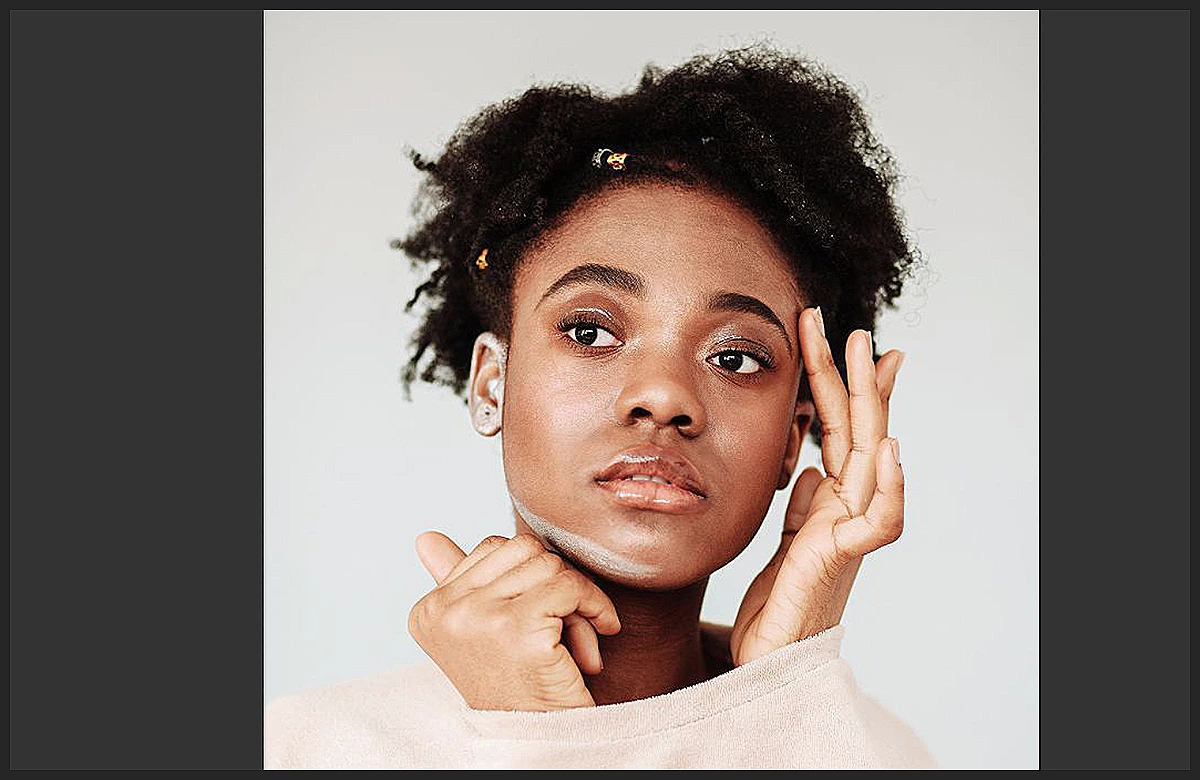
 

Step 1: Select An Image

First, you have to select an image to apply the effects to. Select images with a simple, clean composition. A cluttered image can make it difficult to apply the hologram effect, resulting in a messy final result. Choose an image that has a clear focal point or subject, and avoid images with too much detail or complexity.

Step 2: Create A New Layer

This is an important step because it allows you to paint the hologram effect on a separate layer from the original image, making it easier to adjust and modify the effect later on, without affecting the original image.
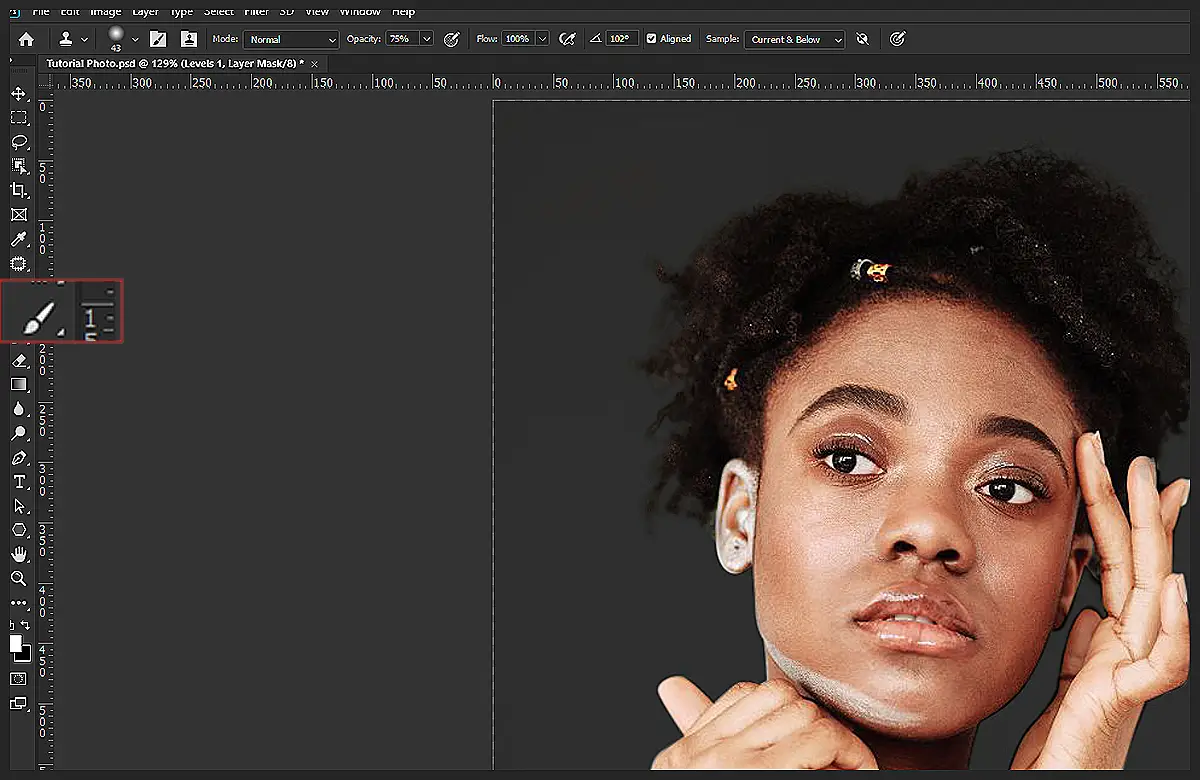
 

Step 3 Select the Brush Tool

Step 3: Select the Brush Tool

To add versatility to your image, use the brush tool in Photoshop. Brush tools are used to build a wide range of effects. When creating a hologram effect, a soft-edged brush works best. Because you can achieve a more subtle, natural-looking result with it. You can experiment with different brush sizes and opacity levels to achieve the desired effect.
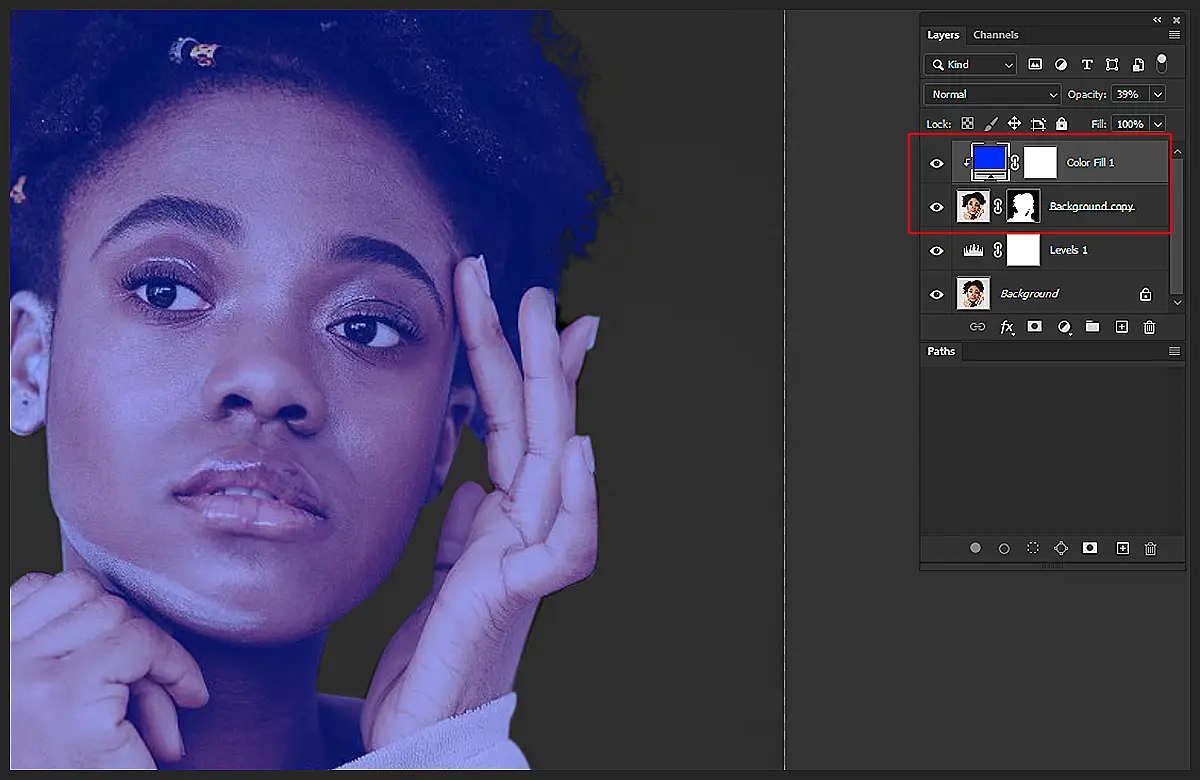
 

Step 4 Choose a Color

Step 4: Choose a Color

You have to choose the color carefully. Because what you choose for the hologram effect can have a big impact on the overall look and feel of the image. Blue and green are popular choices for a futuristic, sci-fi look, but you can use any color you like. Experiment with different colors to see what works best with your image.
Step 5 Add the Hologram Effect

Step 5: Add the Hologram Effect

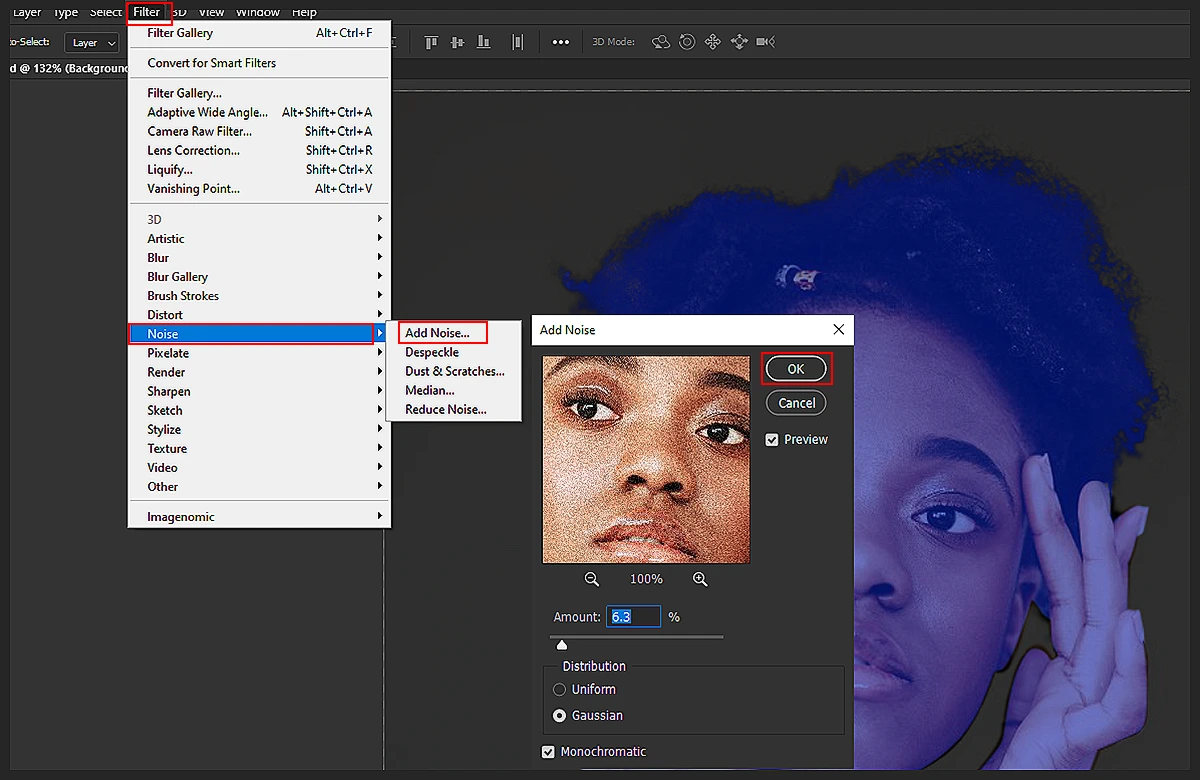
When adding a hologram effect, go to Filter > Noise > Add noise. Choose the monographic and introduce the glittering layer effect.
 

Step 6 Add a Layer Style

Step 6: Add a Layer Style

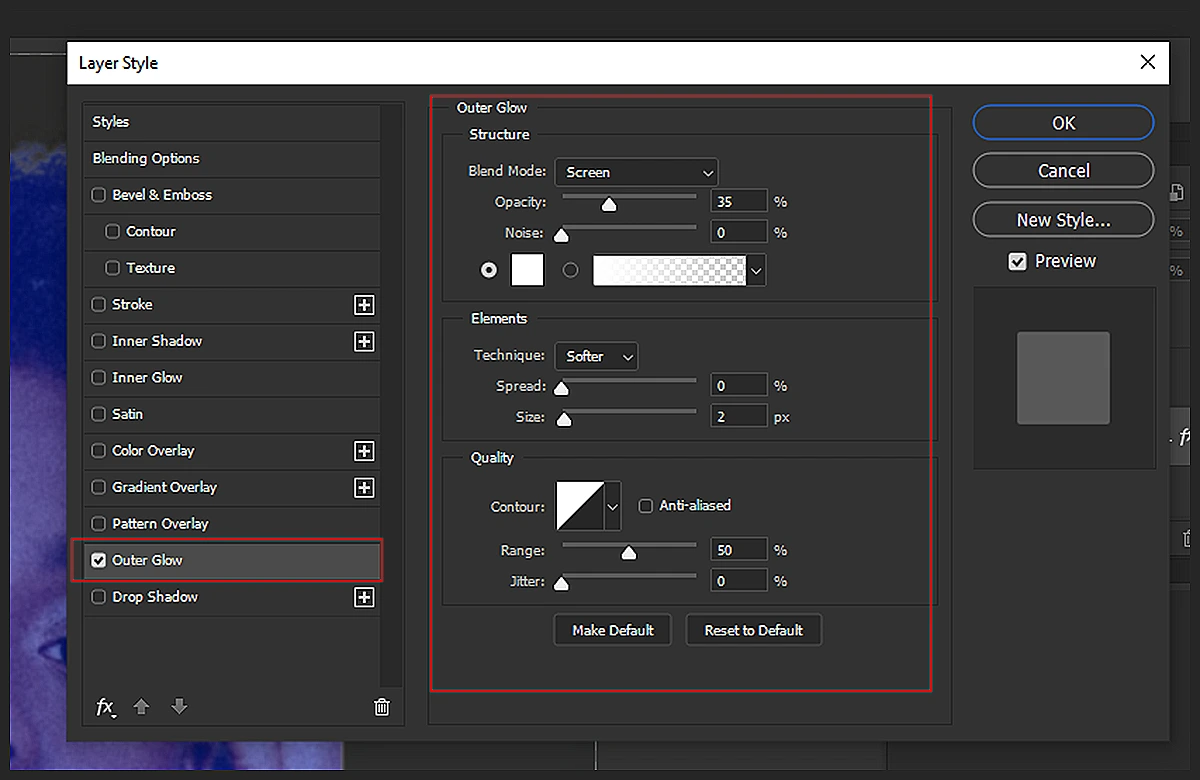
You can play with the outer glow in this step. Layer styles can help to enhance the hologram effect and make it stand out more.

Outer Glow is a popular layer style to use because it creates a soft, glowing effect around the hologram. You can experiment with different colors and settings to achieve the desired effect.
 

Step 7 Add a Texture

Step 7: Add a Texture

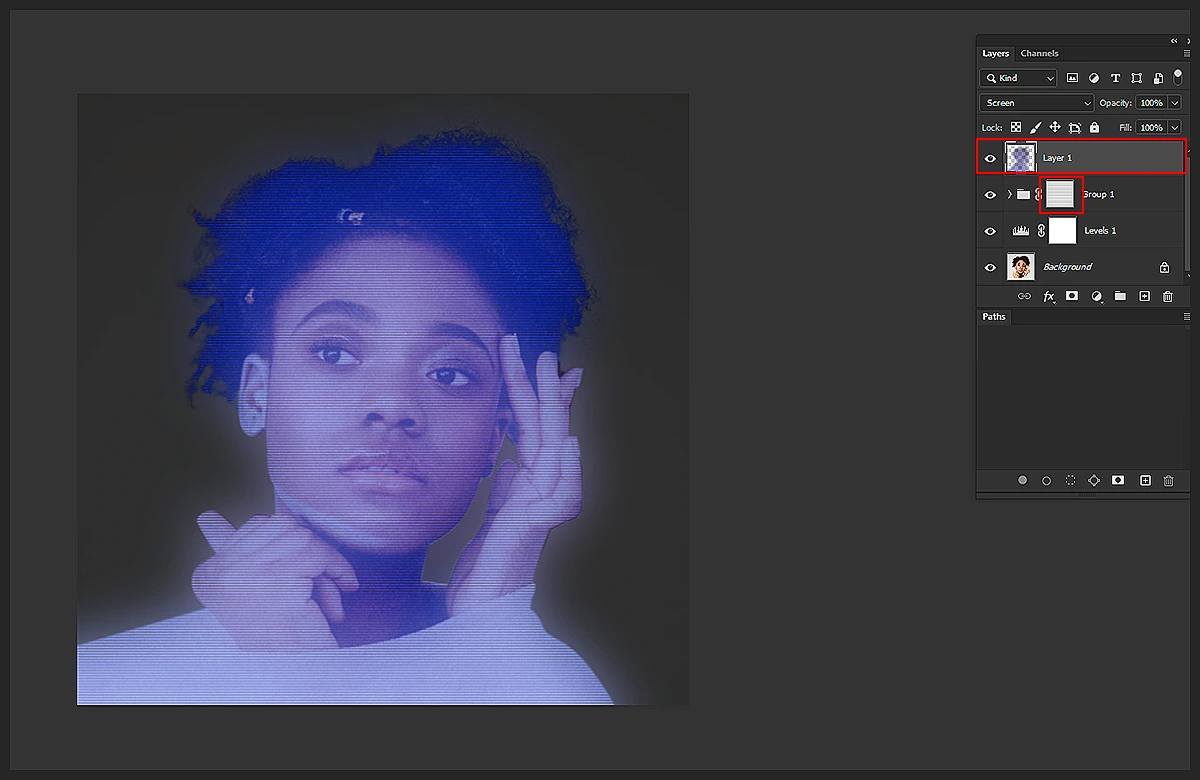
Adding a texture can help to give the hologram effect more depth and realism. Textures like Canvas, Burlap, or Noise can work well for a hologram effect. Experiment with different textures and settings to see what works best for your image.

Step 8: Final Touches

When making final adjustments to the image, consider its overall composition and balance. You may want to adjust the brightness, contrast, or saturation to make the hologram effect stand out more. You can also add additional design elements like text, shapes, or other effects to complete the overall look.
 

Step 9 Save and Export

Step 9: Save and Export

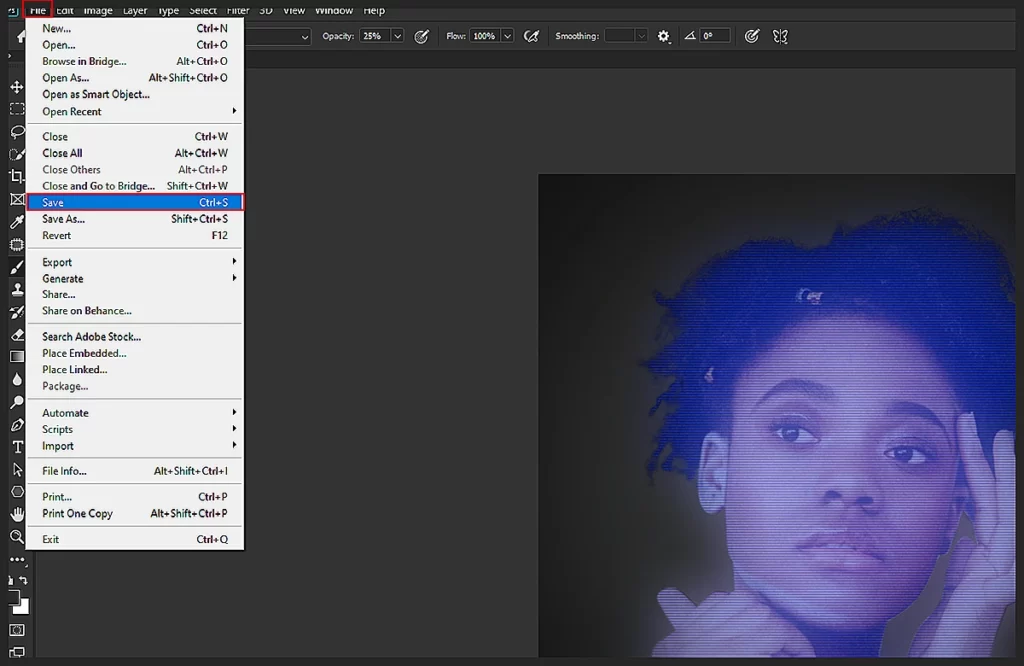
Save a copy of the image in Photoshop format (PSD) to allow you to make future adjustments if needed.

Then export the final image in a suitable format, such as JPEG or PNG, depending on your intended use and your project’s requirements.
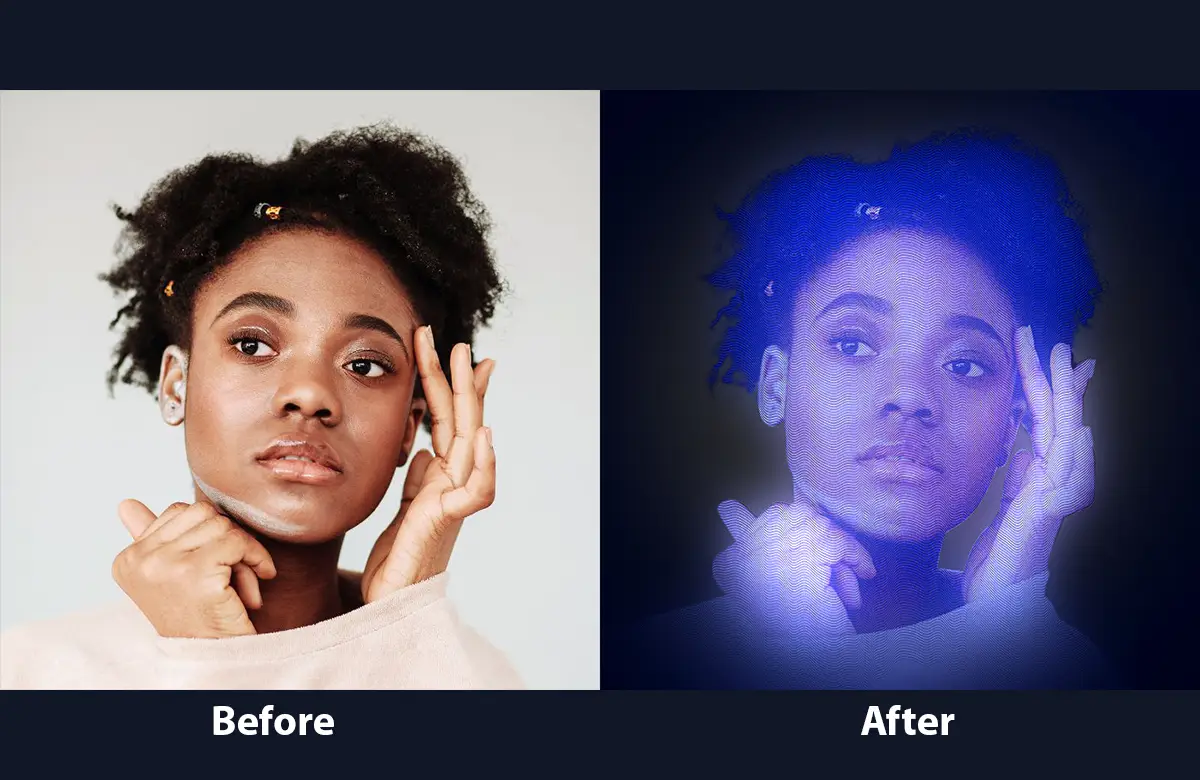
 

Draw Hologram Effect in Photoshop Before After

Step 10: Share and Showcase

Now that you have created your hologram effect, it’s time to showcase it to the world! Share your artwork on social media and portfolio websites, or use it in your graphic design projects. Remember to credit the original source of the image and any resources used in the hologram effect.

Hologram effects are creative for any designer or digital artist. With a little practice and experimentation, you can create stunning hologram effects that will enhance your artwork and take it to the next level. So, get started today and unleash your creativity!

How to Draw Hologram Effect in Photoshop: Tips and Tricks

It’s always best to learn some tips and tricks for hologram effects in Photoshop once you have mastered this strategy. Here are a few of them:

  • Experiment with different blending modes and opacity levels to achieve the desired effect.
  • Use a tablet or stylus to create smoother and more precise brush strokes.
  • Create multiple hologram layers with different shapes, colors, and textures to add depth and complexity to the image.
  • Have the Warp Tool adjust the hologram’s shape to match the subject’s contours in the image.
  • You can use the Hue/Saturation adjustment layer to adjust the color and saturation of the hologram effect without affecting the original image.
  • Always use reference images of real holograms to inspire your design.

Following these tips and steps to create a hologram effect that is subtle, realistic, and visually appealing. Don’t be afraid to experiment with different settings and techniques to find the perfect hologram effect for your image. Read More: How to Transform a Body Shape in Photoshop: Fat to Skinny.

  • Facebook
  • LinkedIn
  • WhatsApp
(Visited 184 times, 18 visits today)

Post navigation

< Previous
Next >

Top Services:

  • Clipping Path Service
  • Car Image Editing Service
  • Ghost Mannequin Service
  • Product Photo Editing Service
  • Multiple Clipping Path Service
  • Ghost Mannequin Service
  • Color Change Service
  • Drop Shadow Service
  • Color Change Service
  • Photo Editing Service
  • Image Masking Service

Popular posts:

  • How to Create See-Through Clothes in Photoshop: Easy…See Through Cloth in Photoshop − Best Practice
  • How to Move Eyes in Photoshop and Online ToolsHow to Move Eyes in Photoshop and Online Tools
  • How to Clip in GIMP: Step-by-Step Guide to Clipping…Step-by-Step Guide to Clipping Mask & Image Editing
  • How to Reverse Video in Photoshop: Photoshop GuideHow to Reverse Video in Photoshop Photoshop Guide
  • How to Export Photoshop ActionsHow-to-export-photoshop-actions-in-feature-image
  • How to Create an Alpha Channel in Photoshop?How to Create an Alpha Channel
  • How To Fix A Lazy Eye In PhotoshopLazy Eye Problem Here’s What to Do,
  • How to Fix a Dark Polaroid Picture? Easy Solution to…How to Fix a Dark Polaroid Picture
  • 10 Professional Photo Manipulation Artists You Must Follow10 Professional Photo Manipulation Artists You Must Follow
  • How to Swap Eyes in Photoshop Like a ProHow to Swap Eyes in Photoshop

Recent Post

  • Mastering Flat Lay Clothing Photography: A Step-by-Step Guide
  • How to Use Clipping Path After Effects in 5 Easy Steps
  • Merge Photos with Graphics
  • 5 Must-Have Effective Photo Editing Tools
  • Ghost Mannequin Photo Editing Services: Complete Guide for E-commerce Brands

Categories

  • Background Removal
  • Clipping Path
  • Color Correction
  • Ghost Mannequin
  • Image Masking
  • Photo Editing
  • Photo Retouching
  • Tutorial
  • Vector Editing

About CCI

Clipping Creations India is a brand operated by Arafin Media. Here, every pixel tells a story. We offer our unparalleled service and invest our most talented minds at your solution whether you are a photographer or an agency. We are the gateway to exceptional photo editing services!

Get Your Quote

Quick Menu

  • About Us
  • Contact Us
  • Blog
  • Terms and Conditions
  • Privacy & Policy

Payment Method

  • PayPal
  • Stripe
  • Western Union
  • Skrill
  • Payoneer
  • Wise

Get In Touch

+8801715-491890

hello@clippingcreationsindia.com

Canada Office: 1401-2900 Carling Ave. Ottawa, ON, K2B 7J6

India Office: C-20, Lajpat Nagar 3, New Delhi, Delhi 110024, India

Bangladesh Office: 15 Bijoy Nagar, Abdur Rouf Tower (6th Floor), Dhaka – 1000, Bangladesh

Copyright © 2012 - 2026 Clipping Creations India | All rights reserved.

  • facebook
  • twitter
  • instagram
  • pinterest
  • linkedin

Live Chat