
How to Swap Eyes in Photoshop Like a Pro
- Mark Mendoza
- May 21, 2025
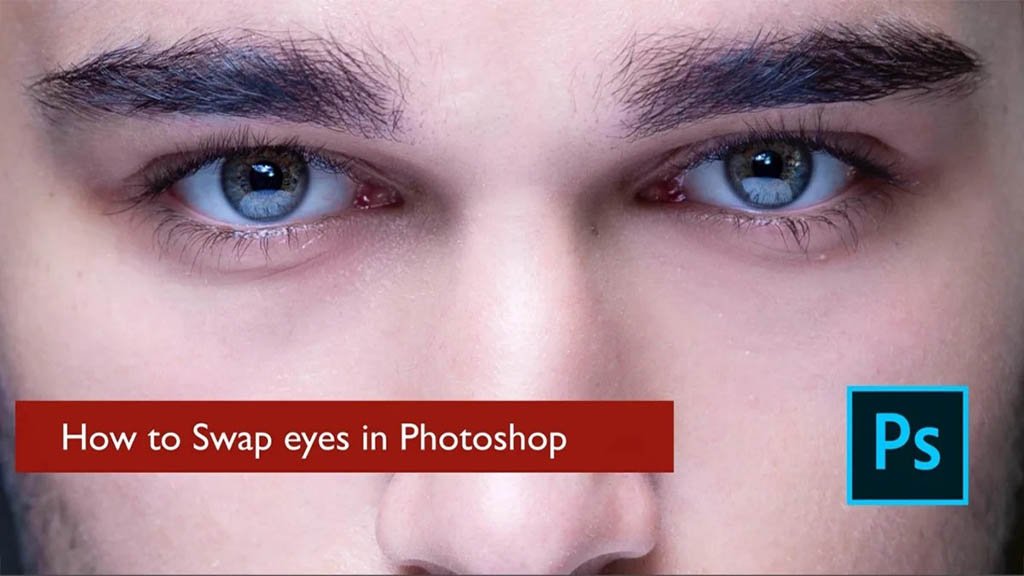
Photoshop is a powerful tool that can transform ordinary photos into extraordinary ones. One useful technique you can explore is swapping eyes in Photoshop. This eye-swapping thing is not just for fun; it’s a way to get good at Adobe Photoshop. Think of it like training to be a superhero in photo editing. By swapping eyes, you learn all the cool tricks and tools in Photoshop.
This creative endeavor can add a touch of humor, enhance portraits, or simply serve as a fantastic exercise in mastering photo manipulation. In our guide, we will delve into the nitty-gritty of swapping eyes in Photoshop, providing a thorough exploration.
How to Swap Eyes in Photoshop?
Thinking, why Photoshop? Well, it’s because Photoshop is easy and beginner-friendly. You can quickly learn how to swap eyes in Photoshop by following our guide to the point.
- Get Ready with Your Workspace: Before you start the eye-swapping adventure, make sure you have Adobe Photoshop on your computer. It’s like having the right tools for a special project. Once you have Photoshop, open it up just like you open a book. Then, find the picture you want to work on, like picking a page in a book. You do this by going to “File” and then “Open.” It’s like opening a treasure chest to find the picture you want to play with.
- Duplicate the Layer: It’s like having a spare copy of your favorite toy, just in case something happens to the original. To do this in Photoshop, go to the Layers panel, which is a special place where you can see and control different parts of your picture. In the Layers panel, right-clicking is like saying, “Hey, I want to do something special here.” When you do that, a menu pops up, and in that menu, you choose “Duplicate Layer.” It’s like making a copy of your picture so you can always have the original safe and sound, just like having a spare toy in case you need it.
- Select the Eyes: It starts with the right tool. To begin switching eyes, you’ll use a special tool in Photoshop called the Lasso Tool. It’s like having a magic rope that you use to pick things in your picture. You can find this tool on the left side of the screen, in the toolbar. It’s like where you keep all your special tools, just like a handy belt with different gadgets. When you click on the Lasso Tool, it’s like grabbing that magic rope to start working on your picture.
- Have a Precise Selection: The key to successful eye swapping is precision. Use the Lasso Tool to carefully select the first eye you want to swap. Take your time to ensure your selection is accurate.
- Copy the Selection: When you’ve carefully drawn the magical rope around the eye you want, it’s time to make a copy of it. It’s a bit like taking a photo of the eye to save it. To do this, press “Ctrl+C” if you’re using a regular computer or “Command+C” if you have a fancy Mac. It’s like pressing a button to tell your computer to make a copy of the selected eye, just like taking a snapshot.
- Create a New Layer: In Photoshop, this is like going to a menu called “Layer.” When you click on “Layer,” a list of options appears. One of those options is “New,” which is like saying, “I want a fresh, empty sheet.” When you pick “Layer” > “New” > “Layer,” it’s like telling Photoshop to create a new, clear sheet for your next step, just like getting a fresh piece of paper to draw on.
- Paste the copied eye: Now that you have that fresh, empty sheet (layer), it’s time to put the copied eye on it. It’s like taking that photo you snapped and placing it on a new piece of paper. To do this, press “Ctrl+V” if you’re on a regular computer or “Command+V” if you’re using a Mac. It’s like telling your computer to stick that copied eye onto the new, empty sheet you just created. This way, you keep everything nice and organized in different layers, just like putting pictures on separate sheets of paper.
- Position and Transform the Eye: It takes a few steps and starts here.
- Use the move tool: To do this, you’ll use a special tool called the “Move Tool.” It’s like a little hand that helps you move things around in your picture. Use this tool to drag the copied eye onto the eye you want to change. It’s a bit like sticking that sticker right on top of the old one but in your picture, making it look just the way you want.
- Transform the Eye: Making the pasted eye fit perfectly is like making sure a puzzle piece fits exactly where it should. To do this, you can change the size and the direction of the pasted eye. In Photoshop, there’s a handy tool called “Edit” > “Free Transform.” It’s like magic because it lets you stretch, shrink, or turn the pasted eye in different ways. It’s a bit like molding clay to fit just right. Use this tool to adjust the size and orientation of the pasted eye until it blends seamlessly with the original eye. It’s like making sure your puzzle piece slots into place, completing the picture beautifully.
- Blend the Layers: Similarly, follow the steps below to successfully blend the layers. Without this, you won’t have an intact image.
- Adjust Opacity: In Photoshop, there’s a panel called the Layers panel. It’s like having two sheets of paper, one on top of the other. When you reduce the opacity, it’s like making the top sheet a little transparent, so you can see through it. By doing this with the eye layer, you’re making the pasted eye just a little bit see-through. This way, it blends better with the original eye, like mixing two colors to create a new one. It’s a crucial step because it helps the eyes appear to belong together, creating a more natural and convincing effect.
- Precisely Align: When you’re swapping eyes in Photoshop, you need to do the same thing. You want the pasted eye to be in the same place as the original eye. This is like putting the puzzle pieces together. Make sure the eyes are in the right position and well aligned. It’s like arranging the pieces so they look like they were always meant to be together. This careful attention to detail is what makes your eye swap look real and convincing, just like solving a puzzle and creating a beautiful picture.
- Refine the Edges: It’s important to refine the edge as you approach the end. It can be done in.
- Blend for Realism: In Photoshop, you have a tool called the “Eraser Tool.” It’s like an eraser you use in real life, but it’s digital. With this tool, you can carefully erase the edges of the pasted eye, making them blend smoothly with the original eye. It’s a bit like softening the edges of a sticker to make it look like it’s part of the picture. This step is important because it helps your eye swap look natural, just like when you put a sticker on a photo and make it look like it’s part of the scene. It’s all about making things fit together seamlessly for a more convincing result.
- Repeat the Process for the Other Eye: You have to make both eyes match. To have a professional, this step is essential. You have to.
Mirror Image
You’ve successfully swapped one eye; now it’s time to do the same for the other to complete the picture. It’s like making sure both puzzle pieces fit perfectly. Here’s what you need to do:
- Select: Use the same technique to carefully pick the other eye you want to swap. It’s like choosing another puzzle piece.
- Copy: Just like you did with the first eye, make a copy of the second eye using “Ctrl+C” (or “Command+C” on a Mac). It’s like taking another snapshot of the eye.
- Paste: Create a new layer, just like you did before, and paste the copied eye using “Ctrl+V” (or “Command+V” on a Mac). It’s like placing the second puzzle piece on a new sheet.
- Position: Use the Move Tool to move the copied eye to the right spot, making sure it lines up perfectly with the first eye you swapped. It’s like putting both puzzle pieces in the correct places to complete the picture.
- Size and Orientation: Just like before, you can make the copied eye bigger or smaller to match the original eye. It’s like making sure both puzzle pieces are the right size to complete the picture. Think of the copied eye as a puzzle piece that might be turned the wrong way. Use the “Edit” > “Free Transform” tool to twist and turn the copied eye until it lines up perfectly with the original eye. It’s like rotating a puzzle piece so it fits snugly into place.
- Final Touches: Your eye swap is almost complete. To fine-tune the final result, you can adjust brightness, contrast, and color balance. Photoshop provides tools such as Dodge and Burn, which can be instrumental in making eyes look more realistic and convincing. Think of the copied eye as a puzzle piece that might be turned the wrong way. Use the “Edit” > “Free Transform” tool to twist and turn the copied eye until it lines up perfectly with the original eye. It’s like rotating a puzzle piece so it fits snugly into place.
- Save Your Work: Now that you’ve put all your creative energy into swapping eyes and making the picture look fantastic, it’s time to save your masterpiece. It’s like putting a special stamp on your artwork. In Photoshop, there’s a menu called “File.” It’s like the place where you keep your finished artwork. When you click on “File,” you’ll see an option called “Save.” This is like telling your computer, “Hey, remember this beautiful picture I created? Let’s keep it forever!” By choosing “File” > “Save,” you’re preserving all your hard work. It’s like putting your artwork in a safe place, so you can show it to others or enjoy it yourself. Now, your amazing eye-swapped image is safely stored and ready to be shared with the world! You should also learn more about how to move eyes in Photoshop.
Final Words
Swapping eyes in Photoshop is like a fun magic trick for your pictures. It lets you be really creative and make your photos look super cool. In our comprehensive guide, we’ve shown you every step, from start to finish. It’s like teaching you all the secrets of the magic trick. As you practice and play around with it, you’ll find that Photoshop is like a treasure chest full of amazing things you can do with pictures. Just remember to be patient and pay close attention to details. This way, you’ll make your photos look awesome, people will be impressed, and they’ll enjoy what you create. So, have a great time swapping eyes in your pictures!