
5 Essential Photoshop Tools to Edit Your Blog Post
- Paul Jones
- October 10, 2025
- Tags: Image editing tips, photo editing tools, Photoshop Editing, photoshop tips, photoshop tools
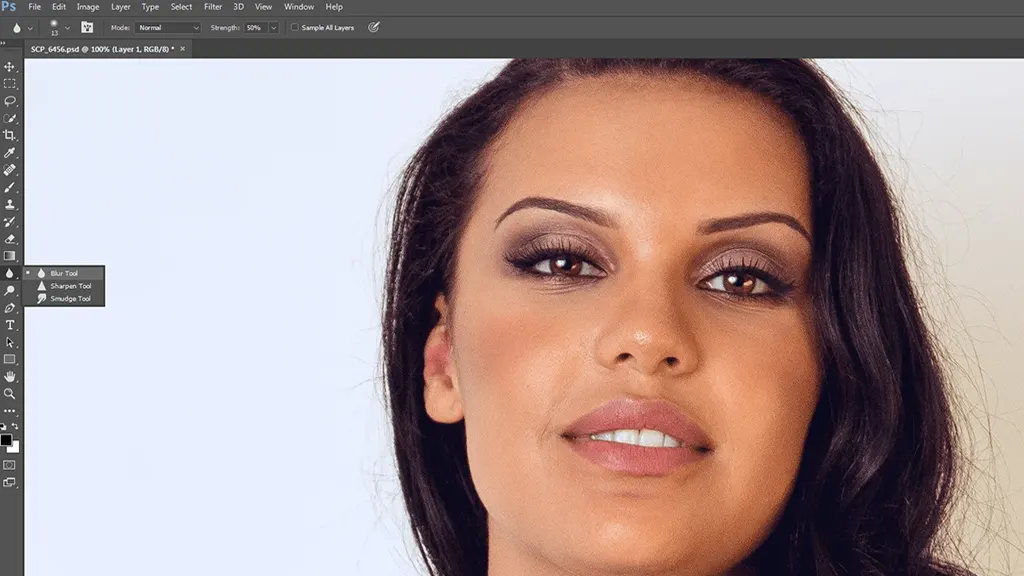
Since last month I have been going through Photoshop skills in order to make the photos much better for my blog and today I am going to introduce you to 5 top tools which you can use very easily without having any difficulty but first, you need to read this full article in order to gain the knowledge of these tools. This tutorial will be helpful for learners who want to be an expert photo editor to manipulate photos in perfect ways. So let’s begin:
1. Dodge tool or Burn tool:
If you want to look your image lighter or darker then you can simply use this tool. These tools are made for those people who want to make their image look shinier or darker. It contributes a great significant appearance to your photos
HOW IT WORKS
All you have to do is to select something like a magnifying glass, a hand, or a sponge-like icon that is in your toolbox. Now you have selected the tool just right-click on the icon you will find three tools there, sponge tool, dodge tool, and burn tool. In my opinion, the sponge tool is useless so leave it. You can use this tool as a brush that hovers over your mouse to a particular area of your image in order to make that portion lighter or darker.
2. Spot Healing Brush or Healing Brush:
If you found something in your photos that you generally don’t like then these tools are perfect for you. Spot healing brush and healing brushwork are almost the same but still, they have different functions. In a spot healing brush, you can just hide the part of your image easily without using two keys or taking the sample which you want to put in that place. In Healing Brush, you have to select the sample first and then put it in the place where you want to repair the part of your image.
HOW IT WORKS
It works fine just kidding, all you have to do is just look at the top of your toolbox you will find something like a band-aid icon just simply clicks on it and selects it. So now you have selected the tool. If you are using a spot healing brush then just simply left-click on the area which you want to remove or repair but please don’t forget to customize your selector size otherwise it will gonna look worse. If you are using a healing brush then select the sample which you want to put in that place of your image where you wanna hide something, in order to select the sample just simply press the alt key to select the sample and when you have selected the sample then now press left click button to repair the region of your image.
3. Text Stroke:
This is an amazing thing you can do with your image. It’s veritably simple, you can fluently elect the type tool and also class whatever you want, now go to the layers menu, from there you just need to right- click and select the blending options, and a new window will pop up, from there select stroke and see the magic yourself. It’ll punctuate the textbook with your image, which adds a genuine quality to your prints. Numerous bloggers are using this fashion to make their look more elegant.
Now I’m going to tell you a special feature that you can use to crop or blank a certain area of your image by pressing the delete button. Throughout this composition, I’ve shown you how to make images standard and professional. By using Adobe Photoshop’s tools, you can do nearly all types of print editing tasks, such as print cut-out, background junking, print retouching, image masking, etc.
4. Lasso Tool:
I do n’t like this tool; it is important, but you can use it, and you can select it from the top of your toolbox. You need to hold the left- click button while selecting a particular area of your image, and that’s what I do n’t like. Do n’t worry, I’ve got something even more amazing than this.
5. Polygon Tool:
You can find this tool in the same place where you set up the lariat tool. This tool provides you with different intervals to choose from. You just need to left-click while taking breaks, which is an easy way to make the selection.
Conclusion
Mastering basic Photoshop tools can significantly improve the quality of your blog images and the overall presentation of your content. Tools like Dodge and Burn, Healing Brushes, and selection tools help create polished and professional visuals with minimal effort. By learning these essential features, beginners can quickly enhance their photo editing skills. Consistent use of these tools will not only improve aesthetics but also increase engagement on your blog. High-quality visuals play a key role in SEO, making your content more attractive and shareable. Commit to practicing these tools today and take your blog’s visual impact to the next level.
FAQ's
Frequently Asked Questions

The most essential Photoshop tools for beginners include the Dodge and Burn tool, Spot Healing Brush, Healing Brush, Lasso Tool, and Polygon Tool, as they help in basic photo editing and retouching.
The Spot Healing Brush automatically removes unwanted objects or blemishes by blending the surrounding pixels, making it one of the easiest tools for quick photo corrections.
The Healing Brush requires manual sample selection using the Alt key, while the Spot Healing Brush automatically samples nearby areas, making it faster for simple edits.
Bloggers use Photoshop tools to enhance image quality, improve visual appeal, and create professional-looking content that boosts SEO rankings and user engagement.