
Become A Master of Clipping Path In Photoshop Using CS5/CS6
- February 1, 2025

In the E-commerce sector, potential customers are attracted by lifelike product photos. And that leads to increased sales. So, the seller or manufacturer has to rely on Photoshop’s clipping path to create vivid images. Its demand is so high that people end up hiring clipping path service providers. Luckily for you, this article on how to create a clipping path in Photoshop CS5 and CS6 can help you save some money as well as time. Install Photoshop and review these steps before starting.
How to Create a Clipping Path in Photoshop
Some of you might consider clipping paths in Photoshop tedious. But to create a clipping path, you just need to follow these 8 steps –
Upload the Image
First and foremost, you will have to launch Adobe Photoshop. From the File menu, select Open to upload your product image.
Read more: Best Outdoor Product Shoot Ideas
Enable Pen Tool
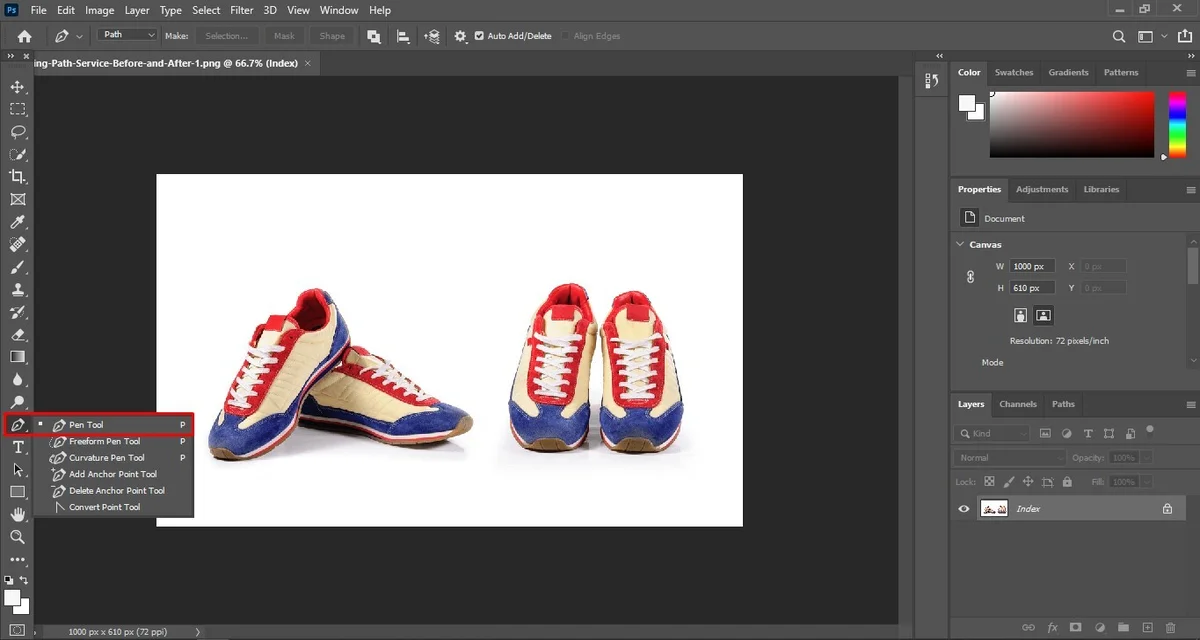
After uploading the image to Photoshop, proceed to select the Pen Tool. You can spot it in the Toolbar, located on the left side of the screen.
Select New Path
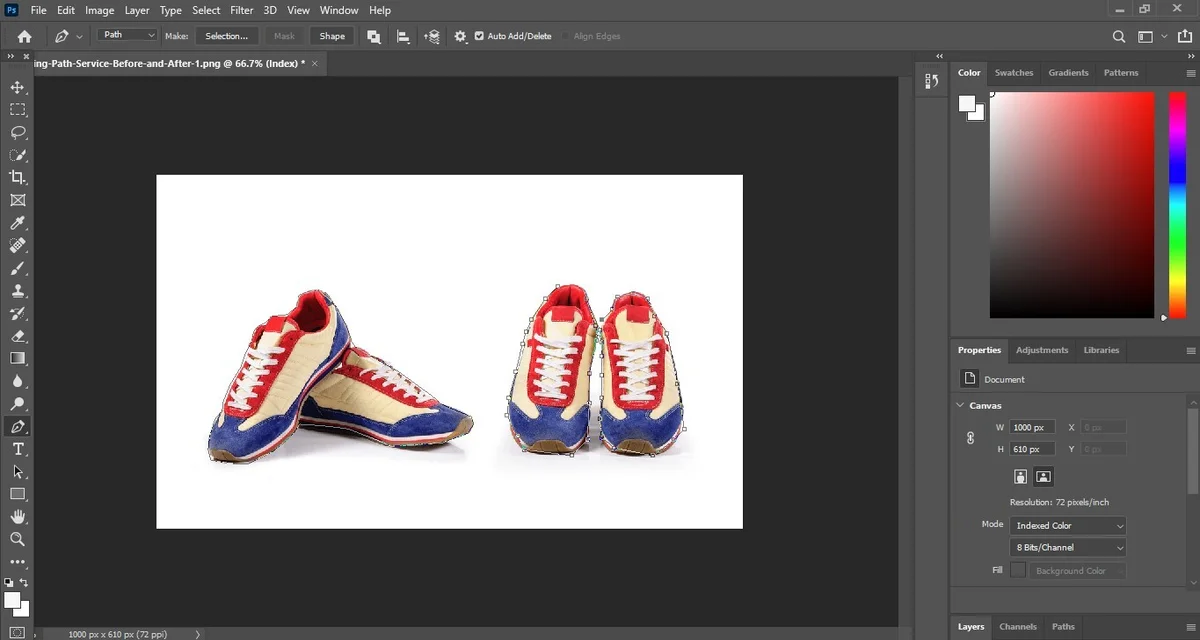
The Path found on the options bar provides the users with various path selection tools. For selecting objects, freely choose the Combine Shapes option among the others.
Start Outlining
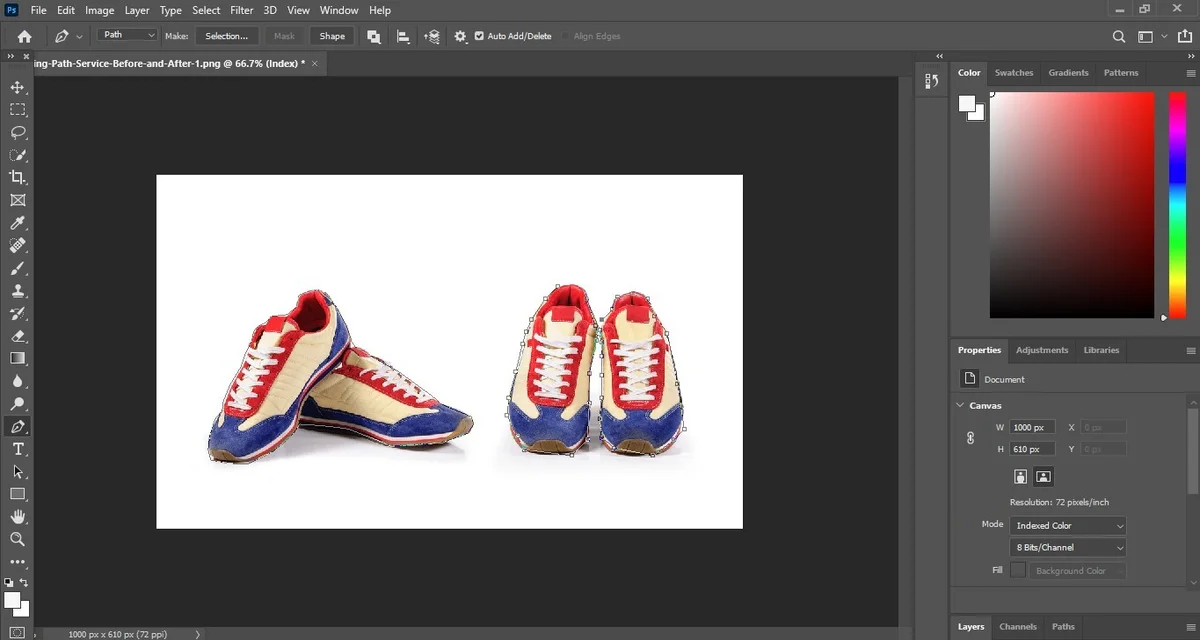
This has to be the most time-consuming step. Use the pen tool to draw a path surrounding the object. Zooming the object’s sides as you draw along the object will ensure that the paths don’t cross the edge.
Add anchor points close to the sides until you have the object completely covered. Sometimes, objects consist of inside paths, for instance, a handbag. In such cases, drawing the inside paths is a must. Doing this will produce a lifelike image.
Add Changes If Necessary
Let’s be honest here; it is nearly impossible to get the paths right every time. Luckily, clipping paths in Photoshop CS5 do have their advantages, as you can adjust the paths to your liking.
In that case, choose the Path Selection Tool, which is located on the left side of the Toolbar. Now, move and stretch the paths as required. Do remember to close the path once you are done.
Save Path
After all the hard work, it’s finally time to seal it off. From the Path Panel, select the Work Path twice. Then save the path with any name you want.
Create the Clipping Path
To do this, open the Path tab in the Layers panel. From the drop-down menu, select the Clipping Path option. Now, a dialogue box should appear.
Now, adjust the Flatness to increase or decrease the smoothness of your edges. Finally, clicking OK will automatically create the clipping path.
Create a Clipping Mask
Hold on to your horses, your task is almost over. The only task remaining is removing the isolated background layer.
To do so, open the Layers panel, where you will notice a Layer Mask icon. Click on the icon twice to add a layer mask to your photo.
Now, your object will be completely isolated from the previous background. But before you forget, do save that image!
Shortcuts for Performing Clipping Path in Photoshop
For graphic designers who are faced with loads of photos to edit, some shortcuts can save a lot of valuable time. We have sorted through some of the most useful clipping path options in Photoshop.
- P: Press on P whenever you want to select the Pen tool.
- H: Press on H to select the Hand tool.
- Control +: When you need to zoom into the picture for better path outlining, simply press the Control key and the + key to get the job done.
- Control -: Similarly, whenever you are done with the outlining task, press CTRL and – simultaneously to zoom out of the image.
- A: If you want to adjust your points created by the Pen tool, you can use A to select the Direct Selection tool.
- Shift and Click: To toggle the Layer Mask, select Shift and click the right mouse button.
- Shift + Control + N: For creating a new layer, combining the Shift, CTRL, and N is the easiest option.
- F7: Sometimes, the Layers Panel can get in your way. So, to hide it, click on F7. The same step will work when you want to reveal the Layers panel.
- ALT + Click: When you want to create a corner at any point on the path you made with the Pen tool, simply select ALT and click to get the work done quickly.
- Shift+ Click: You can press Shift and click while toggling with the Layer Mask.
Conclusion
To wrap things up, it’s safe to say that the clipping path in Photoshop CS5 and Photoshop CS6 is fairly easy. You will just have to get some practice done with the pen tool, as the other steps, consisting of creating clipping paths and layer masks, are not very complicated. Keeping all the steps for creating a clipping path in Photoshop in mind will surely help you achieve great results in less time. Now select the pen tool and start creating masterpieces that will make your photos stand out from the crowd.