
Clipping Path Greyed Out Photoshop | Reasons And Possible Solutions
- February 2, 2026
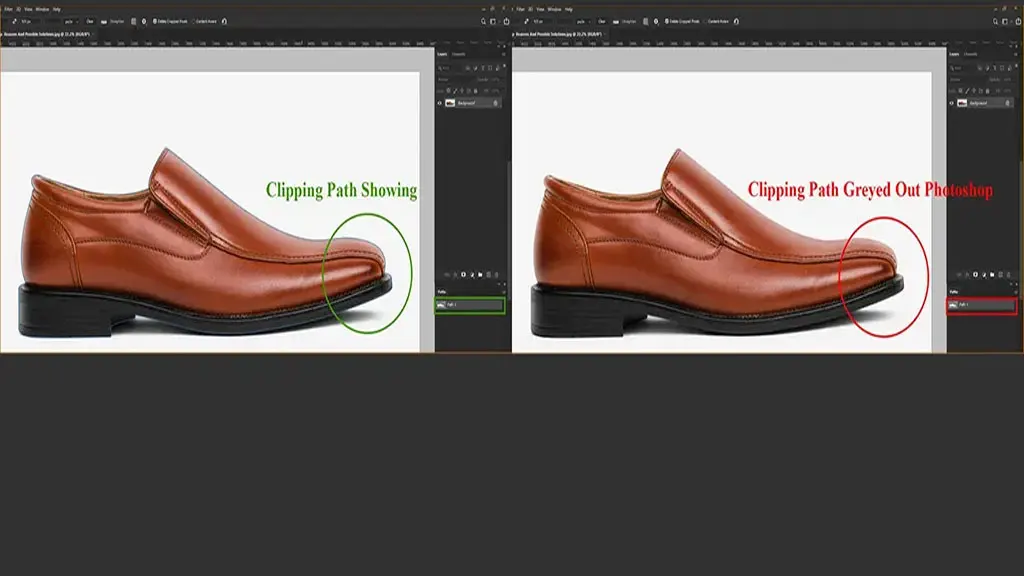
Clipping Path in Photoshop may sometimes face common problems. One of them is the clipping path greyed out in Photoshop that many users face.
These problems mainly happen due to some particular technical problems like OnepGL unchecked, GPU misconfiguration, GPU not supported, update issues, etc. Aside from this, using an old version of Photoshop could be another reason.
Note: The problems are not obvious, and the solutions are not universal for all problems, as Photoshop integrates software and hardware.
Scenario Of Clipping Path Greyed Out In Photoshop
You may try to select the “Pen Tools” for selecting an object, but the Pen Tools may be greyed out and don’t work for selection. Or maybe, while trying to save the Path from the “Work Path,” the options are getting greyed out.
Another scenario could be that after saving the Path, the “Clipping Path” option is greyed out. All these are considered the Path or Clipping Path Greyed in Photoshop.
The Common Reasons Behind Clipping Path Greyed Out in Photoshop
We have tried to show some reported problems we have found in different forums of Adobe Communities and solutions suggested by officials. Aside from this, a single problem for regular processing gaps could happen, too. By the way, the biggest problem is the GPU compatibility and settings. Let’s see them at a glance.
Causes | Possible Solutions |
Open GL is disabled | Enable Open GL |
Path Preference issue | Set path as Default |
Misconfiguration of GPU | Set Nvidia to High-Performance |
Misconfiguration of GPU | Set AMD to High-Performance |
GPU compatibility issue | Upgrade your GPU |
Older Version of Photoshop | Updated the Version |
VM (Virtual Machine) incompatibility | Don’t use Photoshop in VM |
Update and Driver Issues | Update all drivers |
Open GL is Disabled
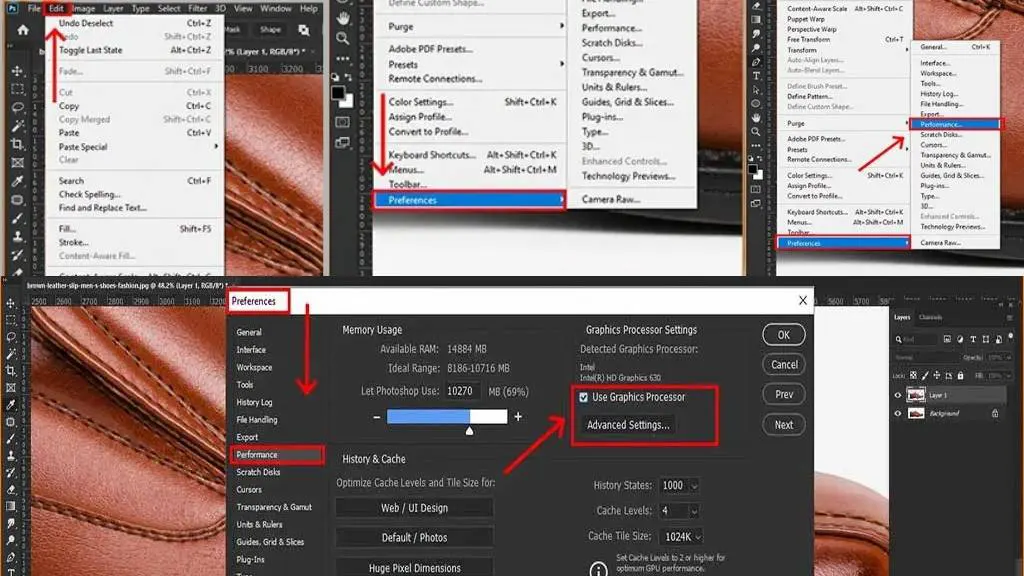
This problem may happen from the very first attempt to do a Clipping Path. If the problem is OpenGL disabling, it’s not a big issue. You can easily fix this.
Solutions
- Click “Edit” and move your mouse cursor to “Preferences.”
- Select “Performance” and check “Use Graphics Processor” if it is not.
After setting this, relaunch Photoshop. This will enable the Open GL drawing.
Path Preference Issue
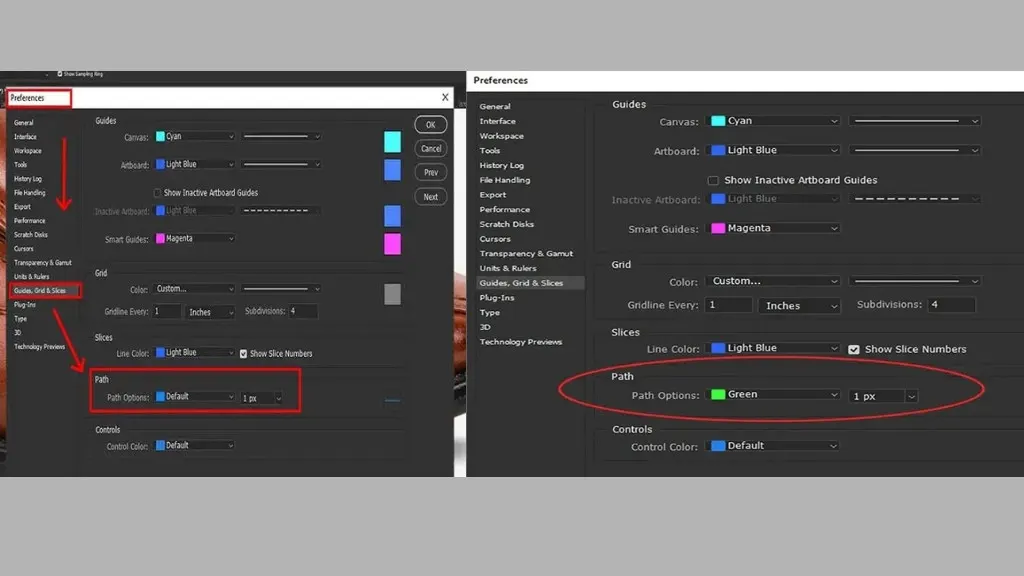
Sometimes you have to adjust settings for Path Preference. This could be another reason for the Clipping Path greyed-out issue.
Solution
You need to set your Preference option for the path as follows.
- Click “Edit” and move your mouse cursor to “Preferences.”
- Select “Guide, Grid & Slice” and select Path Options as Default at the bottom.
Misconfiguration Of GPU
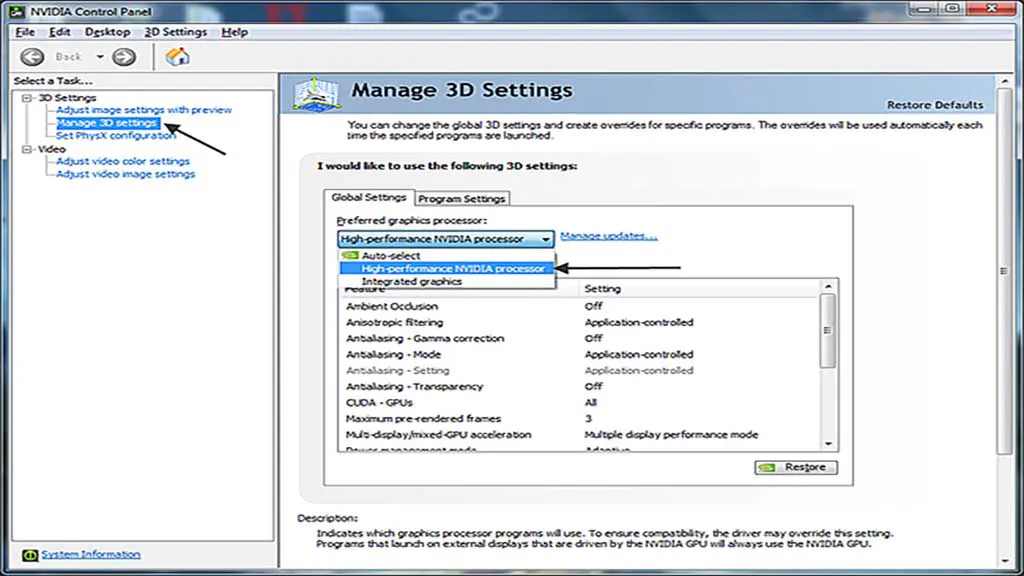
Most of the time, another common Clipping Path greyed out in Photoshop happens due to GPU misconfiguration. Photoshop requires advanced GPU performance, and you have to configure your PC’s GPU in the advanced settings.
Solution
In modern days, computers, both NVIDIA and AMD GPUs, may be installed in your system. So, you have to configure them differently for both Windows and macOS.
- Open “NVIDIA Control Panel”
- Select “Manage 3D settings.”
- Select the “High-performance NVIDIA processor” as your “Preferred graphics processor.”
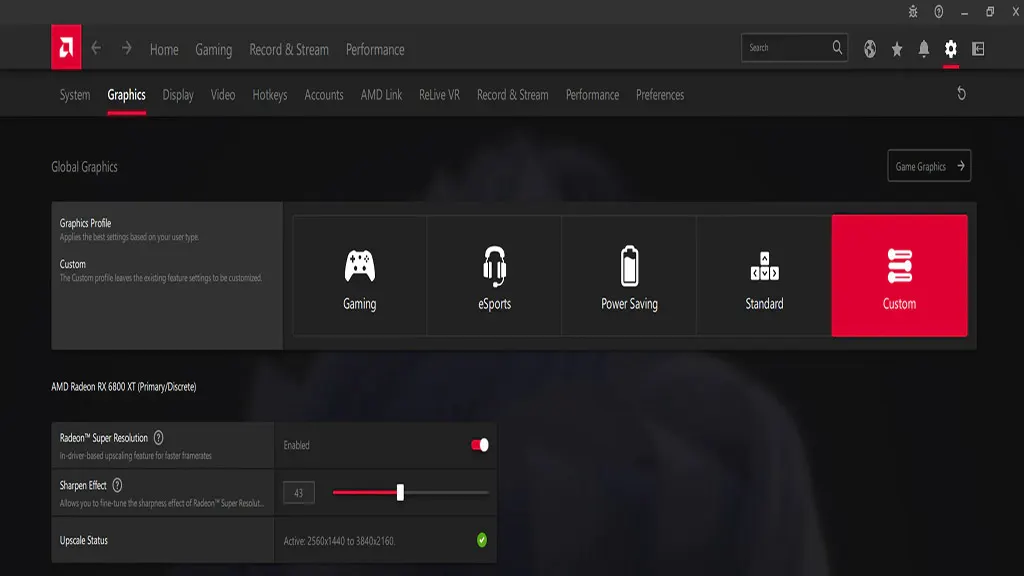
Configuring AMD GPU in Windows
This setup is the latest AMD Adrenalin Software. The interface might be different in an older version of AMD GPU software (Figure 03)
- Open “AMD Software: Adrenalin Edition”
- Go to “Graphics” in the Navbar
- Select “Gaming” or “Standard” mode.
- Enable “RadeonTM Super Resolution” and “RadeonTM Anti-Lag”
Configuring the GPU in macOS
Configuring the GPU option in the advanced settings is straightforward in MacOS. Follow the following steps to switch OFF automatic graphics switching.
- Go to “System Performance” and Select “Energy Saver”
- Uncheck “Automatic graphics switching”
GPU Compatibility Issue
In modern computers with the latest and advanced features, if you install an older GPU card, this may create a grayed-out issue in your Photoshop. You might not be able to use Photoshop with older GPUs.
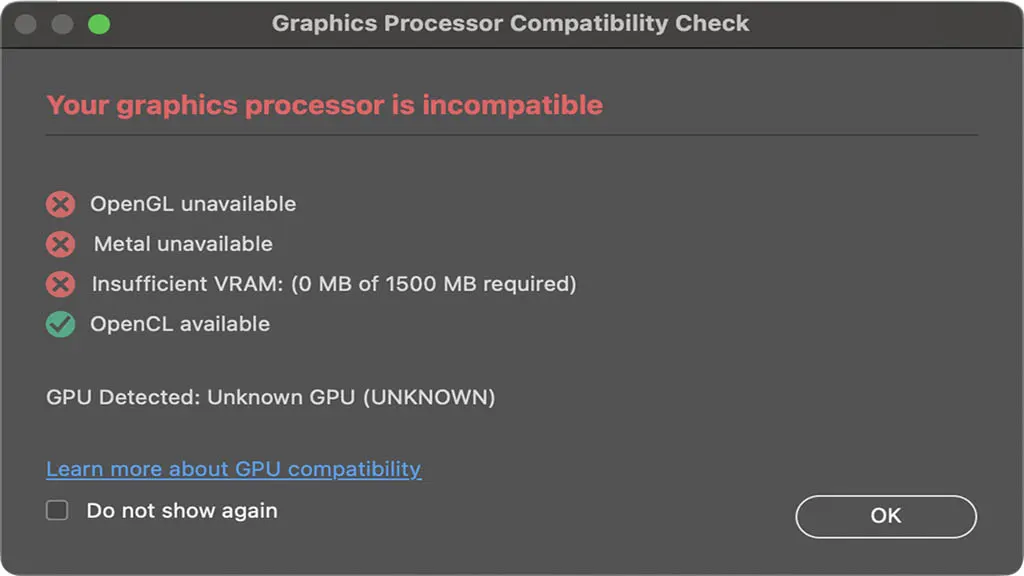
From the Photoshop 23.0 release, Adobe brought a useful feature to check the GPU compatibility with your Photoshop version. This will enable you to check if your GPU is compatible with Photoshop. To check the compatibility, go to “Help” and select “GPU Compatibility.” You will see the dialogue as follows (Figure 04).
If the GPU is compatible, it’s fine. But, if it’s incompatible, this might happen due to several reasons, like the older GPU, as we mentioned already. Aside from this, the old GPU driver, OpenGL unavailability, and DirectX unavailability might be the reasons as well.
Solution
In case of GPU incompatibility due to an older GPU, you have to upgrade your GPU to the minimum configuration Photoshop requires. Apart from this, if the drivers are old, update them.
On the other hand, if OpenGL is missing, download OpenGL and extract the file. Copy the “.dll” file (32-bit or 64-bit, which one is compatible with your computer) and paste it inside the Adobe Photoshop installation file inside the Program Files.
In the case of DirectX, just download it and install it. After doing all this, restart your computer.
- Older Version of Photoshop
Check the version of your Photoshop. If it isn’t the latest one, update it.
- Using Photoshop in VM
You should not use Photoshop on a virtual machine. Because generally, the Graphics processor isn’t compatible with VM, and most features don’t work. Hence, if you try to use IVM with your Photoshop, you are likely to run into compatibility issues.
- Update And Driver Issues
With the newer version release, some features from the older versions of Photoshop may not work. Clipping Path could be one of them. Expert and Photoshop authorities suggest always using the latest version of Photoshop.
On the other hand, the driver issue is one of the most common issues that may bring Clipping Path grey issues or other grey and freezing issues in your Photoshop. Make sure your GPU and CPU drivers are up-to-date.
Final Thought
Clipping Path greyed out in Photoshop could occur due to several reasons. But the GPU issue is the primary reason among all. On the other hand, GPU issues are also responsible for many other features of Photoshop, including 3D imaging. So, fixing the GPU issues helps in most situations to get rid of the Clipping Path grey issues. Aside from this, keep all drivers updated, and try to use the latest version of Photoshop to avoid any bothersome situations.